
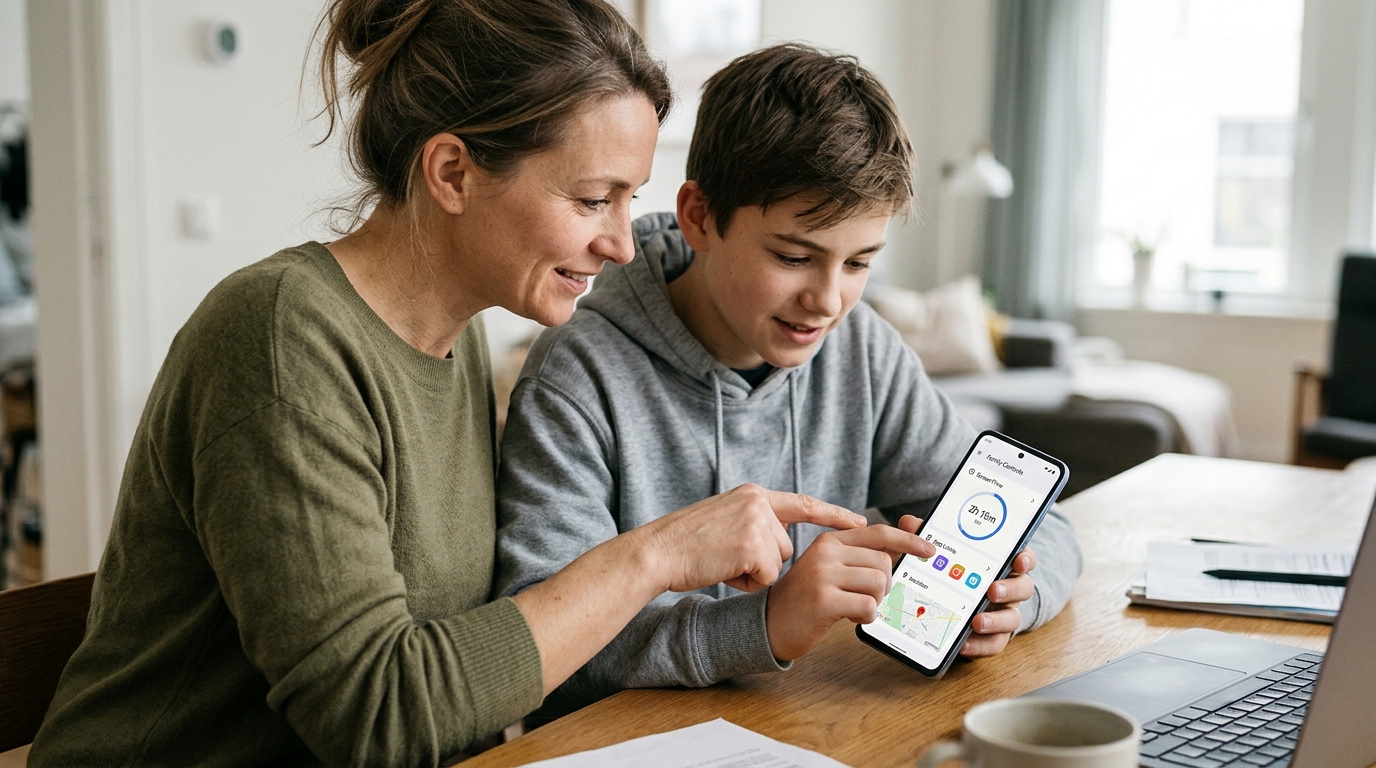
Whether your child’s classmates already have smartphones or you simply want them to stay reachable, giving them an Android phone raises an important question: how can you keep them safe online? How to Set Up Parental Controls on Android is a useful starting point for managing your child’s digital experience.
Android offers built-in parental controls that can help you manage screen time, restrict app access, filter unsuitable content, and review location settings. By combining Google Family Link, appropriate safety settings, and an open conversation with your child, you can create a safer digital environment without necessarily paying for additional software.
This guide walks through every layer: the essential settings on the phone itself, Google Family Link (the free parental control built into every Android), additional tools for deeper monitoring, and how to adjust everything as your child grows. I have set this up on a Redmi Note 12 (MIUI), a Samsung Galaxy A54 (One UI), and a Pixel 8 (stock Android), so you will get device-specific notes where they matter.
Before You Start: Two Decisions
Before touching any setting, decide two things.
First, how much control versus how much freedom. A phone for a 7-year-old should be locked down to calls, a few approved apps, and location. A phone for a 15-year-old should have guardrails but room to manage their own screen time. The settings below can be configured for either end, and everything in between.
Second, are you going to tell the child? The answer should be yes, always. Every setting in this guide works better when the child knows about it, because parental controls that are discovered in secret destroy trust faster than no controls at all. Sit down together, walk through what you are setting up and why, and answer their questions. The conversation is the most important parental control you have, and no app replaces it. See how to track a phone the right way: with consent for the framework.
Layer 1: Phone Settings (Free, 5 Minutes)
These are basic Android settings, no app needed, available on every phone.
Screen Lock
Set a PIN, pattern, fingerprint, or face unlock. This prevents anyone other than the child (and you, if you know the PIN) from accessing the phone. Without a lock, a lost phone is an open book, and a classmate can install anything.
On most phones: Settings → Security → Screen Lock.
Location
Turn location on and confirm it stays on. Without it, every location-based safety feature (Family Link location, Find My Device, monitoring apps) is blind.
Settings → Location, then toggle it on. Also turn on Google Location Accuracy (or Wi-Fi and Bluetooth scanning) for better indoor positioning.
Find My Device
This is your emergency tool if the phone is lost or stolen. Turn it on now.
Go to Settings → Security (or Google → Find My Device) and toggle it on. Confirm the child’s Google account is signed in. This lets you locate, ring, lock, or erase the phone from Google Find Hub. See the Google Find Hub guide for the full walkthrough.
Install Unknown Apps
Review this setting to reduce the risk of installing apps from untrusted sources. Where appropriate, turn off permission to install unknown apps.
Go to Settings → Apps → Special App Access → Install Unknown Apps. Review entries such as Chrome and Files and disable permission for apps that do not need it.
This helps reduce the risk of APK sideloading, which can expose a device to monitoring malware, pirated games, and other risky apps outside the Play Store.
Play Store Content Ratings
Open the Play Store, tap the profile icon, then go to Settings → Family → Parental Controls. Toggle parental controls on, set a PIN, and choose suitable content ratings for apps, games, movies, and books.
For younger children, choose age-appropriate ratings.
This can restrict downloads based on the selected ratings. It does not filter content within apps, such as individual YouTube videos or web pages, which is where additional controls may help.
How to Set Up Parental Controls on Android Using Google Family Link
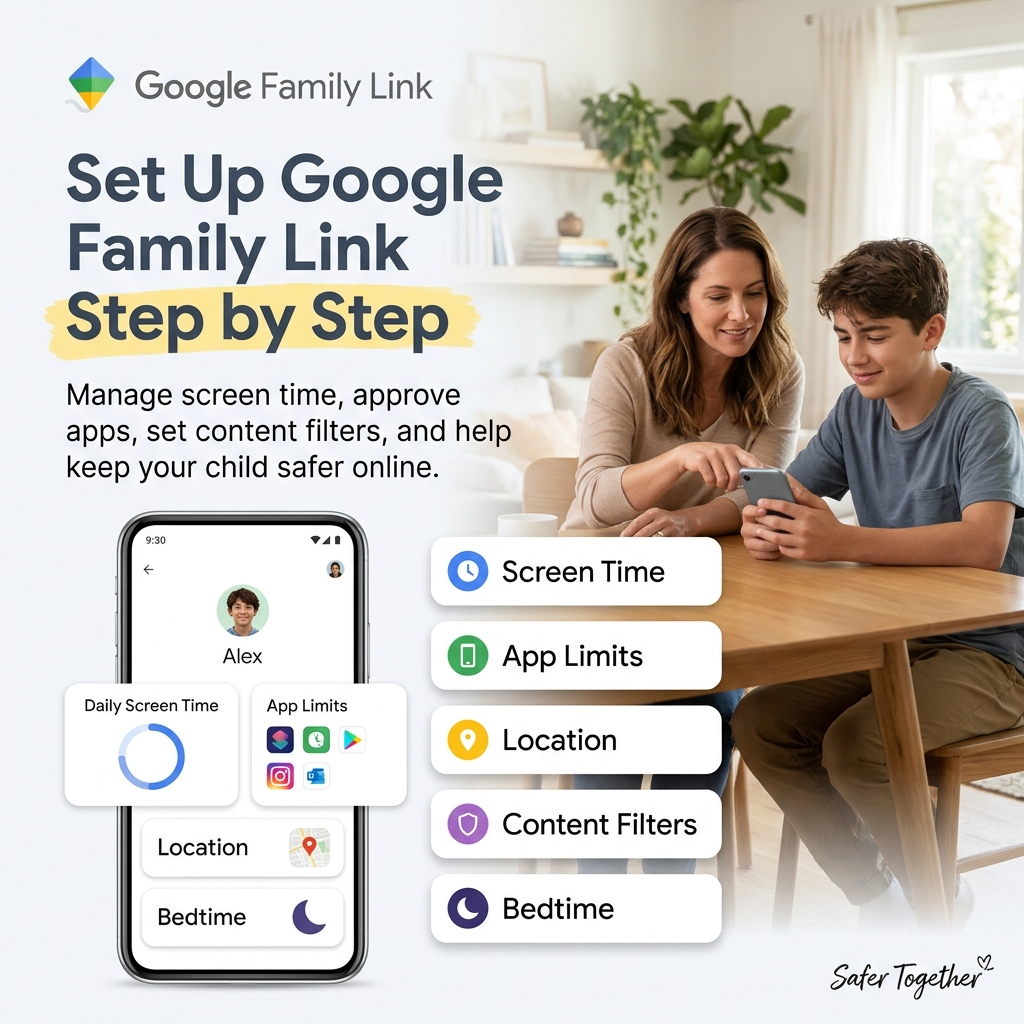
Family Link is a key part of Android parental controls. It allows parents to manage a child’s Google account and supported device settings from a parent’s device.
How to Set Up Google Family Link
Download Google Family Link on your phone, the parent’s phone, and sign in with your Google account.
If the child does not have a Google account, follow Family Link’s instructions to create a supervised child account, where eligible.
If the child already has a Google account, open Family Link, tap the option to add a child, and follow the prompts. Depending on the account and age, the child may need to approve supervision on their device.
Once the accounts are linked, open the child’s profile in Family Link and review the available controls.
What to Configure in Family Link
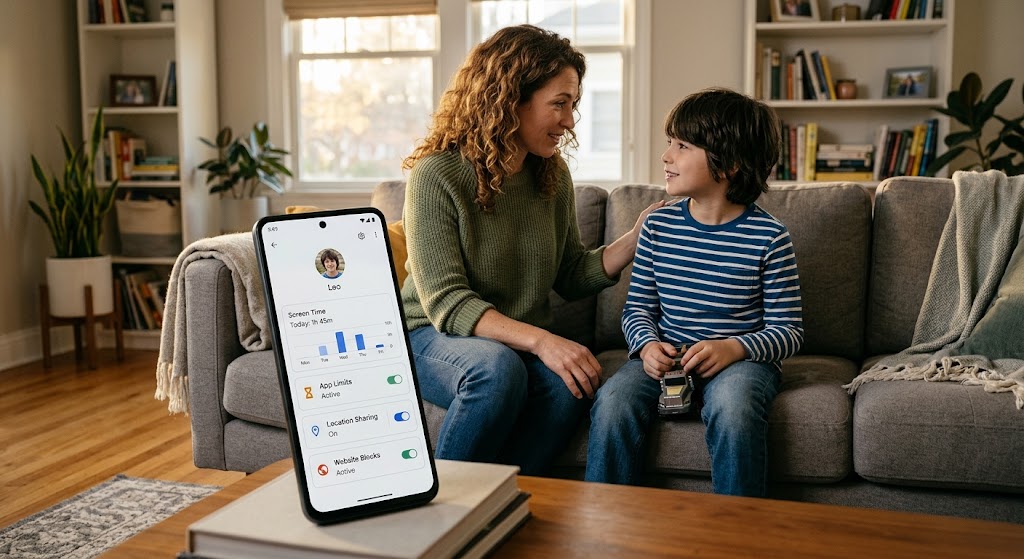
Screen time: Set a daily limit that suits your family’s routine. For example, you might start with two hours on school days and three hours on weekends. Set a bedtime schedule, such as 9:30 pm to 6:30 am on school nights, if supported by the child’s device and account.
Per-app limits: Open App Limits and set individual allowances. You might allow more time for educational apps and limit social apps, such as Instagram or Snapchat, according to your family’s needs. Available controls and how limits behave can vary by device and app.
App approval: Enable purchase and download approvals where available. This allows you to review requests for new apps before approving them.
Location: Enable location sharing in Family Link if it is available for the child’s device and account. Explain to your child when and why location sharing is being used.
Content filters: Configure Google SafeSearch to help reduce explicit results in Google Search. SafeSearch is not a complete web filter and does not control all content across apps and websites.
Chrome settings: In Family Link’s content restrictions, review Google Chrome options. Depending on the account, you may be able to allow all sites, try to block explicit sites, or allow only approved sites. The strictest option may be suitable for younger children, while older children may benefit from more flexibility.
YouTube: Review the options for supervised YouTube experiences or YouTube Kids. Choose an age-appropriate content setting and check what is available for your child’s account.
For a deeper walkthrough, see how to set up Google Family Link. For screen time management, see how to monitor screen time on Android.
Layer 3: App-Level Controls (Free, 10 Minutes)
Each major app your child uses has its own safety settings. These work alongside Family Link, not instead of it.
Review WhatsApp’s minimum-age requirements and the features available for your child’s account and region.
For teenagers who are eligible to use WhatsApp, go through the privacy settings together. Consider setting Last Seen to “My Contacts” and Groups to “My Contacts” or another appropriate option. Check Linked Devices for unfamiliar sessions and enable App Lock, where available, to help prevent someone else from opening the app.
Explain what to do if an unknown person contacts them, adds them to an unwanted group, or sends inappropriate content.
See the WhatsApp parental controls guide.
Instagram Teen Accounts include additional protections for eligible teenage users. Review the account’s privacy settings, sensitive-content controls, and restrictions on who can send direct messages.
If available, connect parental supervision through Instagram’s Family Center. This can provide parents with selected information about the teen’s account and activity, depending on the features enabled.
See Instagram parental controls and Teen Accounts.
Snapchat
Review Snapchat’s privacy settings together. Consider enabling Ghost Mode on Snap Map if your child should not share their location with friends. Set “Who Can Contact Me” to an appropriate option, such as “My Friends,” and review Quick Add and other discovery settings.
Snapchat’s Family Center can provide parents with selected information about their teen’s activity, but it does not give them unrestricted access to private messages.
See the Snapchat parental controls guide.
Layer 4: Deeper Monitoring (Optional, Paid)
Family Link helps manage screen time and supported device settings. App-level controls help manage privacy and who can contact your child. If you need additional information about activity on a compatible Android device, you may consider a dedicated monitoring tool.
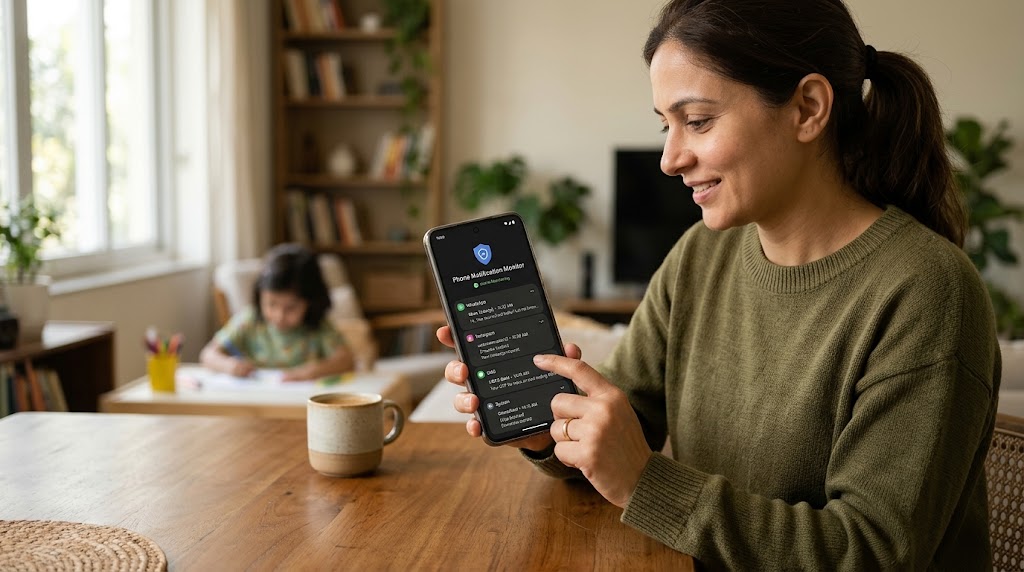
SpyHuman offers Android monitoring features that may include WhatsApp activity, SMS, call logs, app activity timestamps, browser history, notification tracking, and GPS location, depending on device compatibility, permissions, and the applicable service features.
Before installing any monitoring tool, review its permissions, compatibility, privacy implications, and lawful-use requirements. Install and use it transparently and only where you have the appropriate authority and consent. Follow the SpyHuman setup guide and read the Lawful Use Policy.
Other options include Qustodio, which offers parental-control features such as web filtering; Bark, which focuses on alerts for potentially concerning content; and Kaspersky Safe Kids, which offers parental-control and filtering tools. Features, pricing, and device compatibility vary.
See the best parental control apps for Android for a comparison.
Whether to add deeper monitoring depends on your child’s age, your concerns, and your family’s approach to privacy and trust. Many families manage well with the first three layers alone. If you add another layer, explain what it collects and why.
Layer 5: DNS-Level Web Filtering (Optional)
DNS filtering is an additional option for families who want to restrict access to certain website categories.
DNS filtering works by checking website domain requests against a filtering service. Depending on the provider and configuration, it can block categories such as adult content, malware, or gambling sites.
Options include CleanBrowsing Family Filter, OpenDNS FamilyShield, Cloudflare for Families (1.1.1.3), and NextDNS. Check each provider’s current documentation for setup instructions and features.
You can configure a filtering service on a compatible home router to cover devices using that network, or configure it on the child’s phone if the service supports it. Some services use a local VPN profile to route DNS requests through their filters.
DNS filtering can add a useful layer of protection, but it is not foolproof. It may not cover every connection or app, and children may be able to bypass some configurations using alternative DNS settings, VPNs, mobile data, or other devices. Use app approvals and age-appropriate conversations alongside technical controls.
Device-Specific Notes
Android settings vary by manufacturer and software version. If a setting is missing, check your phone manufacturer’s current support documentation.
Xiaomi / Redmi (MIUI / HyperOS)
Some Xiaomi and Redmi devices restrict background activity to save battery. If a parental-control app stops working reliably, review its battery and background-activity permissions.
Depending on the model and software version, you may find relevant settings under Settings → Apps → Manage Apps → [App Name] → Battery Saver. If appropriate, allow the app to run in the background. Some devices also offer an Autostart setting.
MIUI and HyperOS may include features such as Second Space that create a separate environment on the phone. If you are concerned about controls applying consistently across device profiles, review which profiles and spaces are active and how your parental-control settings apply to them.
Samsung (One UI)
Samsung Kids provides a restricted environment with approved apps and other child-friendly features. It can be useful for younger children who share a parent’s Samsung device.
Samsung’s Digital Wellbeing features include app timers and activity information. For teenagers, these tools can support self-management alongside Family Link’s available controls.
If a security feature such as Auto Blocker prevents an app installation, review Samsung’s documentation before changing the setting. Avoid disabling security protections unless you understand the risks and have confirmed that the app is trustworthy.
Stock Android (Pixel)
Pixel phones offer a relatively straightforward Android experience. Family Link, Find Hub, and Digital Wellbeing can provide parental-control, device-location, and screen-time features where supported by the account and device configuration.
You can also use calendar reminders and other built-in tools to help your child manage schoolwork, routines, and responsibilities alongside their phone use.
Age-by-Age Parental Control Settings
The right settings depend on your child’s maturity, needs, and circumstances. Use these age groups as starting points rather than strict rules.
Under 8: Shared Device or Basic Phone
- Use a minimal selection of approved apps.
- Avoid social apps that are not appropriate for the child’s age.
- Set short, predictable screen-time periods, such as 30–60 minutes for recreational use.
- Require approval for app installations where available.
- Keep the device focused on calls, communication with trusted adults, and age-appropriate educational apps.
Ages 8–10: First Own Phone
- Set up Family Link supervision where supported.
- Establish school-day and weekend screen-time routines.
- Consider YouTube Kids or another age-appropriate video experience.
- Review app-installation requests.
- Enable location sharing when appropriate and explain how it is used.
- Check in weekly with your child about what they are doing online.
Ages 10–12: Pre-Teen
- Continue using age-appropriate account and device supervision.
- Review messaging apps and their minimum-age requirements before allowing use.
- Configure SafeSearch and suitable web-filtering options.
- Set reasonable screen-time limits and app-specific rules.
- Have regular conversations about online contacts, privacy, and uncomfortable experiences.
Ages 13–15: Early Teen
- Adjust Family Link and app limits as your teenager demonstrates responsibility.
- Review privacy and safety settings for eligible apps, including Instagram Teen Accounts.
- Discuss location sharing and agree on appropriate boundaries.
- Consider additional monitoring only where there is a clear need, with transparency about what it collects.
- Shift from “I control” towards “we agree.”
Ages 16–17: Older Teen
- Discuss whether ongoing Family Link supervision remains appropriate.
- Consider voluntary location sharing instead of relying solely on enforced tracking.
- Encourage the use of Digital Wellbeing and self-managed screen-time goals.
- Agree on privacy boundaries and what support is available if something goes wrong.
- Focus on preparing your teenager to manage their digital life independently.
The pattern is simple: start with appropriate safeguards, review them regularly, and gradually replace restrictions with responsibility and conversation.
The Conversation Template
When you sit down with your child, cover these points.
Explain what you are setting up:
“I’m setting up some safety features on your phone. Here’s what I’ll be able to see.” Be specific about information such as location, app usage, and any activity information collected by tools you choose to use.
Explain why:
“Some people online aren’t who they seem, and some content isn’t appropriate for your age. I want to help you stay safe while you figure things out.”
Make it safe to ask for help:
“If something happens on your phone that worries you, come to me. The first thing I’ll do is help, not punish.”
Explain how things can change:
“As you get older, we’ll review these controls and loosen them together when you’re ready.”
This conversation should happen before you configure monitoring. Every technical setting in this guide works best when your child understands its purpose and knows they can come to you for help.
Emergency Features to Enable
Two features are worth reviewing before your child starts using their phone independently.
Emergency SOS
Many Android phones include an Emergency SOS feature under Settings → Safety and Emergency. Depending on the model and region, it may let the user contact emergency services or notify emergency contacts using a button sequence.
Configure it according to your phone’s instructions and make sure your child knows how to use it. Do not assume the same button sequence or features are available on every Android device.
Emergency Contacts
Add trusted adults to the phone’s emergency contacts where supported. Consider including yourself and another trusted adult who can help if you are unavailable.
Check how emergency calls and contacts behave when screen-time limits or bedtime settings are active. Do not assume every restriction or device handles emergency functions in the same way.
ICE (In Case of Emergency) Information
Some phones let you add emergency contacts and medical information that can be accessed from the lock screen. If you choose to use this feature, enter only information you are comfortable making available to someone who finds the device.
These features take only a short time to review and may be useful in an emergency.
Tablets and Shared Devices
If your child uses a family tablet rather than their own phone, check whether Android supports separate user profiles on that device. Where available, a separate child profile can help keep their apps and activity separate from your own.
For a younger child using a compatible Samsung tablet, Samsung Kids offers a restricted environment with a separate home screen, approved apps, and a parent PIN.
If your child uses both a phone and a tablet with the same Google account, review how Family Link supervision and screen-time limits apply across both devices. Available controls and whether usage is combined can vary by configuration.
Common Mistakes to Avoid
Setting everything up in secret. If your child discovers undisclosed monitoring, trust can be damaged. Explain what you are setting up and why.
Setting restrictions and never reviewing them. A 15-year-old may need different boundaries from a 10-year-old. Revisit controls as your child matures.
Over-monitoring and under-talking. Checking activity without discussing online safety can teach a child that technical data matters more than their judgment. Keep the conversation open.
Forgetting about other devices. Parental controls only apply to the devices, accounts, networks, and apps they actually cover. They cannot prevent every risk from a friend’s phone or a school computer.
Assuming one tool does everything. Screen-time controls, content filters, location sharing, and monitoring tools serve different purposes. Understand their limitations and use only the features your family needs.
Frequently Asked Questions
How much do parental controls on Android cost?
Many built-in Android settings, Google Family Link features, and app-level privacy settings are free. Some dedicated monitoring tools and DNS-filtering services offer free tiers as well as paid plans. You can build a useful basic safety setup without purchasing a subscription.
Can my child bypass Google Family Link?
The options available depend on the child’s age, account configuration, and device. Some supervised accounts restrict changes to settings, while older children may have options to change or stop supervision. A factory reset may remove some local settings, but account protections can still apply. No parental-control tool should be treated as impossible to bypass.
Does Google Family Link work on iPhones?
Family Link can manage certain Google account settings on supported devices, but its device-level controls are more limited on iPhones than on Android. For Apple’s built-in controls, see the iPhone parental controls guide.
Should I root my child’s phone for better monitoring?
Rooting is generally not recommended for ordinary parental-control use. It can weaken security protections, affect warranty coverage, and cause apps or device features to stop working correctly. Review the capabilities of non-root tools before considering any modification.
What if my child needs the phone for homework?
Configure screen-time rules around your child’s actual routine. Where supported, exempt essential educational apps from limits or schedule homework time when those apps remain available. Discuss the arrangement with your child and adjust it if it interferes with schoolwork.
Is it legal to set up parental controls on a child’s phone?
The legal position depends on your location, the child’s age, your parental authority, the information collected, and how monitoring is carried out. Parental controls do not automatically make every form of monitoring lawful. Be transparent, respect privacy, and review applicable laws and the tool’s terms before collecting messages, location, or other personal information.
For more information, read our guide on whether it is legal to track a phone.
Leave a Reply