
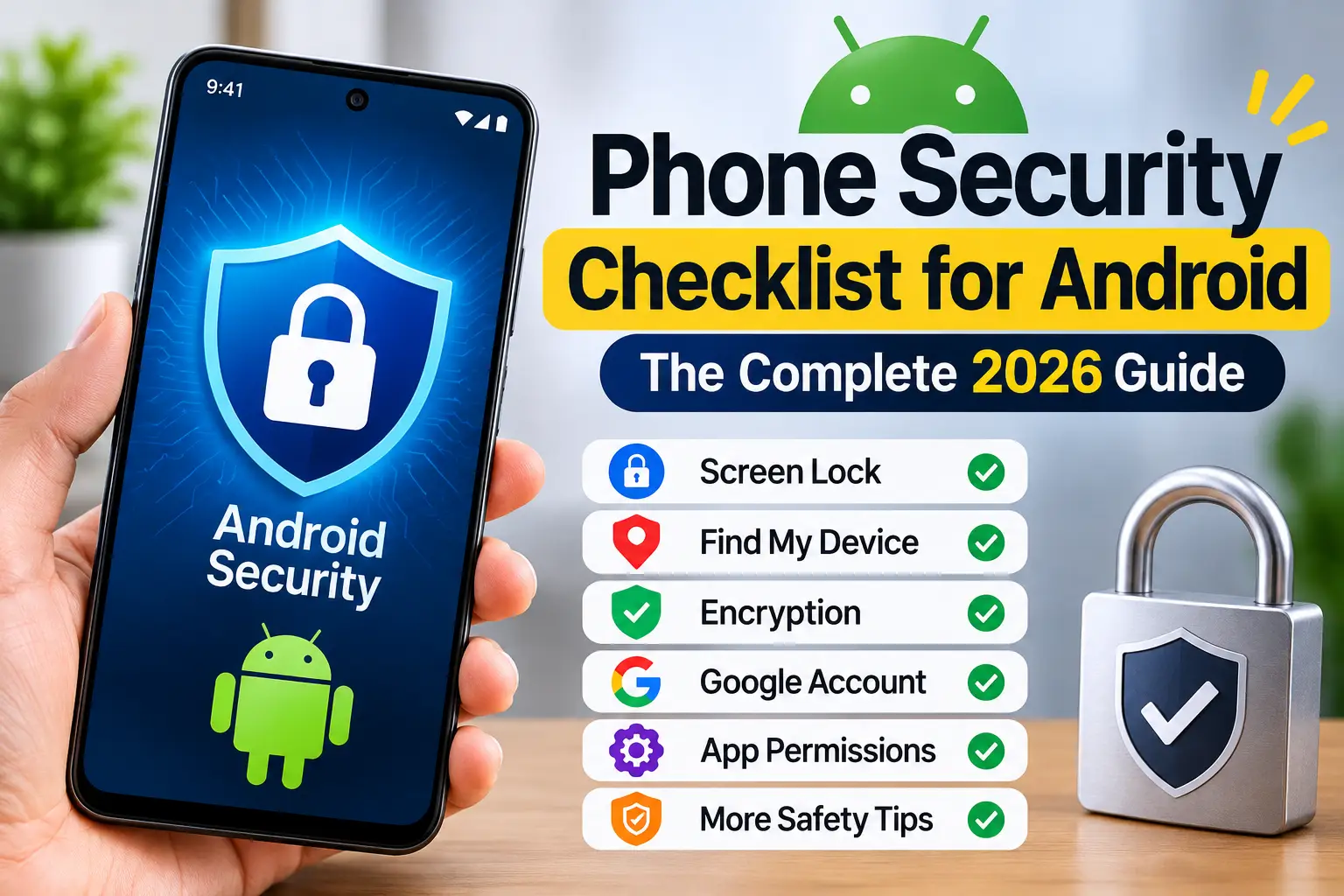
A phone without security settings is a wallet left open on a bus. Everything is in there: banking apps, passwords, private messages, photos, location history, and access to every account you’ve ever signed into. And unlike a wallet, a compromised phone can be accessed remotely, not just by someone who picks it up.
This checklist covers every security setting that matters on an Android phone, in the order you should set them up. It takes about 15 minutes from start to finish, and it protects against the three most common threats: physical theft, remote hacking, and data leakage through apps.
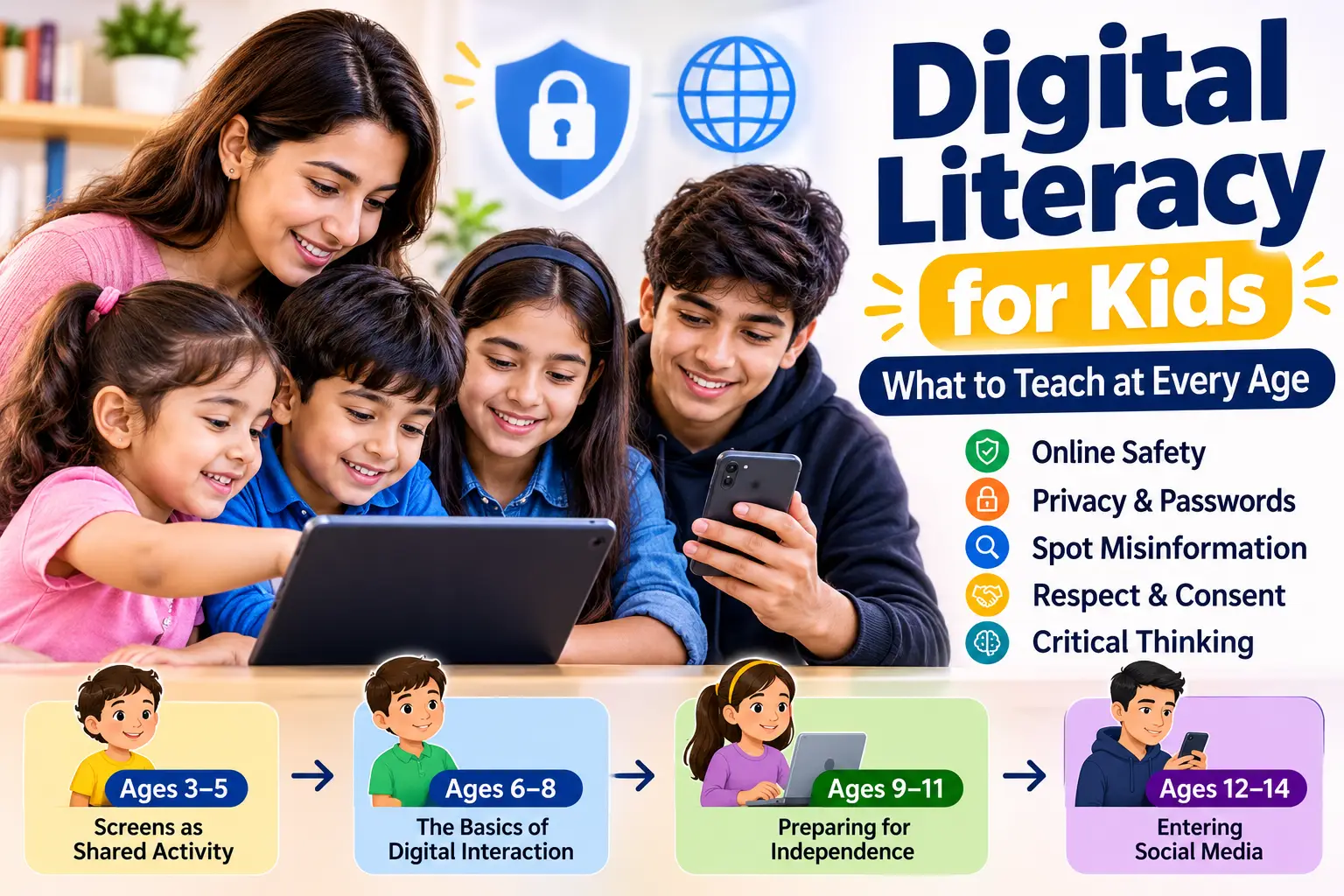
Whether you’re securing your own phone or setting up your child’s device for the first time, this is the baseline. For the broader picture of keeping kids safe online (beyond just phone settings), see the online safety for kids guide.
1. Screen lock (the absolute minimum)
If you do one thing from this list, do this.
Settings, Security, Screen Lock. Set a PIN (at least 6 digits), pattern, fingerprint, or face unlock. A phone without a screen lock can be fully accessed by anyone who picks it up: they can read your messages, access your banking apps, change your passwords, and impersonate you.
Fingerprint or face recognition is the best balance of security and convenience. Use PIN as the backup. Avoid “swipe” or “none,” which are the same as no lock.
Lock timing. Settings, Security, Screen Lock, set the lock to activate “Immediately” or after 5 seconds. A 30-second delay means anyone who grabs your phone within half a minute of your last use has full access.
Smart Lock. Android’s Smart Lock keeps the phone unlocked when it’s in a “trusted” location or connected to a trusted device. Disable this for maximum security, or use it only for your own home. A child’s phone should not use Smart Lock at school or in public. For the full child-device setup (beyond just security settings), see how to set up parental controls on Android and Google Family Link step by step.
2. Find My Device / Find Hub
Settings, Security (or Google), Find My Device. Toggle on.
This lets you locate the phone on a map, ring it at full volume, lock it remotely, or erase it if it’s lost or stolen. Without it, a lost phone is gone forever. See Google Find Hub guide for the full walkthrough.
Also confirm: Settings, Google, Find My Device, “Use Find My Device network” is on (for offline finding on supported devices).
3. Encryption
Modern Android phones (Android 6 and above) encrypt the device storage by default. This means if someone removes the phone’s storage chip and tries to read it on another device, the data is unreadable without the screen-lock credential.
Confirm it’s on: Settings, Security, Encryption. It should say “Encrypted.” If it says “Encrypt phone,” tap it and follow the prompts. This takes 30 to 60 minutes and should be done while the phone is charging.
Encryption protects data at rest. It does not protect data from someone who has your screen-lock PIN.
4. Google account security
Your Google account is the key to everything on an Android phone. Securing it is as important as securing the phone itself.
Two-factor authentication (2FA). Go to myaccount.google.com, Security, 2-Step Verification. Turn it on. Use the Google Authenticator app or Google Prompts (a tap on your phone to verify sign-ins). SMS-based 2FA is better than nothing but vulnerable to SIM-swap attacks.
Recovery email and phone. Set a recovery email and phone number that you actually have access to. This is how you get back into the account if you forget the password or someone changes it.
Security checkup. Go to myaccount.google.com, Security Checkup. Google walks you through recent sign-ins, connected devices, third-party app access, and saved passwords. Do this once, then repeat every few months.
Connected devices. Go to myaccount.google.com, Security, Your Devices. Remove any device you don’t recognise.
5. App permissions
Every app requests permissions when you install it. Most people tap “Allow” without reading. This is how a flashlight app ends up with access to your contacts and microphone.
Review permissions. Settings, Privacy (or Apps), Permission Manager. Go through each category: Camera, Microphone, Location, Contacts, Phone, SMS, Files. For each, review which apps have access and revoke anything unnecessary.
The rule: an app should have only the permissions it needs to function. A photo editor needs Camera. It doesn’t need Contacts or Phone. A messaging app needs Contacts and possibly Microphone. It doesn’t need Camera unless you use video calls. A weather app needs Location. It doesn’t need SMS.
Set sensitive permissions (Camera, Microphone, Location) to “Ask every time” or “Only while using” rather than “Allow all the time,” unless the app genuinely needs continuous access (like a monitoring or navigation app).
Special app access. Settings, Apps, Special Access. Review “Install unknown apps” (should be off for everything), “Device admin apps” (should only include trusted apps like Find My Device and a parental control app like SpyHuman’s phone tracker), and “Display over other apps” (malware often requests this). Any monitoring app on the device should be there with the user’s knowledge, as required by our Lawful Use Policy.
6. Play Protect
Google Play Protect is Android’s built-in malware scanner. It scans apps on your device and warns about potentially harmful ones.
Open the Play Store, tap your profile icon, Play Protect, and run a scan. Make sure “Scan apps with Play Protect” and “Improve harmful app detection” are both on.
Play Protect specifically flags stalkerware and monitoring apps that are installed without the user’s knowledge, which is relevant for parents: a legitimately installed parental monitoring app (installed openly with the child’s knowledge) is different from a covertly installed one, and Play Protect treats them accordingly. If you suspect someone has installed monitoring software on your phone without your consent, see am I being tracked: how to check and stop it.
7. Software updates
Outdated software is the easiest way into a phone. Every security update patches vulnerabilities that hackers can exploit.
Settings, System, System Update. Check for updates and install any available. Turn on automatic updates if your phone supports it.
Also update apps. Open the Play Store, tap your profile, Manage Apps and Device, and update all. App updates patch security holes just as system updates do.
8. Two-factor authentication on critical apps
Beyond your Google account, enable 2FA on every app that supports it, especially banking apps, email, WhatsApp, Instagram, and Snapchat.
WhatsApp: Settings, Account, Two-step Verification. Set a 6-digit PIN. This prevents someone from registering your number on another device without the PIN.
Instagram: Settings, Security, Two-Factor Authentication. Enable it with the Authentication App method (not SMS).
Banking apps: most Indian banking apps now require biometric or PIN verification for every transaction. Confirm this is enabled and that auto-login is off.
9. Safe browsing
Chrome: Settings, Privacy and Security, Safe Browsing. Set to “Enhanced Protection” (recommended) or “Standard Protection.” This warns you about dangerous websites, downloads, and extensions before you reach them.
Do not download APK files from unknown websites. If a site asks you to download an app outside the Play Store, it is almost certainly malware, a scam, or both.
10. SIM lock
Settings, Security, SIM Card Lock. Set a SIM PIN. This prevents someone from using your SIM in another phone without the PIN.
The default SIM PIN is usually 1234 or 0000 (set by the carrier). Change it to something personal. If you enter the wrong PIN three times, the SIM locks and requires a PUK code from your carrier to unlock, so remember the PIN.
11. Backup
Settings, System (or Google), Backup. Turn on backup to Google Drive. This saves your app data, call history, contacts, settings, and photos. If the phone is lost or wiped, you can restore everything to a new device.
Check that backup is actually running: the last backup date should be recent (within the past 24 hours for a phone connected to Wi-Fi regularly). If it hasn’t backed up in weeks, check the Wi-Fi connection and Google account storage.
12. IMEI record
Dial *#06# and write down both IMEI numbers (for dual-SIM phones). Store them in your email, on a computer, or on the phone’s original box.
If the phone is stolen, the IMEI is how you block it across all Indian networks through the CEIR portal. See how to track a phone by IMEI for the full process.
13. Anti-theft setup (Factory Reset Protection)
Factory Reset Protection (FRP) is on by default on most modern Androids. It means that after a factory reset, the phone requires the original Google account credentials to set up. This makes a stolen phone useless to a thief, because they can’t set it up as their own.
Confirm it’s active by checking that your Google account is signed in and that a screen lock is set. Both are required for FRP to work.
The quarterly review
Security is not a one-time setup. Every three months, spend 10 minutes on a review.
Run Google Security Checkup (myaccount.google.com). Run Play Protect scan. Check app permissions for anything new. Update the operating system and all apps. Review connected devices and remove unknowns. Check that backup is running. Verify IMEI record is still accessible.
This quarterly habit catches permissions that crept in, devices you forgot about, and updates you missed. Ten minutes every three months is the cost of a secure phone.
Frequently asked questions
Is antivirus software necessary on Android? Google Play Protect provides basic malware scanning. For most users, Play Protect plus safe browsing habits (don’t sideload APKs, don’t click suspicious links) is sufficient. A dedicated antivirus app (Kaspersky, Norton, Bitdefender) adds an extra layer but is not essential for most people.
Can my phone be hacked remotely? Remotely compromising a modern, updated Android phone is extremely difficult and typically requires nation-state-level resources. The vast majority of phone compromises happen through phishing (the user taps a link and grants access) or physical access (someone installs something on the unlocked phone). Keep the phone updated and don’t tap suspicious links.
Is a VPN necessary for phone security? On public Wi-Fi (airports, cafes, hotels), a VPN adds meaningful protection by encrypting your traffic. On your home Wi-Fi or mobile data, it’s less necessary. Free VPNs are often worse than no VPN (they log and sell your data). If you use a VPN, use a paid, reputable one.
My phone is old and no longer gets security updates. Is it safe to use? An unpatched phone is increasingly vulnerable over time. If the phone hasn’t received a security update in over a year, consider upgrading. If that’s not possible, be extra cautious: don’t install apps from outside the Play Store, don’t use the phone for banking, and keep it behind a strong screen lock.
What’s the most important single setting on this list? Screen lock. Everything else builds on it. Without a screen lock, encryption is bypassed, anti-theft is useless, and app permissions don’t matter because anyone can open any app.
Leave a Reply