
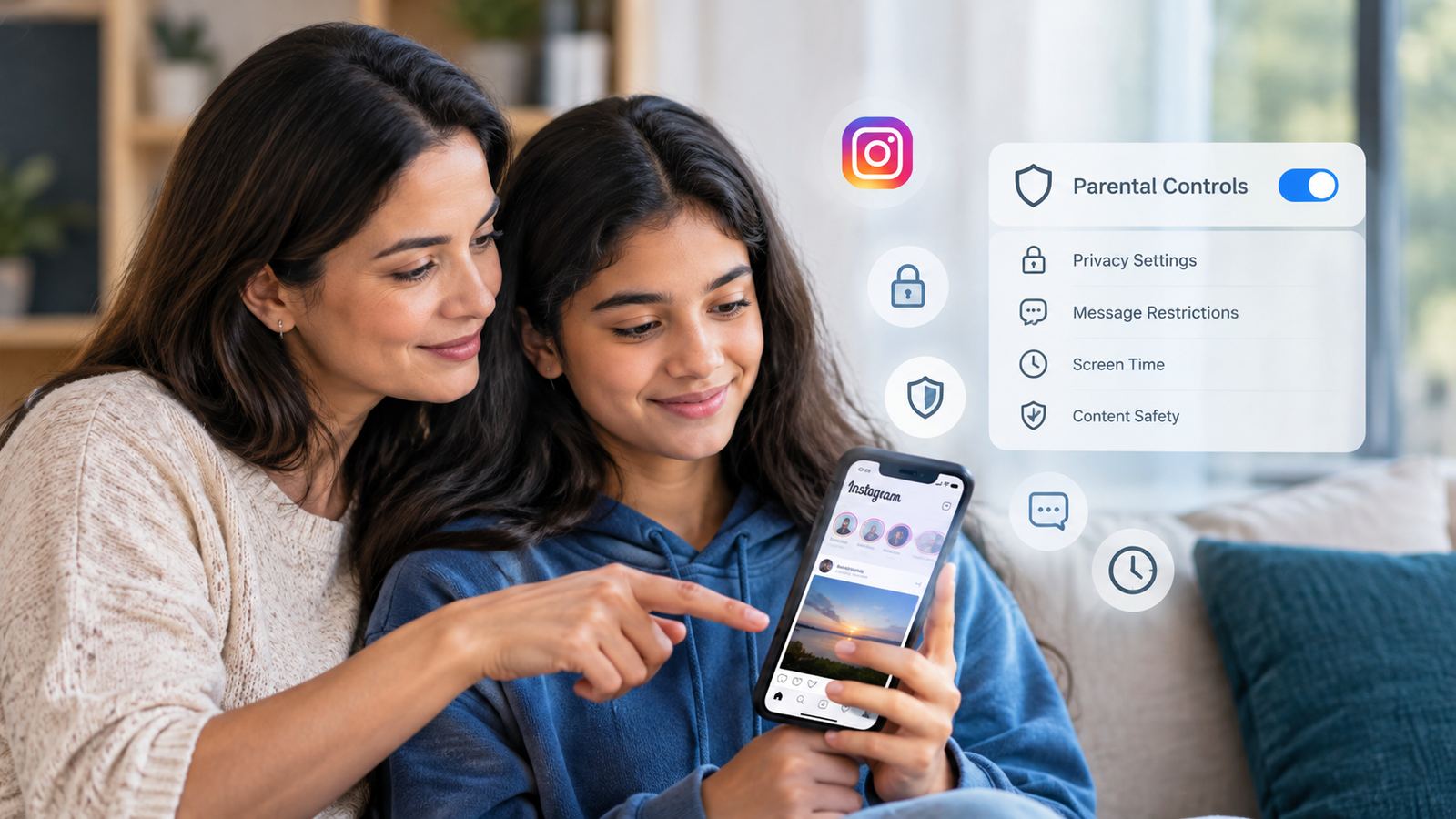
Instagram is the app most parents worry about after WhatsApp, and for good reason. It’s visual, social, and algorithmically designed to keep users scrolling. Instagram Parental Controls and Teen Accounts give parents more tools to manage a teenager’s Instagram experience, but understanding what these controls actually cover is important.
The good news is that Instagram’s own parental controls have gotten significantly stronger. Teen Accounts, which Meta made mandatory for users under 16, give parents real levers. The bad news is that these controls have limits, and most parents don’t know what they do or don’t cover.
This guide walks through everything: what Teen Accounts are, how Family Center works, which settings to configure, the honest limits, and what to do when Instagram’s built-in tools aren’t enough.
Instagram Parental Controls and Teen Accounts: What Parents Need to Know
Instagram Teen Accounts are restricted accounts automatically applied to users who register as under 16 (or under 18 in some countries, including parts of the EU).
A Teen Account looks like a regular Instagram account to the user, but it runs with a set of restrictions the teen can’t fully remove on their own. The defaults are deliberately protective, and changing them to less restrictive settings requires parental approval through Instagram’s Family Center.
Standard Teen Account Restrictions
-
Private Account by Default: Only approved followers can see posts and stories.
-
Strict Content Filtering: Sensitive content control is set to the most restrictive level.
-
Restricted Messaging: Direct messages (DMs) are limited so only people the teen follows or is already connected to can message them.
-
Sleep Mode: Notifications are automatically silenced between 10:00 PM and 7:00 AM.
-
Time Reminders: Daily reminders trigger automatically after 60 minutes of daily app usage.
These defaults are reasonable. The problem is that many parents don’t realize they exist, don’t know they can tighten or loosen them, and don’t know what they don’t cover.
Setting Up Family Center (Parental Supervision)
Family Center is Instagram’s parental dashboard. It lets a parent link their Instagram account to their teen’s and manage settings remotely.
To set it up, both the parent and the teen need Instagram accounts. The parent opens Instagram, goes to Settings > Family Center, and sends an invitation to the teen’s account. The teen accepts on their device. Once linked, the parent can manage settings directly from their own phone.
What Parents Can See and Do
-
Monitor Usage: View total daily screen time spent on Instagram.
-
Enforce Time Limits: Set a daily time limit (the teen gets a notification when they hit it).
-
Review Connections: See who the teen follows and who follows them.
-
Schedule Scheduled Breaks: Block access during specific hours, such as school time or bedtime.
-
Safety Alerts: Receive notifications if the teen reports or blocks another account.
What Parents Cannot Access
-
Read personal Direct Messages (DMs).
-
View the specific content of posts or stories.
-
See search history or watched Reels.
-
Prevent the creation of secondary accounts.
Privacy Settings to Configure Together
Sit down with your teen and go through these settings together. The conversation matters as much as the technical toggles.
-
Account Privacy: Keep the account set to Private. A public account allows any stranger to view photos and stories unnecessarily.
-
Story Sharing: Set up a Close Friends list for stories. Disable story resharing to messages to prevent unauthorized distribution.
-
Comments: Restrict comments to people you follow. Enable the hidden-words filter to block offensive language automatically.
-
Tags and Mentions: Limit photo tags and comment mentions to people you follow.
-
Activity Status: Turn off Show Activity Status so strangers cannot see when the teen is actively online.
-
Message Requests: Ensure message requests are set to People you follow or No one.
-
Sensitive Content Control: Keep this toggle on the strictest default setting.
The Honest Limits of Instagram’s Controls
Instagram’s parental controls are better than nothing, but they have real gaps:
-
No Content Visibility: You can see time spent and followers, but not what the teen posts, what they see in their feed, what DMs they receive, or what they search for.
-
Secondary Accounts: A teen can create another account using a different email address. If they lie about their age on the new account, Teen Account restrictions won’t apply automatically.
-
Web Browser Access: The browser version of Instagram (
instagram.com) doesn’t enforce every app-level restriction, allowing potential time limit bypasses. -
Third-Party Devices: If the teen logs into Instagram on a friend’s phone or school computer, Family Center restrictions don’t follow the hardware.
-
DM Encryption: End-to-end encryption for DMs prevents external scanning, protecting user privacy while simultaneously limiting platform-level detection of harmful chat threads.
When Instagram’s Built-In Tools Aren’t Enough
If you need more visibility or control than Family Center provides, two options exist:
1. Device-Level Controls (Family Link / Apple Screen Time)
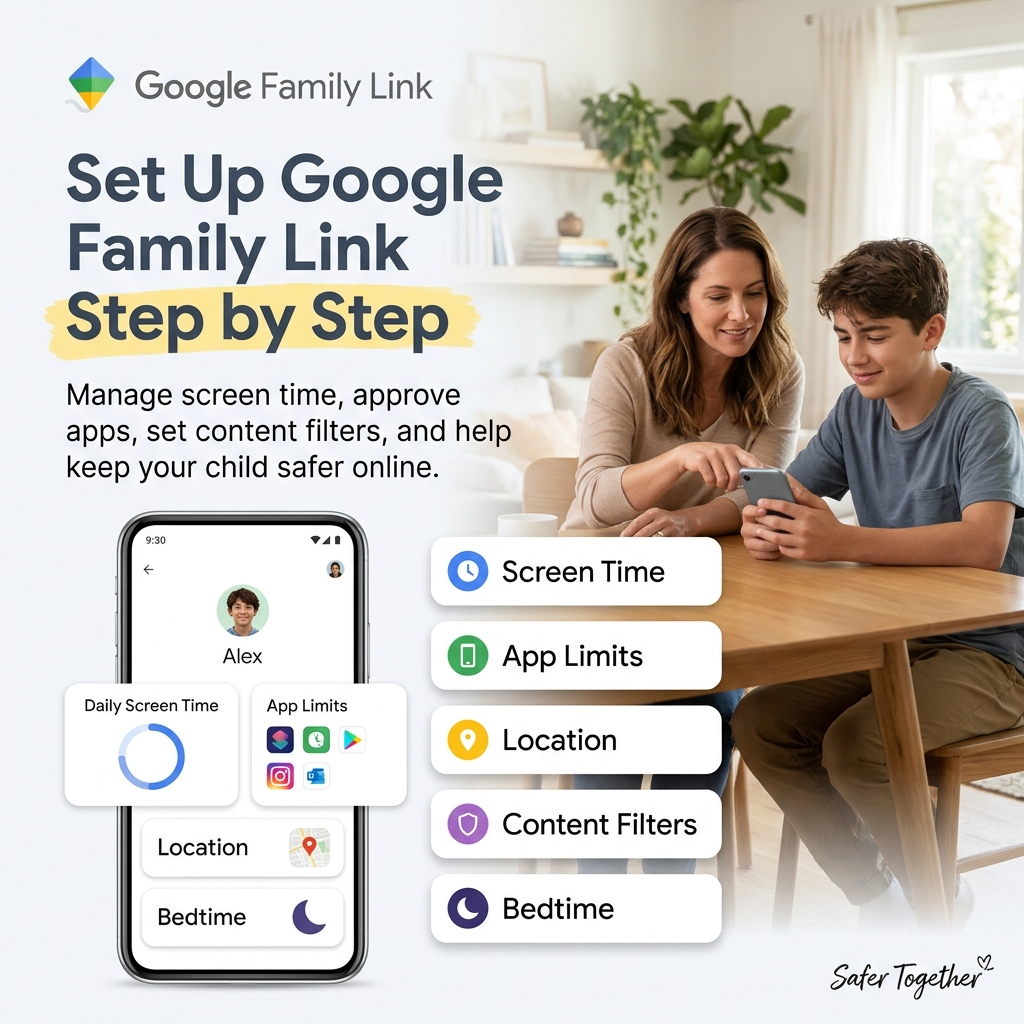
Google Family Link and Apple Screen Time provide hardware-level controls. They enforce strict daily limits, block the application entirely during scheduled hours, and require parent approval for new app downloads. While they don’t show message content, they enforce time caps far more strictly than Instagram’s soft reminders.
2. Specialized Monitoring Software
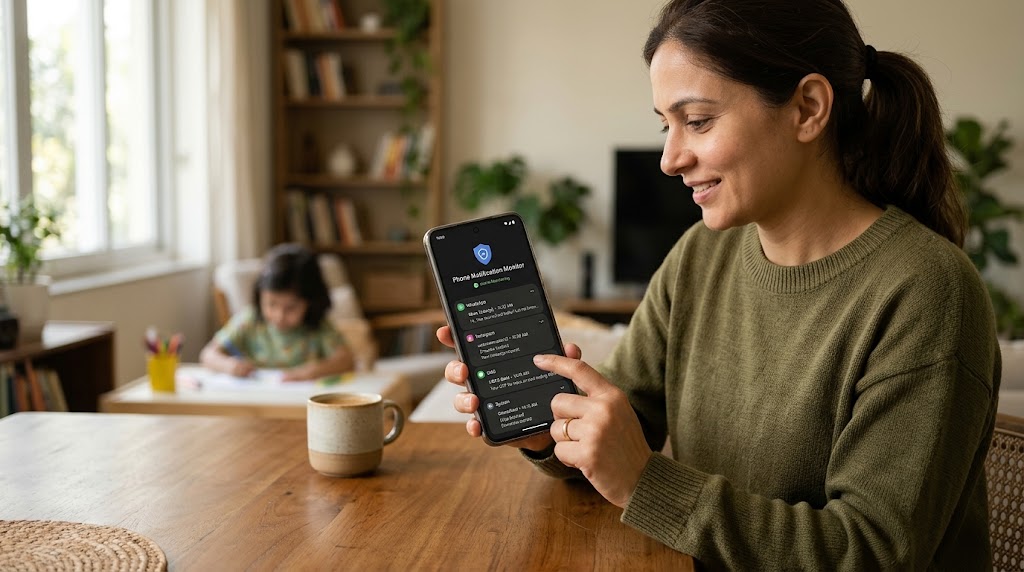
For parents requiring full visibility into Instagram activity, including DMs, posted content, and media exchanges, a dedicated background monitoring app installed on the teen’s device fills the gap. Always deploy these tools openly and transparently in accordance with our tracking with consent guidelines.
Instagram vs. WhatsApp vs. Snapchat: A Comparison
| Platform | Primary Safety Risk | Built-in Parental Controls | Key Restriction Gap |
|
|
Unknown contact requests, group risks |
Parent-managed accounts (under 13), privacy locks |
No chat reading or automated content filtering |
|
|
Harmful content, body image issues, DM harassment |
Teen Accounts, Family Center, strict content filters |
No visibility into DM content or feed posts |
|
Snapchat
|
Disappearing media, live location leaks |
Family Center, stranger contact limits |
Self-deleting messages, location visible by default |
For WhatsApp details, read our WhatsApp parental controls guide. For Snapchat details, review our Snapchat parental controls guide.
Talking to Your Teen About Instagram
-
Curated Feeds vs. Reality: Remind your teen that posts represent a highlight reel rather than real life. This distinction is critical for managing body image expectations and social pressure.
-
Handling Unsolicited DMs: Establish a clear rule: do not respond to unknown profiles, block the account, and inform a parent immediately if an interaction feels uncomfortable.
-
The Permanence of Digital Media: Emphasize that temporary stories or disappearing media can easily be captured via screenshots before expiring.
-
Open Communication: Ensure your teen knows that coming to you for help with uncomfortable online situations will result in support rather than immediate punishment.
Reporting, Blocking, and Restricting
Teach your teen how to use Instagram’s safety tools directly:
-
Reporting and Blocking: Tap the three-dot menu on any profile to report or block an account.
-
The “Restrict” Feature: Restricting a user limits their comment visibility to themselves only and moves their DMs to Message Requests without notifying them. This minimizes harassment without triggering the retaliation that sometimes accompanies a public block.
Emergency Reporting: In serious cases involving cyberbullying, threats, or explicit media involving minors, report the activity to local cybercrime authorities (such as
cybercrime.gov.inor the 1930 helpline) in addition to filing a platform report.
Location Data Risks on Instagram
While Instagram does not feature a real-time tracking map like Snapchat, location data can still leak unintentionally:
-
Location Tags: Tagging specific locations on posts reveals real-time movements.
-
Visual Context: Background details like school uniforms, street signs, or recognizable landmarks reveal frequented areas.
Best Practice: Do not tag schools, residential addresses, or routine locations. Post photos only after leaving a venue, and ensure device cameras do not embed GPS metadata prior to uploading.
Reels and Algorithmic Content
Instagram Reels are engineered to maximize user engagement. For a teenager, algorithmic recommendations can occasionally lead to repetitive exposure to comparison content or sensationalized material.
While Teen Accounts enforce strict sensitive-content defaults, parents should actively talk with teens about how algorithms operate. Encourage them to actively tap “Not Interested” on unhelpful videos to redirect their feed toward safer content.
Frequently Asked Questions
What age does Instagram require for a standard account?
13 in most countries, 14 in select regions (such as Spain or South Korea), and 16 across parts of the EU. Teen account protections apply automatically to all registered users under 16 (or 18, depending on regional laws).
Can my teen disable Teen Account restrictions on their own?
No. They can request modifications to specific options, but all adjustments require parental approval via Family Center.
Can I read my teen’s Instagram DMs through Family Center?
No. Family Center does not provide access to private message threads. Reading messages requires direct device inspection or a dedicated monitoring app.
Should I follow my teen on Instagram?
Following your teen provides light oversight. However, combining a follow-up with clear offline conversations works significantly better than attempting to monitor their activity in secret.
What if my teen lies about their age when creating an account?
Meta uses age-verification systems (including video selfies and document checks) to catch false age entries. However, hardware-level tools (Google Family Link, Apple Screen Time) serve as the most effective backup layer.

Leave a Reply