Google Family Link is the free, built-in way to manage your child’s Android phone — screen time, app downloads, location, the lot. The setup trips people up because it spans two devices and two different apps, and one wrong account choice means starting over. This guide walks it in order, exactly as it works in 2026, so you get it right the first time. Budget about 10–15 minutes and have both phones in front of you.
What you need before you start
A quick checklist so you don’t get stuck halfway:
- Your phone (Android or iPhone) with the Family Link app — this is your parent dashboard.
- Your child’s Android phone or Chromebook — Family Link supervises Android child devices, not iPhones.
- Your own Google account signed in on your phone.
- A payment card or government ID for identity verification when creating a child account (Google charges and immediately refunds a tiny amount, around $0.30, to confirm you’re an adult).
How do you set up Google Family Link?
Install Family Link on your phone, sign in with your own Google account, and choose “Parent.” Then add your child — either link their existing Google account or create one for them — and verify you’re an adult. Finally, sign that same child account into their Android device and turn on supervision. Once linked, you manage everything from your phone.
That’s the shape of it. Here’s each step in detail.
Step 1: Install Family Link on your phone
On your own device, open the Google Play Store (or the App Store on iPhone), search for Family Link, and install it. Open the app and sign in with your own Google account — not your child’s.
When the app asks whose account this is, choose Parent. This is the choice people most often get wrong; picking the wrong role here means redoing setup.
Step 2: Add your child
Tap Add child and follow the branch that fits:
- If your child already has a Google account (common for older kids), tap Yes and enter their details to link it.
- If they don’t have one yet, tap No to create one. Choose an email address they can keep as they grow, and set a strong password (a password manager helps here).
You’ll then verify your identity as an adult — via that small refunded card charge or a photo of a government ID. This is a Google requirement, not an optional step.
Step 3: Set up the child’s Android device
Now move to your child’s phone.
- Turn on the device and sign in with the child’s Google account — the exact one you created or linked in Step 2. This must match, or supervision won’t connect.
- On the child’s phone, open Settings, then go to Google > All services > Parental controls.
- Tap Supervise account.
- You’ll be asked to enter your email and password (to register as the supervising parent) and then confirm your child’s password to finish.
On some setups Google prompts you to install the separate Family Link for children & teens helper on the child device — follow the prompt if it appears. (Note that historically there were two apps; let Google guide which components your devices need.)
Step 4: Set screen time, apps, and location
Back on your phone, open Family Link and select your child. From here you control:
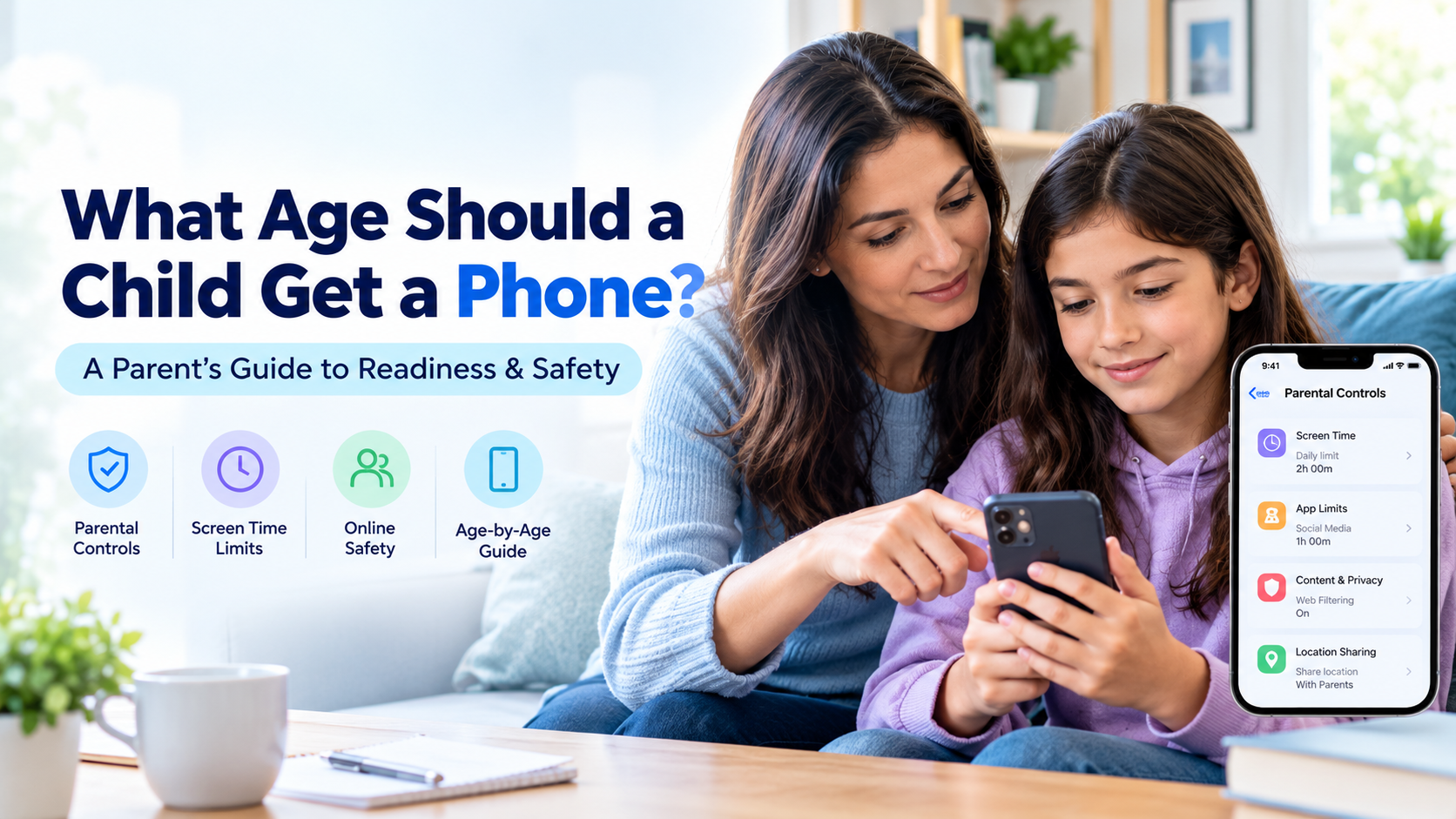
- Screen time — a daily limit and a device bedtime (downtime) when the phone locks.
- App limits — caps on specific apps, plus approval for new downloads and in-app purchases.
- Content filters — restrictions for Google Play, Search, and Chrome appropriate to their age.
- Location — see your child’s device on a map.
Set these to match your child’s age. If you’re unsure what’s reasonable, our sibling guide How Much Screen Time Is Healthy for Kids breaks down age-by-age benchmarks.
Step 5: Talk to your child about it
This isn’t a technical step, but it’s the one that makes the whole thing work. Show your child what you’ve turned on and why. Monitoring that’s open gets far less resistance — and far less sneaking around — than rules discovered in secret. Frame it as training wheels that come off as they show responsibility.
A note on Family Link’s limits
Family Link is excellent for the basics and free, but it’s worth knowing the edges so you’re not surprised later:
- No geofencing — you can see location, but there are no custom zones or arrive/leave alerts.
- No call or SMS logging — it won’t show you who your child is calling or texting.
- Basic content filtering — fine for younger kids, lighter than dedicated paid filters.
- Android-only child devices — it can’t supervise an iPhone.
One 2026 change in parents’ favour: Google now requires your approval before a teen can leave supervision, closing the old loophole that let kids opt out at 13.
If you reach the point where the basics aren’t enough — say you need call records, full chat visibility, or precise location with zone alerts on a device you own or supervise — that’s where a dedicated monitoring tool comes in. SpyHuman’s location tracking adds geofencing and live position, and the full feature set covers calls, messages, and app activity that Family Link doesn’t log. For a head-to-head of the options, see our sibling comparison, The Best Parental Control Apps for Android in 2026.
Frequently asked questions
Is Google Family Link free?
Yes. Family Link is completely free for any number of children and devices. There’s no premium tier — you pay nothing for screen-time limits, app management, content filters, and location.
Why won’t my child’s account link to Family Link?
Almost always it’s an account mismatch — the device must be signed in with the exact same child Google account you added in the app, and you must choose “Parent” (not “Child”) on your own phone during setup. Re-check both.
Can Family Link supervise an iPhone?
No. Family Link supervises Android phones and Chromebooks as child devices. The parent dashboard runs on Android or iPhone, but the child’s device must be Android or a Chromebook.
Can my teen turn off Family Link?
As of 2026, no — Google requires parental approval before a teen can leave supervision, so they can’t quietly opt out on their own.
Lawful use only: set up parental controls and monitoring on your own minor child’s device or a device you are legally authorized to supervise.