
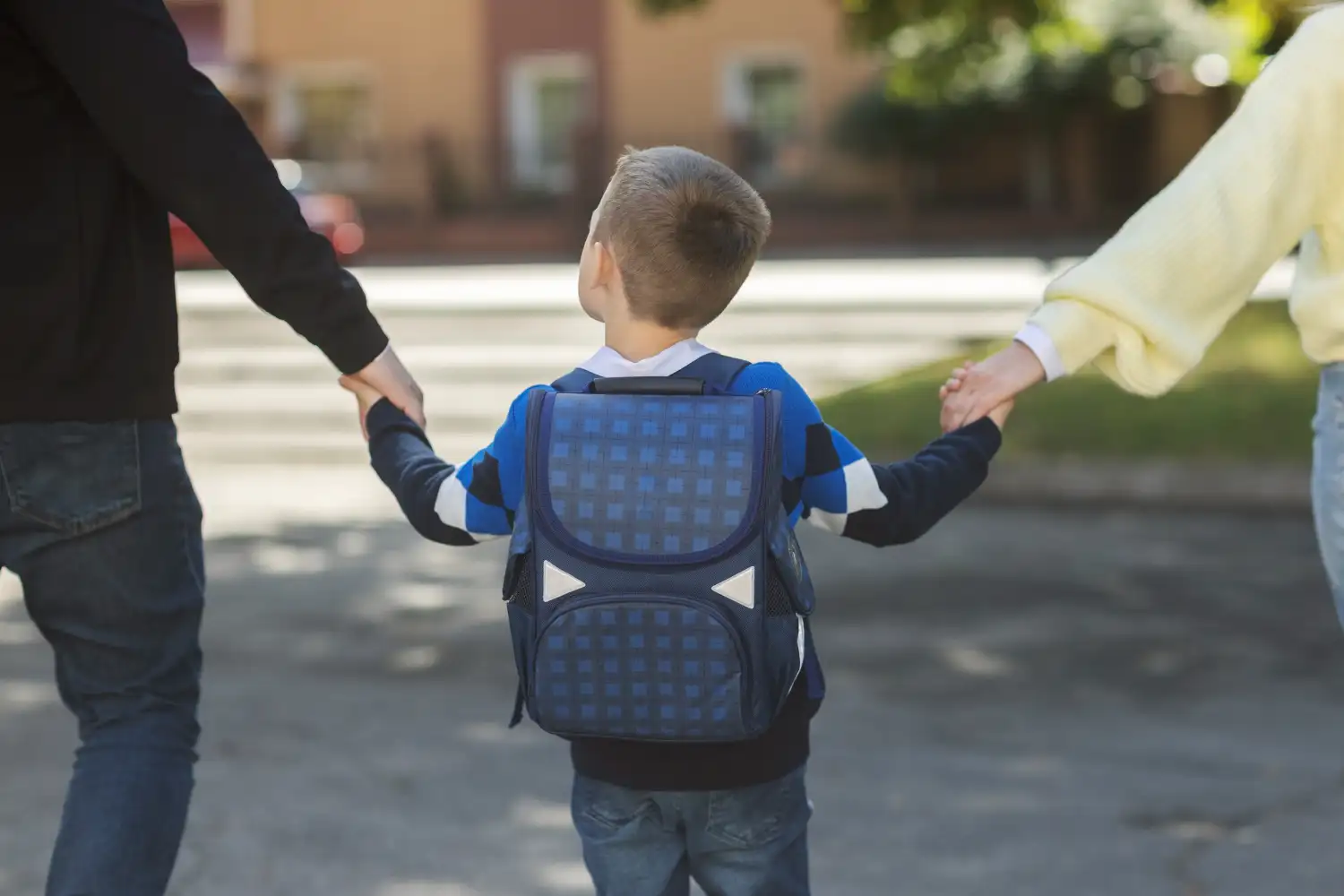
It’s 8:15 in the morning. Your child left home 25 minutes ago and you’re still checking your phone every 2 minutes, waiting for a sign they made it. A quick text would help, but kids forget to text. And most schools don’t let them touch their phones in class anyway.
A school arrival alert for parents fixes this. Your phone gets a quick message the moment your child’s phone enters the school area, even if they never touch it. You get another one when they leave, so you can finally stop guessing.
How does a school arrival alert actually work?
It works on something called a geofence. Basically, you draw a circle on a map around the school. Your child’s phone checks its own location in the background. When it crosses that circle, SpyHuman sends a geofence alert straight to your phone.
You can pick an alert for arriving, for leaving or for both. Most parents pick both, because the leaving alert at 2:30 tells you the walk home has started. SpyHuman also keeps every crossing in a history log with the exact time. So a missed alert during a meeting still shows up later.
How to set up a school arrival alert for parents
You need your child’s Android phone in your hand just once. After that, you can set up geofence alerts for your child’s school from your own phone or laptop. The whole thing usually takes one sitting. Most of it happens on your side.
- Register free on SpyHuman with your email. You don’t need a card.
- Install the app on your child’s phone and allow location access. The step by step installation guide for Android phones shows every screen.
- Open your dashboard, go to geofencing and drop a pin on the school.
- Set the radius. The next section covers the right size.
- Choose entry, exit or both, then save the zone.
The free plan gives you 1 zone, enough to test the school alert for a week. Premium adds more zones and real time alerts. Just know that SpyHuman works on Android phones only, version 5.0 and up. If your child carries an iPhone, this setup won’t work for them.
How big should the safe zone be?
This is where most setups go wrong. A tiny zone sends late alerts, or random ones while your child sits in class. Phone GPS is pretty good outdoors. According to GPS.gov, smartphones are usually accurate to about 4.9 metres under open sky, but buildings and trees make it worse.
Inside a school, the phone often leans on WiFi and mobile towers instead, which are less exact. That’s why Google’s Android geofencing guide suggests a radius of at least 100 metres. So a 50 metre circle around one classroom is really asking for trouble. Use this size guide instead:
Put the pin in the middle of the main building. If the gate sits far from the classrooms, nudge the pin a little toward the gate. That way the arrival alert matches the moment your child actually walks into class.
Also, expect a small delay. Android checks location every couple of minutes in the background to save battery, so an alert that lands 2 or 3 minutes late is normal. Want the full picture? This guide explains how accurate phone GPS tracking really is indoors and outdoors.
What does a normal school day of alerts look like?
Once you add a home zone next to the school zone, the day sort of tells its own story on your phone. Each alert shows the zone name and the exact time. Here’s what a regular Tuesday usually looks like:
- 7:55 am: leaving alert from home. The trip has started.
- 8:21 am: arrival alert from school. That’s the child reached school notification you were waiting for.
- 2:34 pm: leaving alert from school.
- 3:02 pm: arrival alert at home.
If something feels off, like no leaving alert from school by 3 pm on a normal day, that’s your cue to open the live map. A late bus or an extra class explains most of these days. Still, a 10 second check beats an hour of worry.
Can you add tuition, the bus stop or a friend’s house?
Yes. On Premium you can run several zones at once, each with its own alert rules. A tuition zone works just like the school zone, so keep it around 150 to 200 metres. Most tuition centres sit among tall buildings, where GPS gets weaker.
A bus stop zone helps if your child takes the school bus, since the leaving alert from the stop tells you they actually got on. For a friend’s house, agree on the zone together first. Your teen gets a bit of freedom that way. You still get a child safe zone notification the moment they leave.
What should you do if the alert doesn’t come?
First, breathe. A missing alert usually points to a phone problem, like a dead battery or no mobile data. Your child is probably sitting in class just fine. Go through these 5 checks in this order before you call anyone:
10 seconds
30 seconds
5 minutes
1 minute
2 minutes
- Open the live map. You can check your child’s live location on the map right away. If the phone shows the school, the alert simply came late.
- Look at the last known location and its time. If the phone stopped updating at 7:50 near home, the battery probably died or the internet dropped.
- Wait 5 minutes. SpyHuman stores crossings while the phone is offline and sends them once it reconnects, so a late alert can still arrive.
- Call the school office. They can confirm attendance in a minute.
- Call another parent who takes the same route.
Most mornings, step 1 settles it within seconds. Steps 4 and 5 are for the rare day something really feels off. Either way, you’ll have a clear answer in about 10 minutes, long before the first period ends.
Small habits that keep alerts working
Missed alerts usually come from the same few settings on your child’s phone. Fix them once on a Sunday evening when the house is quiet and you both have 10 minutes. After that, you’ll rarely think about it again.
- Turn off battery saver for SpyHuman. Xiaomi and Samsung phones love to stop background apps.
- Keep location on with high accuracy.
- Leave mobile data on during the commute.
- Charge the phone overnight. A phone at 9 percent by 8 am won’t last the bus ride.
Should you tell your child about the alert?
Yes. Honestly, it works better when they know. Tell them it’s for the morning worry, nothing more. Kids who know about the alert usually keep location on and the phone charged, because they don’t want you calling the school either.
SpyHuman is for your own child under 18, a phone you own or a company phone with the user’s consent. The SpyHuman lawful use policy for parents and employers explains the full rules. Not sure how much monitoring fits your child’s age? This guide on when monitoring your child’s phone makes sense can help.
Start with one zone this week
A school arrival alert for parents takes the guessing out of every school morning. Set one zone around the school, keep it at 150 metres or bigger and let it run for a week. You’ll know within a few days if the size feels right.
To see the route your child takes, read this guide on tracking your child’s phone location step by step. You can register free with no card and test the school zone today. Or try SpyHuman Premium free for 3 days if you want home and tuition zones too.



Leave a Reply