
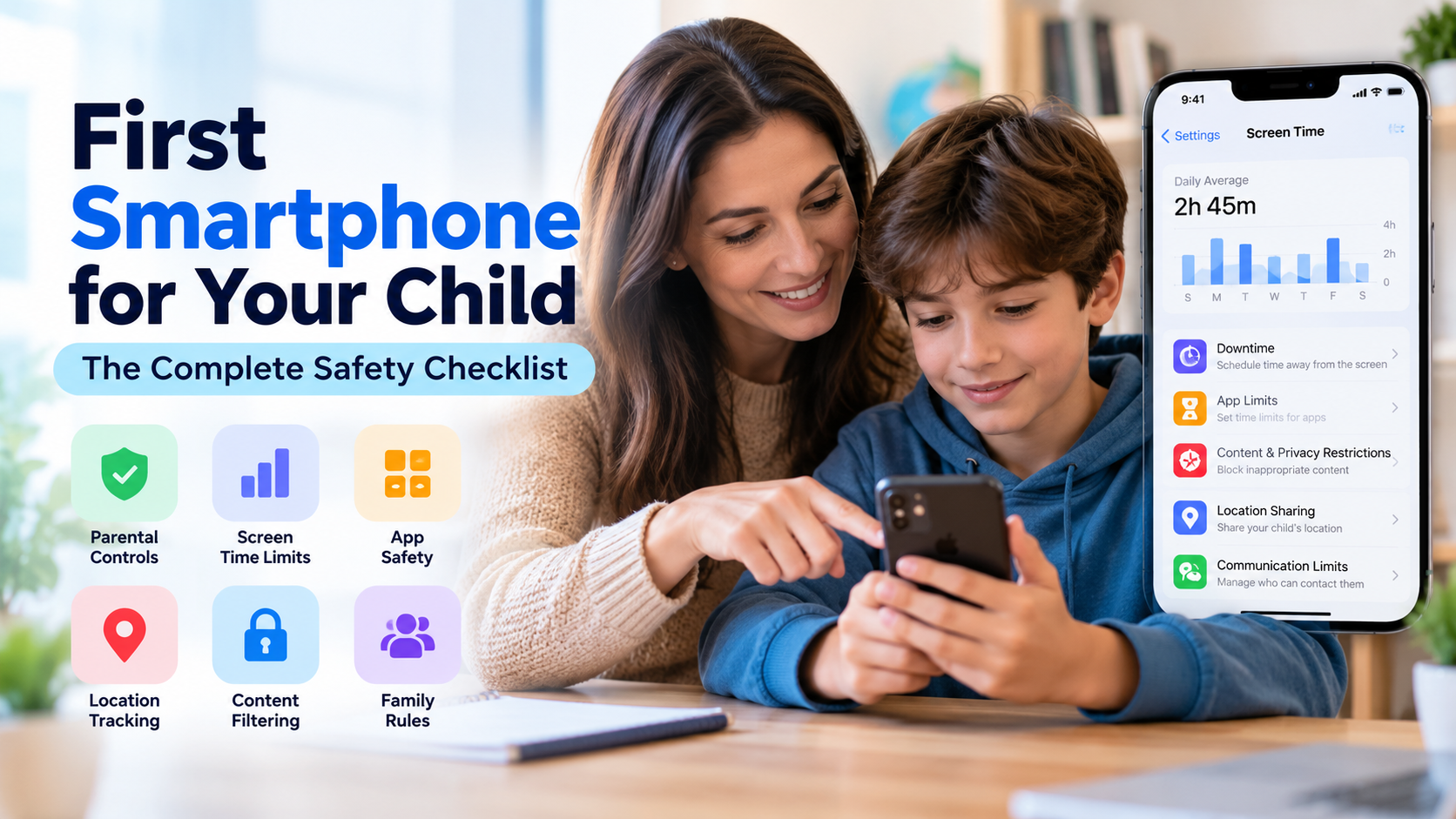
The phone is bought. The box is on the table. Before you hand it over, there is a valuable window of time when you can configure the device, establish parental controls, and decide which apps your child can access.
Once your child starts using the phone, changing settings can become more difficult. They may already have created accounts, added contacts, and developed habits around an unconfigured device.
This first smartphone for your child safety checklist walks you through the essential steps to complete before handing over the phone, from account setup and screen time limits to app safety, emergency features, and family rules.
Before You Set Up Your Child’s First Smartphone
Start by making a few important decisions before opening the box.
Choose Between Android and iPhone
Decide whether your child will use an Android phone or an iPhone. Both platforms offer built-in parental controls, although their settings and available features differ.
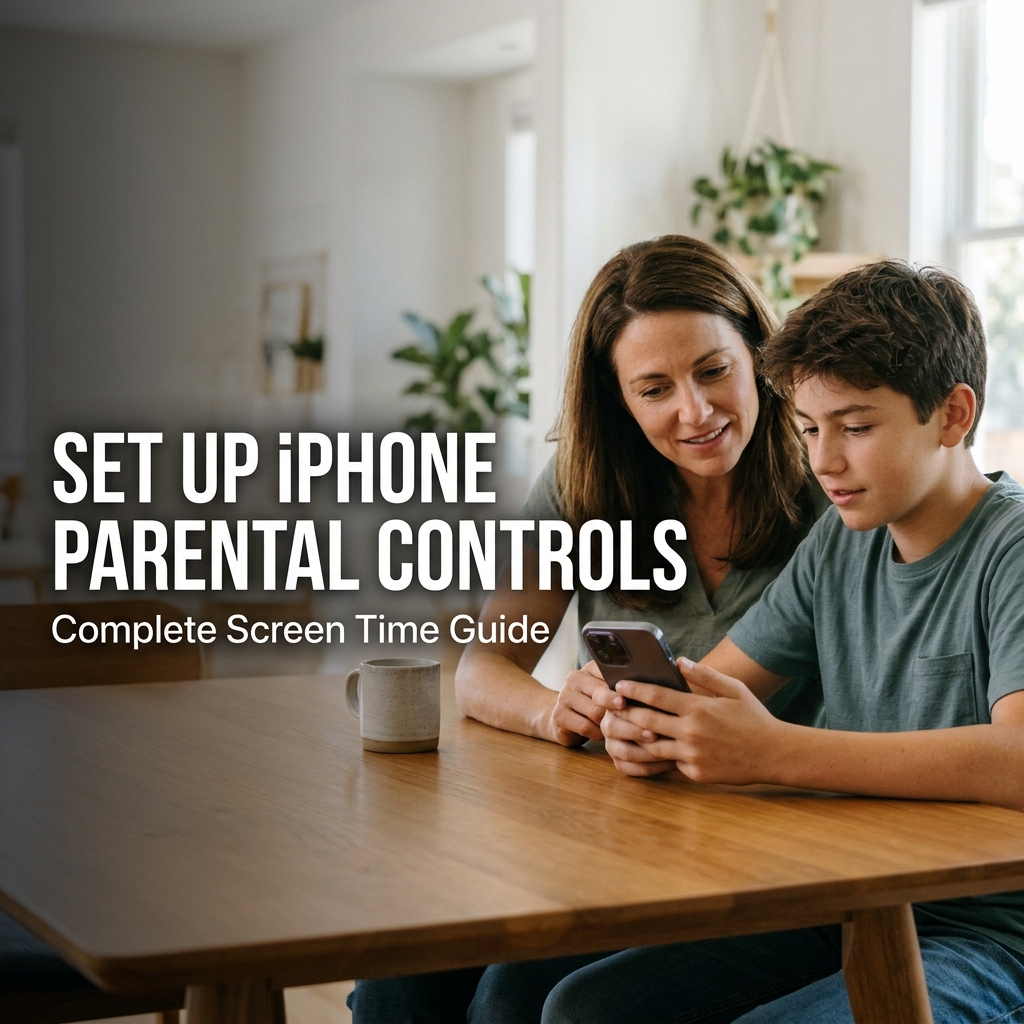
Android offers Google Family Link and support for compatible third-party parental control apps. iPhone includes Apple’s Screen Time, Family Sharing, and Find My features.
Explore our detailed guides:
Choose a Mobile Plan
Decide whether a prepaid plan or a family contract is more suitable.
A prepaid plan with a defined data allowance can help your child learn to manage mobile data and avoid unexpected usage charges. A family plan may be more convenient if you want shared data and account management.
Choose a plan that fits your child’s needs, age, and expected phone usage.
Record the Phone’s IMEI Number
Before handing over the device, record its International Mobile Equipment Identity (IMEI) number.
On many phones, you can display the IMEI by dialling *#06#. Dual-SIM devices may display more than one IMEI.
Store the number securely alongside the purchase receipt and phone details. It may be useful when reporting a lost or stolen device or requesting that a network operator block it.
Read our guide on how to track a phone by IMEI to understand what an IMEI can and cannot do.
First Smartphone for Your Child: The 30-Minute Setup Checklist
Use the following checklist to configure the phone before your child starts using it.
1. Create or Link Your Child’s Account
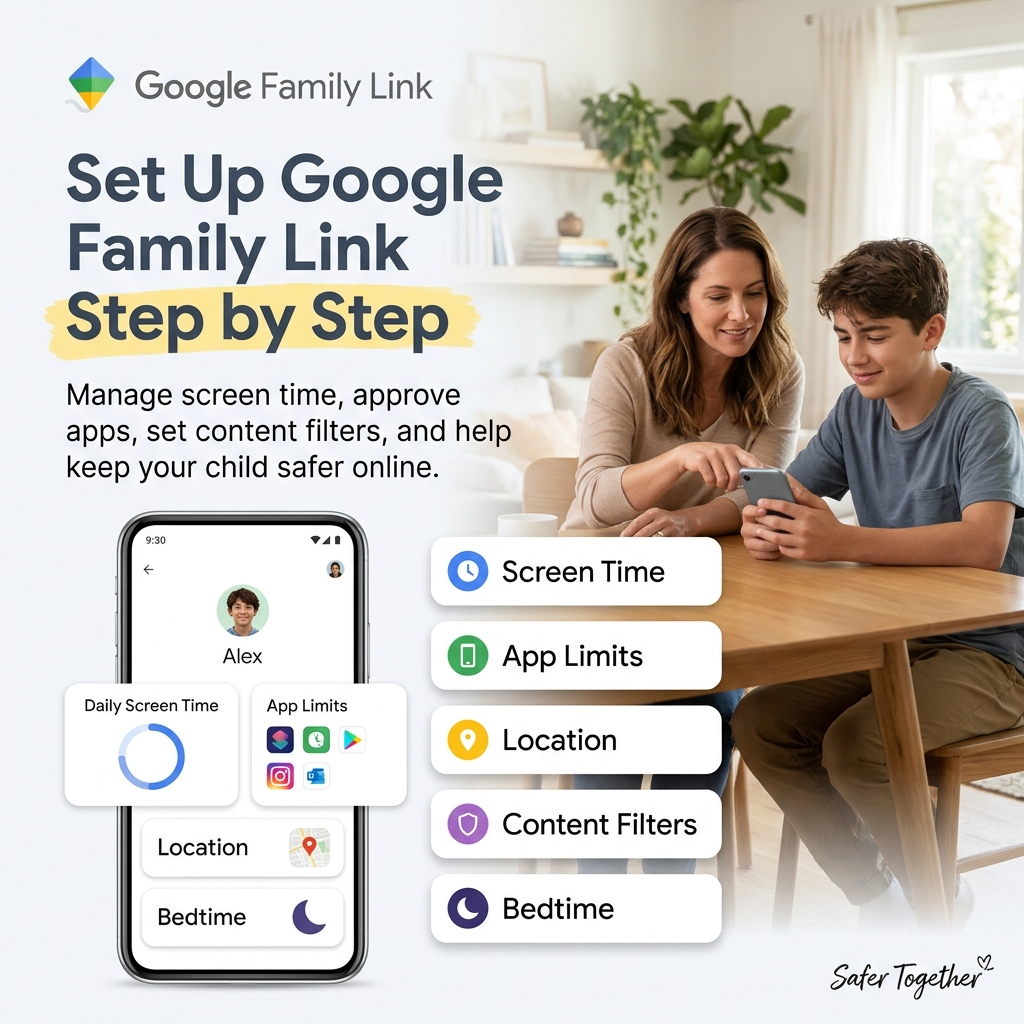
For Android: Set up an appropriate child Google account and connect it to your family group through Google Family Link. This provides access to supported parental controls, including screen time management and app approval.
Follow our step-by-step Google Family Link setup guide.
For iPhone: Create or configure your child’s Apple Account and use Family Sharing where appropriate. Set up Screen Time to manage supported restrictions and usage limits.
Avoid setting up the device with your personal account and then handing it over without reviewing the account and privacy settings. A properly configured child account makes supervision and account management easier.
2. Set Up a Screen Lock
Protect the device with a PIN, password, pattern, or supported biometric lock.
Choose a secure method that your child can remember. Explain why they should not share their unlock code with friends.
Parents should also agree on an appropriate way to help their child regain access if they forget the code, without unnecessarily compromising the child’s privacy.
3. Enable Find My Device or Find My
Configure the built-in location and recovery feature before the phone is lost.
- Android: Enable Google’s Find My Device feature and review the device’s location and recovery settings.
- iPhone: Open Settings, select your child’s name, then Find My. Enable Find My iPhone and review the available network and last-location options.
Feature names and menu locations may vary by operating system version and device.
Location features can help you locate a compatible device when the required settings and connectivity conditions are met. They are not a guarantee that every lost phone can be located.
4. Configure Parental Controls
Set up the controls that match your child’s age, maturity, and needs.
At a minimum, review these settings:
- Daily screen time limits
- Bedtime or downtime schedules
- Limits for social media and entertainment apps
- App installation and purchase approvals
- Web content filters and SafeSearch
- Location-sharing settings
- Communication and privacy restrictions where available
Use our detailed setup guides for your child’s device:
Remember that parental control features differ between platforms and operating system versions. Check what each setting actually restricts before relying on it.
5. Install Only Essential Apps
Start with a small selection of useful apps rather than installing everything your child requests immediately.
Depending on your child’s needs, this may include:
- Phone and messaging
- Camera
- Calculator
- Clock and alarm
- Maps
- School or learning apps
Discuss social media separately. WhatsApp, Instagram, and Snapchat each have their own privacy and safety settings, so introduce them when your child is ready to use them responsibly.
Explore our app-specific guides:
- WhatsApp parental controls guide
- Instagram parental controls and Teen Accounts
- Snapchat parental controls
6. Review App Installation Permissions
Prevent your child from installing apps through unapproved sources where the device allows you to manage this.
Android: Review the setting for installing unknown apps and disable permission for apps that do not need it. The exact menu location depends on the Android version and manufacturer.
iPhone: Review Screen Time’s Content & Privacy Restrictions and available app installation controls. Options vary by device, account, software version, and region.
Also configure app download approvals and purchase restrictions where supported. These settings can reduce the risk of installing unsuitable apps or making unexpected purchases.
7. Set Up Emergency Features
Make sure your child knows how to contact you and get help in an emergency.
Before handing over the phone:
- Review Emergency SOS and how it works on the device.
- Add appropriate emergency contacts.
- Save parents’ and trusted caregivers’ phone numbers.
- Explain how to call local emergency services.
- Show your child what to do if the phone is lost or they feel unsafe.
Emergency SOS activation methods vary by phone model. Practise the correct procedure together so your child understands it without accidentally triggering an emergency call.
8. Consider DNS-Based Web Filtering
For additional web protection, consider a reputable DNS filtering service, such as CleanBrowsing or NextDNS.
Depending on the service and configuration, DNS filtering can block access to selected categories of websites across compatible apps and browsers. However, it is not a complete substitute for parental controls: coverage can vary across networks, encrypted DNS configurations, VPNs, and individual apps.
Check the provider’s current pricing, privacy policy, and setup instructions before installing a filtering service.
Have the Conversation Before Handing Over the Phone
Technical settings are only one part of keeping your child safe online. Explain the purpose of the rules before giving them the phone.
Discuss these four things together.
Explain the safety settings. Show your child which settings are enabled and what information you can access. Be honest about the level of supervision you intend to use.
Explain the reasons for the rules. Frame them around safety, sleep, learning, privacy, and healthy habits rather than punishment or control.
Agree on practical boundaries. Decide together when the phone should be put away, where it will charge overnight, which apps are appropriate, and how your child should respond to messages from strangers.
Make it safe to ask for help. Tell your child they can come to you if something online worries, scares, or confuses them. Reassure them that asking for help is more important than avoiding punishment.
Create a written family phone agreement and review it together. Include rules about respectful communication, screen time, downloads, online privacy, and what happens if a boundary is repeatedly ignored.
As your child demonstrates responsible use, revisit the rules and adjust them as appropriate.
SIM Card and Phone Number Safety
Your child’s mobile number is an important part of their digital identity. Take a few steps to protect it.
Set a SIM PIN
Where supported, enable the SIM PIN feature.
On Android, look for the SIM card lock setting. On iPhone, look under Settings and Cellular or Mobile Service, then SIM PIN, where available.
A SIM PIN helps prevent unauthorized use of the SIM card when it is inserted into another device. Be careful: entering the wrong PIN repeatedly can lock the SIM and require a PUK code from the mobile operator. Do not guess the code.
Reduce Unwanted Calls and Messages
Review your network provider’s options for blocking spam calls and messages.
In India, users can register for Do Not Disturb (DND) preferences through supported telecom channels or the relevant official service. Procedures and options may differ by operator.
Teach your child not to share their phone number publicly or respond to suspicious calls, links, and messages.
Store the Phone Number and IMEI Together
Keep the child’s phone number, IMEI, model, and purchase details in a secure location.
This information may help when contacting the network operator, reporting a theft, or making an insurance claim.
Check SIM Registrations Where Relevant
In India, the official Sanchar Saathi portal at https://sancharsaathi.gov.in provides services related to mobile connections and telecom security.
If the SIM is registered in a parent’s name, check the relevant connections under that person’s identity. Use only official services and follow their current verification process.
Introduce Your Child to Digital Wellbeing
Once the phone is ready, show your child how to understand their own device usage.
On supported Android devices, open Settings → Digital Wellbeing & parental controls. The dashboard can show time spent in apps, unlock activity, and notifications, depending on the device.
On iPhone, Screen Time provides reports about app and website usage, pickups, and notifications.
Review the information together. Instead of immediately criticising high usage, ask questions such as:
- Which apps take up most of your time?
- Is any app distracting you from schoolwork or sleep?
- Would an app limit or a different bedtime routine help?
Helping children understand their own habits can encourage them to take responsibility for their digital wellbeing. Use reports as a starting point for discussion rather than as the sole measure of whether their phone use is healthy.
The First Week: Build Healthy Phone Habits
During the first week, check in briefly each day.
Ask whether your child has encountered anything confusing, whether the phone is working as expected, and whether they have questions about the rules.
Review the parental control dashboard when appropriate, but avoid treating every notification or activity as a reason for interrogation. Focus on meaningful concerns and encourage your child to speak openly.
When your child asks to install a new app, discuss what it does, what information it collects, and whether its age requirements and safety features are suitable.
The First Month: Review and Adjust
After the first month, review the family’s phone agreement and the device’s available usage reports.
Look for patterns that may need attention, such as:
- Excessive use of one entertainment app
- Phone use late at night
- Frequent interruptions from notifications
- Requests for apps that need additional safety settings
- Difficulty balancing phone use with schoolwork, sleep, or offline activities
Discuss what you notice with your child and adjust limits when necessary. Reporting features and alerts vary by platform and configuration, so check the device’s dashboard rather than assuming every report will be sent by email.
Introduce additional apps gradually, making sure your child understands their privacy settings and the expectations for using them responsibly.
Common First Smartphone Mistakes to Avoid
Giving the Phone Over Before Setting Up Parental Controls
Configure the child account, screen lock, recovery features, and age-appropriate restrictions before regular use begins. This gives you a clearer foundation for managing the device.
Using an Unsupervised Account Without Reviewing the Risks
An appropriately configured child account can provide access to platform-supported supervision features. Review the available controls instead of assuming that any account automatically provides parental oversight.
Installing Every App on Day One
Start with essential apps and add others as your child demonstrates readiness. This also gives you time to review app permissions and safety settings individually.
Relying Only on Technical Restrictions
Settings cannot replace conversations about cyberbullying, online scams, privacy, inappropriate content, or pressure from other people.
Combine reasonable restrictions with ongoing communication and guidance.
Enforcing Rules You Do Not Follow Yourself
Children learn from the behaviour they see. If you expect your child to put their phone away during dinner, try following the same rule.
Shared boundaries make phone rules easier to understand and follow.
Should You Choose a Basic Phone Instead?
A smartphone is not the only option for a child who needs to contact family members.
For younger children whose primary needs are calls and basic communication, a basic phone may be a practical alternative. It can reduce access to social media, browsing, and other smartphone features.
However, check the specific device: some feature phones still support internet access or messaging apps.
If your child’s school or peer group relies on a messaging service such as WhatsApp, a carefully configured smartphone may be more practical. In either case, consider the child’s maturity, communication needs, and your family’s ability to establish appropriate boundaries.
For more guidance, read our article on what age a child should get a phone.
Protect the Phone: Case, Warranty, and Insurance
Digital safety matters, but so does protecting the physical device.
Before handing the phone over, consider adding:
- A durable protective case
- A tempered-glass screen protector
- A suitable charging cable and adapter
- A secure place to store the phone overnight
Check whether your mobile provider, bank, or insurer offers phone insurance for accidental damage or theft. Compare the premium, excess, exclusions, and claims process before buying a policy.
Keep the purchase receipt, warranty information, and original device details in a safe place. These may be required for warranty or insurance claims and can help identify the device if it is lost or stolen.
Frequently Asked Questions
What age should a child get their first smartphone?
There is no single age that is right for every child. Consider their maturity, independence, safety needs, school requirements, and ability to follow agreed rules. Read our guide to what age a child should get a phone for more guidance.
Should I give my child my old phone or buy a new one?
Either option can work. If you give your child an old phone, back up anything you need, factory-reset it, install the latest compatible software, and configure it with the child’s own account. Do not hand over a device that remains signed in to your personal accounts or contains your private data.
How much mobile data does a child need?
It depends on how the phone will be used. A child who mostly uses Wi-Fi may need less mobile data than a teenager who frequently streams videos or uses social media away from home. Review expected usage, compare available plans, and adjust the allowance if necessary.
Should I install parental control software on my child’s first phone?
Start with the built-in controls offered by the phone’s operating system. Google Family Link supports supervision for compatible child accounts and devices, while Apple offers Screen Time and Family Sharing features. Third-party tools may offer additional features, but compatibility and permissions vary. Review the privacy policy, supported devices, and lawful-use requirements before installing any app.
How can I track my child’s phone if it gets lost?
Set up the platform’s built-in recovery feature before the phone goes missing. Android offers Google’s Find My Device features, while Apple provides Find My. Whether a device can be located depends on its settings, connectivity, account configuration, and other conditions.
Should I let my child use social media immediately?
Not necessarily. Consider your child’s age, maturity, the service’s minimum-age rules, and whether they understand privacy and online safety. Introduce apps gradually, review their safety settings together, and agree on how to handle suspicious messages or uncomfortable interactions.
What is the most important thing to do before handing over a smartphone?
Set up the child’s account, screen lock, recovery features, and appropriate parental controls, then have an honest conversation about expectations. A safe first-phone experience combines technical protections with trust, clear boundaries, and ongoing support.
Final Checklist Before You Hand Over the Phone
Use this checklist to make sure you have covered the essentials:
-
Child’s account configured appropriately
-
Screen lock enabled
-
Find My Device or Find My configured
-
Screen time limits and downtime reviewed
-
App installation and purchase approvals configured
-
Web filtering and privacy settings reviewed
-
Only essential apps installed initially
-
Emergency contacts and SOS explained
-
Phone number, IMEI, and purchase details stored securely
-
Family phone agreement discussed
-
Child knows how to ask for help
A child’s first smartphone should be a tool for communication, learning, and growing independence. Taking time to configure the device and agree on boundaries can help your family build safer, healthier digital habits from the beginning.
For more guidance, explore SpyHuman’s parental monitoring and safety resources and choose tools that fit your child’s device, your family’s needs, and applicable laws.


Leave a Reply