
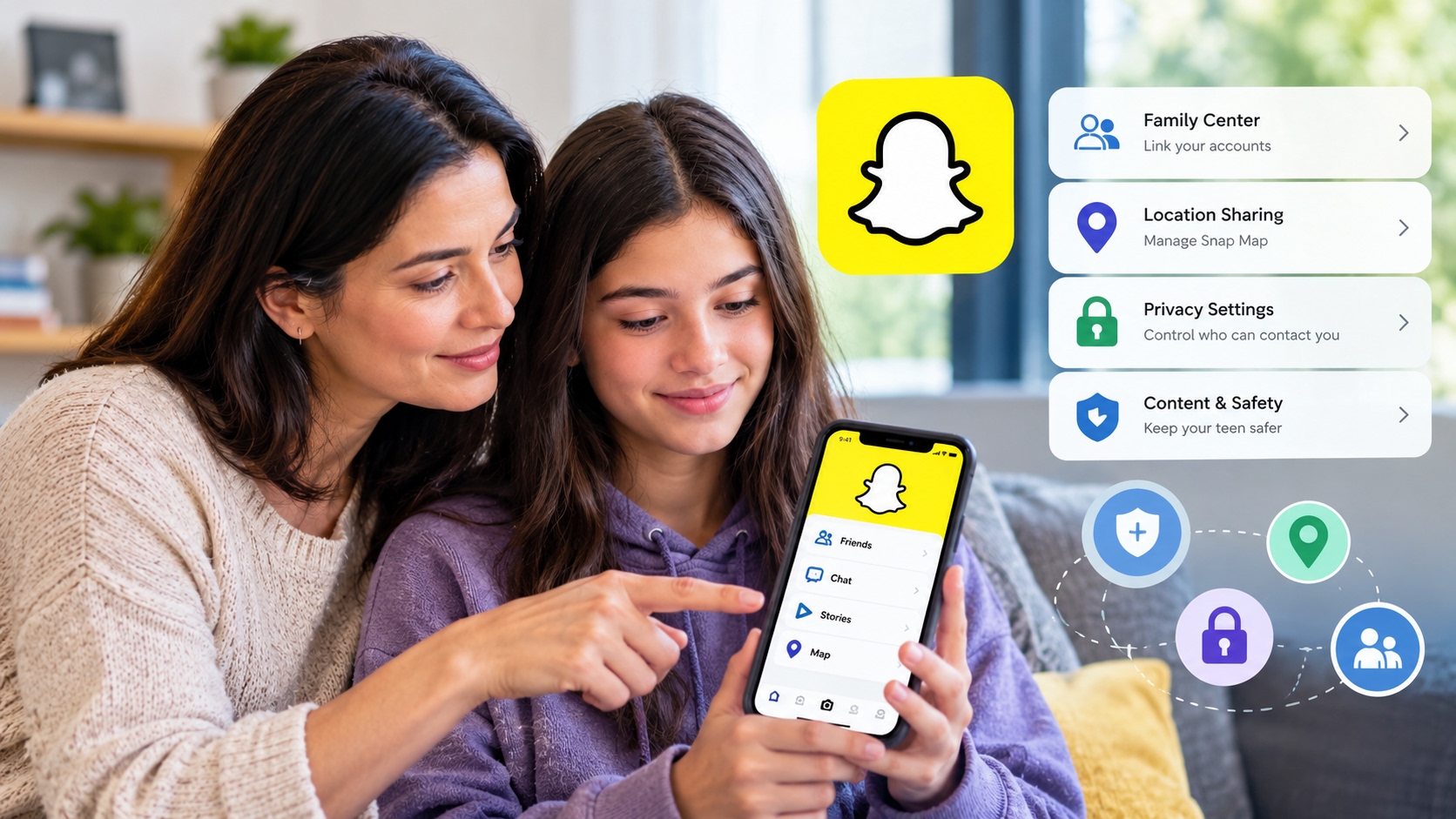
Snapchat parental controls are often the top safety feature parents ask about when managing their teenagers’ phones. Messages disappear, photos are temporary, and a live map shows your child’s exact physical location to their friend list. It feels designed for secrecy, which naturally makes parents uneasy.
However, Snapchat has introduced genuine safety controls through its Family Center, making the platform far less mysterious once you understand how its features work. This complete guide covers everything parents need to know: how Family Center operates, fixing Snap Map location risks, managing disappearing content, configuring strict privacy settings, and knowing what to do when built-in tools fall short.
What Makes Snapchat Different from Other Social Platforms
Three distinct mechanics set Snapchat apart, and they represent the primary areas of concern for parents:
-
Disappearing Content: Snaps (photos and videos) vanish immediately after viewing, and chat threads delete automatically once both participants leave the conversation by default. This creates the illusion that evidence is erased, appealing to teenagers while worrying parents.
-
Snap Map: Snapchat broadcasts the user’s live physical location on an interactive map visible to their friend list by default. For a teenager, this means every contact can track where they are in real time making it the highest location-privacy risk among mainstream apps.
-
Streaks: Snapchat gamifies daily communication through “streaks” (a fire emoji counter that increments for each consecutive day two users exchange snaps). This builds intense social pressure to open the app every single day, driving continuous engagement.
Understanding these three features is essential because they dictate how teenagers actually interact with the platform.
How Snapchat parental controls work via Family Center
Snapchat Family Center acts as a parental supervision dashboard. It allows parents to link their personal Snapchat account to their teenager’s account to view high-level activity metrics remotely.
How to Set Up a Family Center
-
Download Snapchat and create a parent account on your phone.
-
Search for your child’s username and add them as a friend.
-
Navigate to Settings > Family Center and send a supervision invite to your teenager.
-
Have your teen accept the invitation on their phone.
What Parents Can See in Family Center
-
Friend List: View your teenager’s complete Snapchat friend list.
-
Communication Logs: See which contacts your teen has communicated with over the past 7 days (names only).
-
Recent Additions: Review new contacts added to their account recently.
-
Direct Reporting: Report suspicious or harmful accounts directly to Snapchat’s safety team.
What Parents Cannot Access
-
No Message Reading: You cannot view the content of sent or received snaps or chats.
-
No Story Viewing: You cannot see private stories unless your teen adds you to their story group.
-
No Remote Settings Lock: You cannot force settings changes remotely from your phone.
This represents a key difference compared to Instagram’s Teen Accounts (which allow parent approvals for setting changes) or WhatsApp’s parent-managed accounts (which restrict setting changes behind a PIN). On Snapchat, teenagers retain full ability to adjust their settings independently.
Snap Map: The Biggest Location Risk and How to Fix It
Snap Map broadcasts your teenager’s location every time they open the application. Because most teens open Snapchat dozens of times daily, their live location remains updated almost continuously. This exposes their whereabouts to everyone on their friend list, which often includes casual acquaintances and strangers.
The Instant Fix: Enable Ghost Mode
To disable location broadcasting completely:
-
Open Snapchat and tap the Map icon at the bottom left.
-
Tap the Settings gear in the top right corner.
-
Toggle on Ghost Mode.
-
Select Indefinitely.
Enabling Ghost Mode hides your child’s avatar from everyone on the map while still allowing them to view the map if needed.
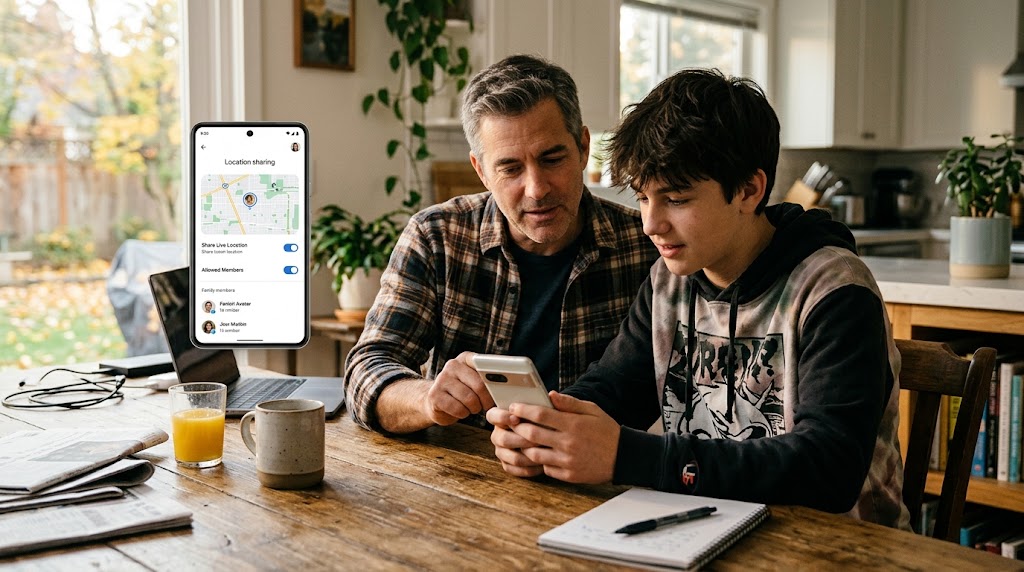
Parent Recommendation: Keep Ghost Mode permanently enabled on your child’s device. If your child needs to share their location with family or trusted friends, use built-in system tools like Google Maps location sharing or Apple Find My, which offer precise control over who sees their location.
Disappearing Content: What Actually Disappears
The promise of disappearing messages is Snapchat’s core selling point, but it also creates a false sense of security.
-
What Disappears: Snaps and chats are purged from Snapchat’s active servers after being viewed (or after 24 hours for Stories). They are no longer accessible within the normal app interface.
-
What DOES NOT Disappear: Recipients can capture a screenshot or screen recording before a snap vanishes. While Snapchat alerts the sender when a screenshot occurs, the image remains permanently saved on the recipient’s phone gallery. Furthermore, third-party screen capture tools can bypass screenshot notifications entirely.
The Fundamental Rule: Teach your child to assume that anything sent over Snapchat can be permanently saved or shared. Self-deleting features reduce casual clogging of storage, but they never guarantee absolute privacy.
Essential Privacy Settings to Configure
Sit down with your teenager and adjust these settings directly on their phone:
-
Contact Settings: Set “Who Can Contact Me” strictly to “My Friends” (never “Everyone”). This blocks unapproved accounts from sending pings or snaps.
-
Story Visibility: Set “View My Story” to “My Friends” or “Custom”. Avoid public story settings.
-
Quick Add: Turn off “Show Me in Quick Add”. Quick Add suggests your teen’s profile to mutual contacts and strangers, increasing unwanted friend requests.
-
My AI Access: Review interactions with Snapchat’s built-in AI chatbot (My AI). Remind your child never to share personal information, home addresses, or private photos with AI assistants.
-
Notification Controls: Disable notifications during school hours and bedtime to break the constant cycle of pings and streak maintenance.
Managing the “Streak” Trap
Snapchat streaks gamify daily communication by displaying a counter next to contacts with whom a user exchanges snaps daily. Losing a long streak feels like a social loss to a teenager, leading some to check their phones late at night or during class.
Because Snapchat does not provide a setting to turn off streaks, management requires open conversation. Explain to your teen that streaks are a engineered engagement tactic designed to maximize app usage, not a metric of true friendship. Establishing household boundaries—such as placing phones at a charging station past 9:00 PM—helps remove night-time streak pressure.
Snapchat vs. Instagram vs. WhatsApp: Safety Comparison
| Feature | Snapchat | ||
| Parental Oversight |
Moderate (Family Center logs) |
Strong (Teen Accounts + parent approval) |
Strong (Parent-managed accounts under 13) |
| Disappearing Media |
Enabled by default |
Optional (Vanish Mode) |
Optional (Disappearing messages) |
| Location Tracking |
Snap Map (Live broadcast, default ON) |
Tag-based only |
Manual share only |
| Message Access |
Cannot view message content |
Cannot view message content |
End-to-end encrypted; cannot read messages |
For full details on managing other social messaging apps, read our WhatsApp parental controls guide and our Instagram parental controls guide.
What to Do When Snapchat’s Built-In Tools Aren’t Enough
Because Snapchat’s Family Center only reveals contact names and not actual message contents, parents needing deeper oversight have two main paths:
1. Device-Level Limits (Google Family Link / Apple Screen Time)
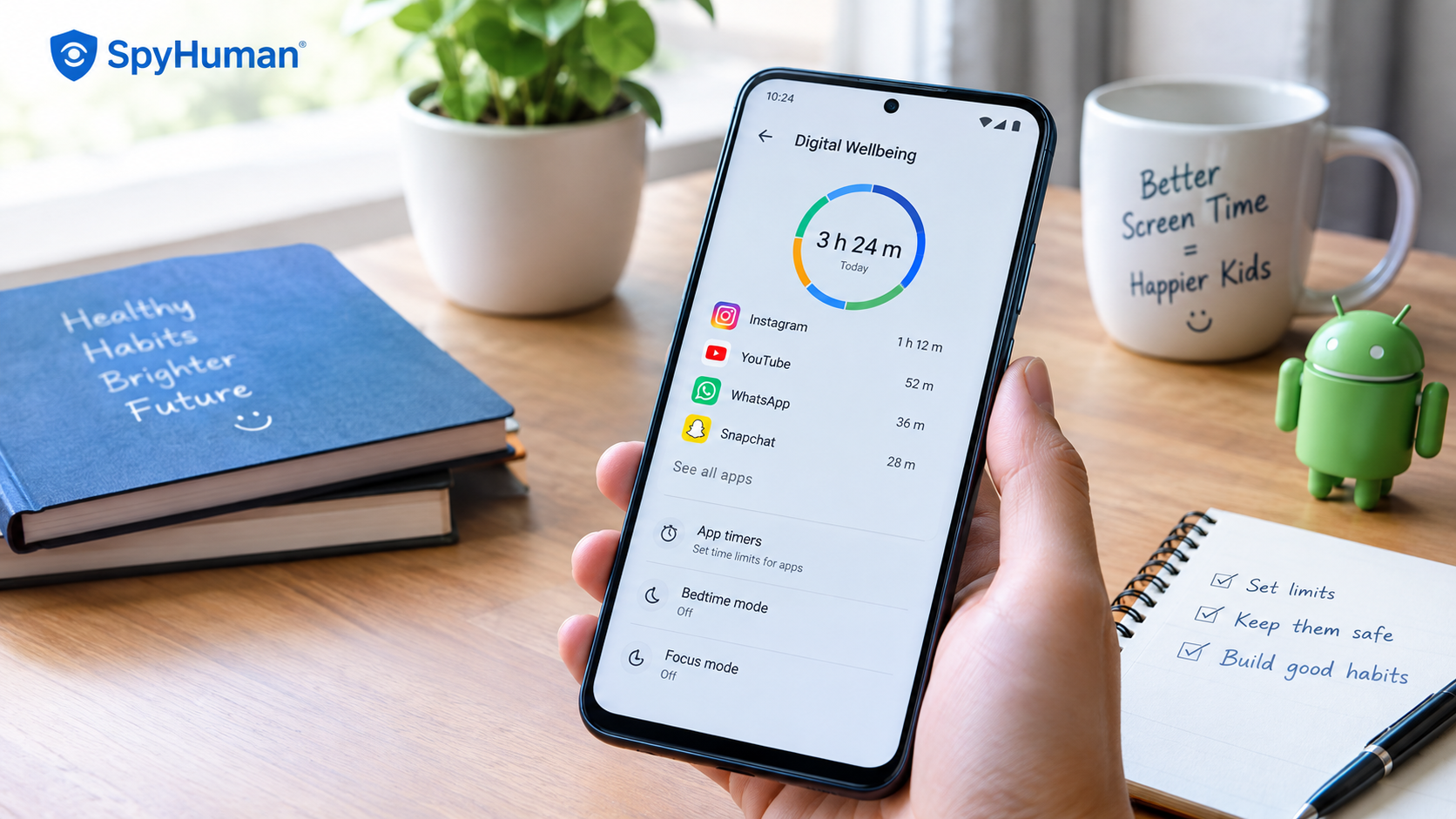
Use system-level parental controls to cap Snapchat usage to a daily limit (e.g., 30 minutes) and completely lock the application during homework hours or bedtime. For setup details, read our guide on how to set up Google Family Link.
2. Dedicated Parental Monitoring Software
When safety concerns require checking message exchanges, media shares, or real-time pings, specialized background software installed on the child’s device provides full visibility. Ensure any monitoring tool is installed transparently and ethically in full compliance with our Lawful Use Policy and guidelines on tracking with consent.
Frequently Asked Questions
Can I read my teen’s Snapchat messages through Family Center?
No. Family Center only displays the names of contacts your child has messaged over the last 7 days; it never shows the actual text or photos exchanged.
Does Ghost Mode prevent my child from seeing others on Snap Map?
No. Ghost Mode hides your child’s location from everyone else, but your child can still view the locations of friends who have not turned on Ghost Mode.
Can Snapchat prevent someone from taking a screenshot?
No. Snapchat notifies the sender when a screenshot is taken, but it cannot physically stop the recipient from saving the image or capturing the screen with another camera.
What is the minimum age required for a Snapchat account?
Snapchat requires users to be at least 13 years old. Account creation requires a date of birth entry during setup.
Should I force my teen to delete Snapchat?
Forcing a complete ban can sometimes push social activity to hidden secondary apps. Enabling Ghost Mode, restricting contacts to trusted friends, setting device time limits, and maintaining open dialogue is usually a more effective long-term strategy.

Leave a Reply