
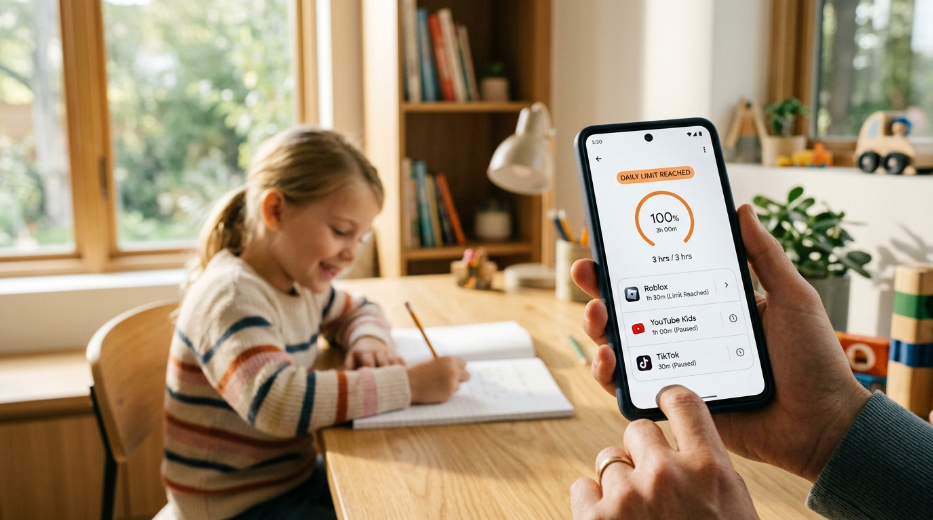
If you’ve caught your child scrolling at 11 p.m. or arguing over “five more minutes” for the third time tonight, you’re not alone. Setting screen time limits on Android devices is one of the most effective ways parents can bring some peace back to family life without confiscating the phone altogether.
The good news? You don’t need to buy anything. Android has built-in tools that let you set limits, block apps, and get a clear picture of what your kid is actually doing on their phone all for free.
This guide walks through exactly how to do it, what to expect, and how to avoid turning screen time into a daily battle.
Why Screen Time Limits Matter for Kids on Android
Phones aren’t going away, and honestly, they’re not all bad. Kids use them for homework, talking to friends, and even winding down after a long day. The problem shows up when unstructured use starts crowding out sleep, schoolwork, or face-to-face time with family.
Setting screen time limits for kids isn’t about punishment. It’s about building a routine where the phone fits into life instead of taking it over. Once you get a handle on screen time and app management, managing daily digital habits becomes far less stressful.
Signs Your Child Needs Screen Time Limits
A few common red flags Parents mention:
-
Trouble falling asleep or waking up tired
-
Grades slipping without another clear cause
-
Getting irritable or anxious when the phone is taken away
-
Skipping meals, chores, or outdoor time to keep using an app
-
Sneaking the phone after bedtime
If two or more of these sound familiar, it’s probably time to set some structure.
How Much Screen Time Is Healthy for Children?
There’s no single number that fits every family, but pediatric guidelines offer a useful starting point. The American Academy of Pediatrics recommends limiting entertainment screen time to about one to two hours a day for school-age kids, with even less for younger children, while noting that quality and context matter as much as the clock.
Use that as a baseline, then adjust based on your child’s age, schoolwork, and how they respond.
How to Set Screen Time Limits on Android
Android gives you two main routes, depending on whether your child has their own phone or shares a device with you.
Using Google Family Link
Google Family Link is the go-to option for Android parental controls. It’s free, made by Google, and works across most Android phones and tablets.
With Family Link, you can:
-
Set a daily screen time limit for the whole device
-
Lock the phone remotely at bedtime
-
Approve or block apps before your child can download them
-
See a weekly activity report showing which apps ate up the most time
-
Set different limits for weekdays versus weekends
It does require setting up a Google Account for your child if they don’t already have one and installing the Family Link app on both your phone and theirs.
Using Digital Wellbeing & Parental Controls
If your child is older and manages their own account, Android’s built-in Digital Wellbeing settings (found under Settings > Digital Wellbeing & Parental Controls) let them or you, with Family Link linked, set timers on individual apps, schedule a “Bedtime Mode” that mutes notifications and grays out the screen, and check a dashboard of daily usage.
This is a solid middle ground for teenagers who need some independence but still benefit from guardrails.
Step-by-Step: Setting Android Screen Time Limits for Kids
Here’s the complete process using Family Link, which works for most households:
- Download Family Link on your phone from the Google Play Store and on your child’s device if they’ll manage it themselves.
- Create or link your child’s Google Account through the app, following the prompts for their age group.
- Connect the two devices by scanning the code shown during setup.
- Open the Family Link dashboard and tap your child’s name.
- Go to “Controls” and select “Daily limits.” Set a total number of hours allowed per day, and customize it by day of the week if needed.
- Set a bedtime schedule under the same menu so the device locks automatically at night.
- Review app permissions to block anything that isn’t age-appropriate.
- Check in weekly using the activity report to see what’s working and adjust limits as your child grows.
Most parents can complete this whole setup in under fifteen minutes.
App-Specific Screen Time Limits on Android
Sometimes a blanket daily limit isn’t precise enough. Maybe homework apps and messaging are fine, but a game or social app is the real problem. Knowing how to monitor your child’s app usage gives you the clarity needed to address specific problem areas.
Limiting Social Media Apps
Within Family Link or Digital Wellbeing, you can set a timer on individual apps rather than on the whole phone. Once the timer runs out, the app grays out and becomes unusable until the next day, while everything else keeps working normally.
This approach tends to reduce arguments, since the child can still use the phone for schoolwork or calling a parent even after their social app time is used up.
Setting App Timers
To set an app timer manually on the child’s device:
-
Open Settings
-
Tap Digital Wellbeing & Parental Controls
-
Tap Dashboard
-
Select the app you want to limit
-
Tap the sand-timer icon next to it and choose a daily limit
Timers reset automatically at midnight, so there’s no manual resetting required.
Android Parental Controls Beyond Screen Time

Limiting hours is only part of keeping kids safe on their devices. If you want advanced oversight beyond basic screen time, utilizing a dedicated Android parental control app can provide extra layers of safety. A few other essential controls are worth setting up.
Content Filtering
Google Play’s parental controls let you restrict app, movie, and game downloads by age rating, and Google SafeSearch can filter explicit content from search results and the Chrome browser. For parents concerned about unsafe web searches, dedicated website blocking tools ensure kids stay protected from explicit content across browsers.
App Approval
Family Link lets you require approval before your child installs any new app, so nothing slips through without you seeing it first.
Browsing & Physical Safety
In addition to managing apps, it’s equally important to monitor browsing history to understand what your child encounters online. For complete peace of mind, pairing digital protection with the ability to track your child’s location helps ensure their safety both on and off the screen.
Tips for Enforcing Healthy Screen Time Without Conflict
Setting the limit is the easy part. Getting your child to accept it is where most families struggle. A few things that tend to help:
-
Explain the “why” up front. Kids push back less when they understand the reasoning instead of feeling like a rule was dropped on them.
-
Involve them in setting the limit. Letting a ten-year-old help choose between 90 minutes or two hours gives them a sense of control.
-
Keep limits consistent. Constantly changing the rules teaches kids to negotiate instead of accept the boundary.
-
Model it yourself. Kids notice when parents are glued to their phones while enforcing limits on theirs.
-
Use natural consequences. A locked phone at bedtime works better long-term than an angry confrontation in the moment.
Common Mistakes Parents Make With Screen Time Limits
-
Setting limits without explanation, which usually leads to resentment rather than cooperation
-
Ignoring app-specific limits and only setting one blanket number, which can unfairly restrict schoolwork apps
-
Ignoring their own screen habits, undermining the message
-
Not adjusting limits as kids get older, which can feel punitive to teenagers who’ve earned more independence
-
Relying on willpower alone instead of using the free tools already built into Android
Comparing Android’s Built-In Screen Time Tools
| Feature | Google Family Link | Digital Well-Being | Per-App Timers |
| Best for | Younger kids, full oversight | Teens managing their own use | Targeting one problem app |
| Cost | Free | Free | Free |
| Remote lock | Yes | No | No |
| Weekly reports | Yes | Yes | Limited |
| Requires child’s Google Account | Yes | No | No |
| Bedtime scheduling | Yes | Yes | No |
Frequently Asked Questions
Does Android have a built-in feature for setting screen time limits, or do I need a separate app?
Android includes free built-in tools, Family Link and Digital Wellbeing, that cover most families’ needs without installing anything from outside the Play Store.
What age should a child get their first screen time limit on Android?
There’s no fixed age, but many parents start setting structured limits as soon as a child gets their first personal device, often between ages 6 and 10.
Can my child bypass Android screen time limits?
Family Link limits are tied to the child’s Google Account and require the parent’s PIN to override, which makes them harder to bypass than settings the child controls directly on their devices.
Will screen time limits block emergency calls?
No. Phone calls and emergency features remain available even when a daily limit locks other apps.
How do I adjust screen time limits as my child gets older?
Open the Family Link app, select your child’s profile, and update the daily limit or app timers under Controls. Changes apply immediately.
Do screen time limits work differently on tablets versus phones?
The same Family Link and Digital Wellbeing settings work across Android phones and tablets, though tablet-specific apps may need separate individual timers.
Final Thoughts
Setting up screen time limits on Android devices doesn’t require special software or a monthly subscription. Google Family Link and Digital Wellbeing give parents everything needed to build healthy boundaries: daily limits, bedtime schedules, app approvals, and weekly usage reports, all built directly into the operating system.
Start with a baseline limit, explain the reasoning to your child, and adjust as they grow. If you’d like a complete safety suite with advanced controls, explore SpyHuman parental control features or check out our related guides on Android parental control setup, healthy screen time habits by age, and choosing the right first phone for your child.



Leave a Reply