
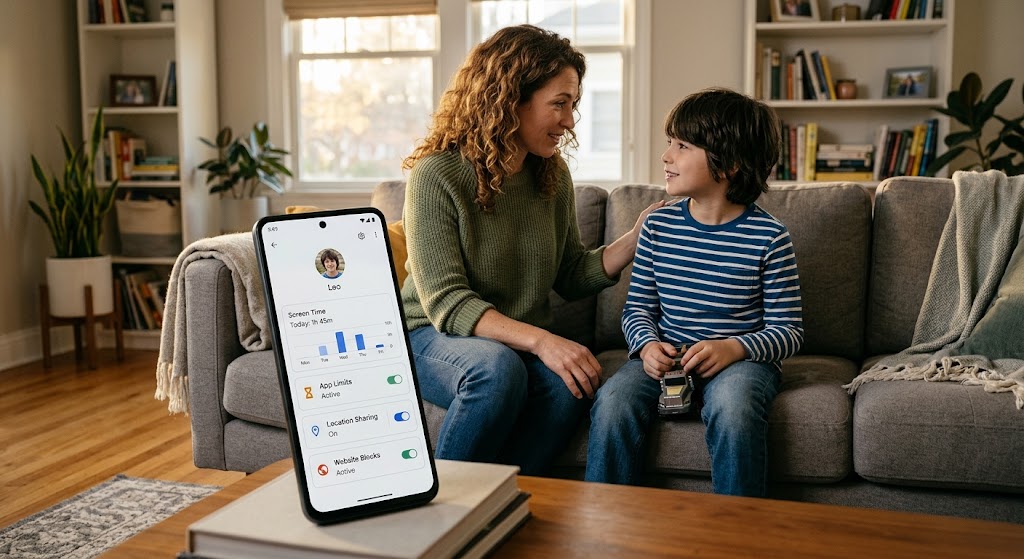
You’ve decided to monitor your child’s phone, and parental monitoring on Android is the next step to set it up correctly. A partially configured monitoring setup can create false confidence while missing the information that matters.
This guide walks you through the complete process, from the first conversation with your child to the final permission settings. It covers both Google Family Link, a free parental-control tool, and SpyHuman, which offers additional monitoring features for compatible Android devices.
You’ll learn what each setting does, why it may be needed, and what to consider before enabling it. The goal is to make informed decisions rather than blindly tapping “Allow” on every permission request.
Parental Monitoring on Android: Have the Conversation First
This step comes first because it matters more than any technical setting.
Tell your child that you’re setting up parental monitoring. Explain what information the chosen tools may show, such as location, app usage, messages, or call information, depending on the features enabled.
Explain why you’re doing it. Focus on safety, responsible phone use, and helping them handle difficult online situations not on suspicion or punishment.
Answer their questions honestly. Establish a clear rule: if your child comes to you with a problem they encountered on their phone, your first response will be to help them rather than automatically punish them for breaking a rule.
This conversation can make the difference between monitoring that supports trust and monitoring that damages it. When children understand the purpose and boundaries of monitoring, they’re more likely to treat their parent as a source of support instead of learning to hide problems.
For a deeper look at responsible monitoring, read our guide on how to track a phone with consent.
Layer 1: Google Family Link (Free)
Google Family Link is a useful starting point for an Android parental-control setup. It provides tools for managing screen time, app access, certain content settings, and a child’s location on supported devices.
Step 1: Install Family Link on Your Phone
- Open the Google Play Store on your phone.
- Search for Google Family Link.
- Install the official app and open it.
- Sign in with your Google account.
Follow the on-screen instructions to begin setting up supervision.
Step 2: Set Up or Link Your Child’s Google Account
If your child doesn’t have a Google account, Family Link can guide you through creating a supervised account, subject to Google’s age and account requirements.
If your child already has a Google account, open Family Link and follow the prompts to add or supervise the account. Your child may need to use their own phone to approve the setup.
The available supervision options depend on the child’s age, account type, country, and current Google policies. Review the prompts carefully rather than assuming that every account can be managed in the same way.
Step 3: Configure the Main Controls
Once the account is linked, open your child’s profile in Family Link and review the available settings.
Screen time: Set daily limits that suit your child’s age, school schedule, and other activities. For example, you might agree on different limits for school days and weekends.
Bedtime and downtime: Configure a schedule to help reduce late-night phone use. The available options and their behavior depend on the device and settings.
Per-app limits: Review app usage and set time limits for apps that regularly distract your child. For example, you might agree on a daily limit for YouTube or Instagram.
App approvals: Where available, require approval for app downloads or purchases through Google Play. Review the options in Family Link to understand exactly which activities require approval.
Location sharing: Enable location features if they’re available and appropriate for your family. Check that location services and the necessary permissions are configured on the child’s device.
Content restrictions: Review the available Google Play, Chrome, and Google Search settings. Configure age-appropriate restrictions and SafeSearch where supported.
Family Link’s controls can vary depending on the device, account, and Android version, so verify each setting after configuration.
What Family Link Doesn’t Cover
Family Link is primarily a parental-control tool, not a complete record of everything happening inside a phone.
It does not generally provide unrestricted access to the full content of WhatsApp conversations, every text message, or all activity inside third-party apps. Its browser and activity visibility also differ from a full browser-history logging tool.
If you need additional information beyond screen time, app controls, and the supervision features Google provides, evaluate other options carefully and check their compatibility, permissions, and privacy implications.
Layer 2: SpyHuman for Additional Monitoring Features
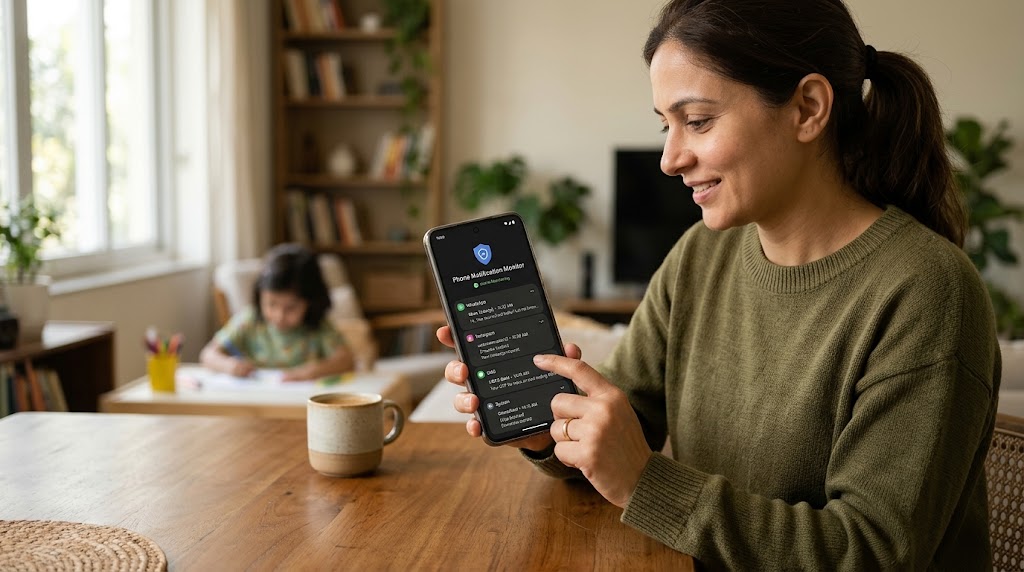
SpyHuman offers additional monitoring features for compatible Android devices. Depending on the product configuration and permissions granted, these may include supported call information, SMS, notification data, app activity, or location-related information.
Before installing any monitoring application, review its current feature list, device requirements, privacy policy, and lawful-use conditions. Do not assume that every feature is available on every Android phone or app.
Step 1: Create a SpyHuman Account
Visit SpyHuman and review the available plans and features.
Create an account and follow the official onboarding instructions. Check what information each plan provides and whether it supports your child’s device before proceeding.
Step 2: Prepare the Android Phone
Some Android applications distributed outside Google Play require permission to install an app from a particular source. This is often called installing unknown apps.
If SpyHuman’s official installation instructions require this permission, open the relevant security settings and follow the instructions for your device. Only download installation files from a source you have verified as official.
Do not disable security protections unnecessarily. If a device displays a warning, read it and understand the risk before proceeding. Re-enable any temporary security setting when it is no longer required.
For device-specific guidance, consult the SpyHuman installation guide.
Step 3: Install the Application
Follow the current installation instructions provided by SpyHuman.
If the official process requires an APK, verify that the download came from the legitimate source. Install the application, open it, and complete the account setup as directed.
Keep the child informed about the installation and the information the application is intended to collect.
Step 4: Review Permissions Carefully
Monitoring applications may request access to sensitive information. Only grant permissions that are necessary for the features you intend to use and that you are legally entitled to configure.
Location: May be required for location-related features. Background access and location accuracy depend on Android settings and device conditions.
Phone and call logs: May be required to display supported call information.
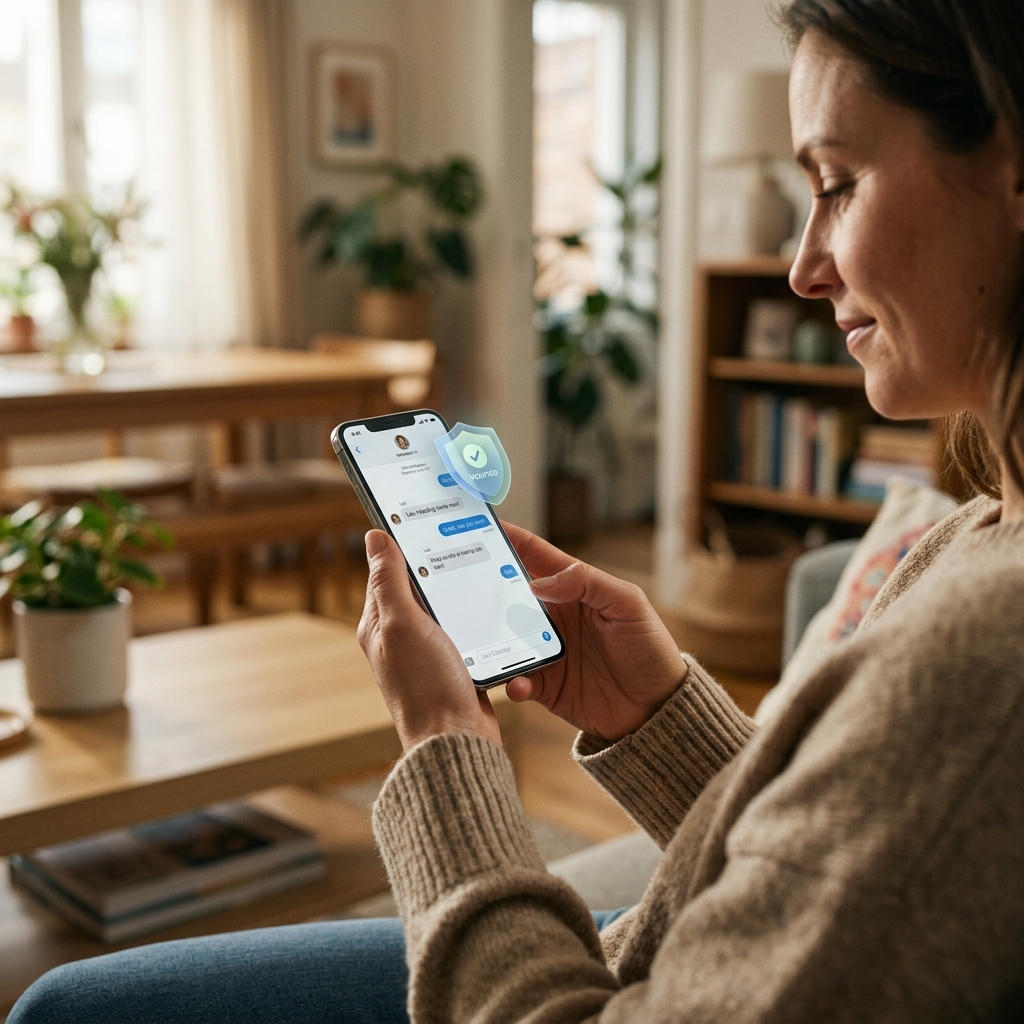
SMS: May be required for features that process text messages. The scope of access depends on the app and Android restrictions.
Photos, files, or storage: May be required for specific file-related features. Avoid granting broad access unless it is genuinely necessary.
Accessibility: Some applications use Android’s Accessibility Service for particular functions. This is a sensitive permission because it may allow an app to observe or interact with on-screen information. Enable it only after reviewing what the app does with that access.
Device administrator or other management access: If requested, understand the specific control it grants before enabling it. Do not grant device-management privileges merely to prevent a child from uninstalling an app without explaining the implications.
Background activity and battery settings: Android may restrict background work to conserve power. Review any recommendations from the official app documentation and make only changes needed for the intended functionality.
Permission names and availability vary by Android version and manufacturer. Follow the app’s current instructions, and revoke permissions you no longer need.
Step 5: Verify That the Setup Works
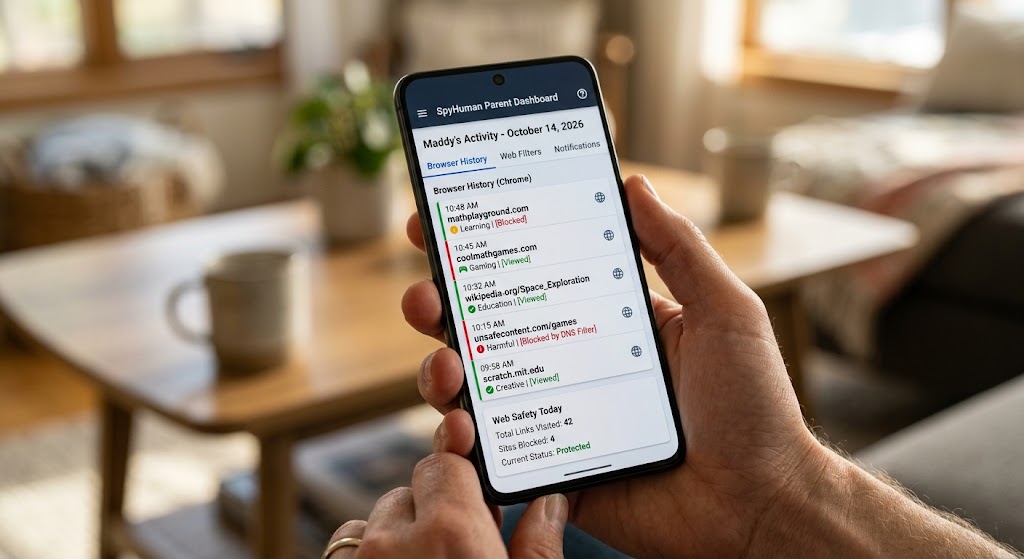
Open your SpyHuman dashboard on your own device and review the features you have configured.
Check whether supported information appears, such as location updates or app activity, where those features are enabled. Allow time for the initial setup and data synchronization, and consult the official documentation if something does not appear.
If information is missing, do not assume that monitoring is working simply because the app was installed. Check connectivity, permissions, compatibility, and the relevant feature settings.
Step 6: Secure the Device After Installation
If you temporarily enabled installation from an external source, return to Android’s security settings and disable that permission for the browser or app used to download the installation file, unless it is still genuinely required.
Keep Android and installed applications updated. Review app permissions periodically, use a secure account password, and protect access to the parent dashboard.
The goal is to keep the phone secure while ensuring that any monitoring you choose remains transparent and proportionate.
What to Monitor First
Once the setup is complete, avoid trying to review every available data point at once. Start with the information most relevant to your family’s needs.
Week 1: Establish Basic Habits
- Review screen-time patterns and discuss whether they fit your child’s school and sleep schedule.
- Check configured location sharing when there is a genuine safety reason to do so.
- Review app usage for unusually high or disruptive patterns.
- Discuss unfamiliar notifications or contacts if something raises a concern.
Week 2: Review Communication and Online Safety
- Discuss unfamiliar numbers or contacts with your child.
- Help them identify suspicious SMS messages and phishing links.
- Review privacy and safety settings in the apps they use.
- Ask whether they have experienced unwanted messages, bullying, or pressure online.
Ongoing: Focus on Patterns, Not Isolated Events
Set a reasonable review routine rather than conducting a deep review every day. Look for recurring patterns, such as persistent late-night use, repeated unwanted contact, or changes in behaviour that may need support.
Remember that a single notification, unfamiliar number, or increase in app usage does not automatically mean something is wrong. Ask questions and consider the wider context before taking action.
Device-Specific Notes for Android Phones
Android settings vary by manufacturer and operating-system version. The following are examples of areas to check if an application you have installed stops working in the background.
Xiaomi and Redmi (MIUI/HyperOS)
These devices may offer battery-management and autostart controls that affect background applications.
If a legitimately installed app is not updating as expected, check its battery settings and background-activity permissions. Use the device’s current help instructions because menu names differ across MIUI and HyperOS versions.
Samsung (One UI)
Samsung devices include battery-management features that can limit background activity. Review the app’s battery settings and check whether it has been placed in a sleeping-app list.
If a security feature blocks an installation, read the warning and confirm that the application is legitimate before changing any settings. Do not leave security protections disabled unnecessarily.
Realme and Oppo (ColorOS)
ColorOS versions may include app battery management, auto-launch, and background-activity restrictions. Check the relevant settings if an app does not behave as expected, and follow the app developer’s current instructions.
Vivo (Funtouch OS/OriginOS)
Some Vivo devices provide background power-management settings that may affect application activity. Review the app’s permitted background usage and battery settings where necessary.
These settings change across device generations. Always use the instructions for your specific phone and software version rather than relying on a menu path that may no longer exist.
Troubleshooting Common Issues
Data Is Not Appearing on the Dashboard
Check that the phone has a working Wi-Fi or mobile-data connection. Review the permissions for the feature you want to use and confirm that the phone and app are compatible.
Allow time for synchronisation. If the issue continues, restart the app or device where appropriate and consult the official support documentation.
Location Shows an Old Timestamp
An outdated location may mean that the phone is offline, location services are disabled, the relevant permission is missing, or background activity has been restricted.
Check the device’s connectivity, location settings, and app permissions. Remember that indoor conditions, battery-saving settings, and device limitations can affect location updates.
The App Is Not Visible in the App Drawer
Do not assume an application is working properly simply because it is not visible in the app drawer. Check the device’s installed-app list and the application’s own settings.
For transparent, consent-based monitoring, make sure the child knows which application is installed and what it does. Review the SpyHuman Lawful Use Policy.
The Child Uninstalled the App
If your child removes a monitoring application, use it as an opportunity to talk about what happened.
You might say: “I noticed the monitoring app was removed. Can we talk about why you felt uncomfortable with it?”
Listen to their concerns and review whether the level of monitoring is appropriate for their age and circumstances. Avoid treating the ability to prevent removal as more important than maintaining trust and respecting privacy.
The Ongoing Conversation
Setting up parental monitoring is the beginning, not the end.
Schedule regular conversations with your child about how the arrangement is working. Ask whether anything feels too invasive, explain any changes you make, and adjust the scope as they mature.
The goal is not perfect surveillance. It is to help your child develop the judgement and confidence to manage their digital life safely and independently.
For a broader comparison of available tools, see our guide to the best parental control apps for Android.
Frequently Asked Questions
How Long Does Setup Take?
Family Link setup may take around 10 minutes, depending on the accounts and device involved. Installing and configuring an additional monitoring application may take longer. Actual setup time varies by phone, permissions, and account requirements.
Does My Child Need to Be Present During Setup?
For Family Link, the child’s device may need to be available to accept supervision or complete account-related steps. Installing an additional monitoring application also generally requires access to the device.
Being present gives you a natural opportunity to explain what is being configured and answer questions.
Can I Set Up Parental Monitoring Remotely?
Some Family Link functions can be managed remotely after supervision has been established, but initial setup may require actions on the child’s device.
Additional monitoring applications may require physical access for installation and permission configuration. Check the current requirements for the specific tool you intend to use.
Will Monitoring Slow Down the Phone?
The impact varies by device, app, and enabled features. Family Link’s effect is generally modest, while applications that run background services may consume additional battery or resources.
Check battery usage on the phone after setup and disable any unnecessary features.
What If My Child Has an iPhone?
Family Link has limited functionality on iOS and does not provide the same device-level controls available on a supervised Android device. Apple’s Screen Time and Family Sharing features are more appropriate starting points for managing an iPhone.
Check each product’s current compatibility before choosing a monitoring solution.
Do I Need to Root the Phone?
Basic Family Link controls do not require root access. Whether an additional monitoring application’s features require special device access depends on the product and the specific functionality. Check SpyHuman’s current documentation for the device and features you plan to use.
Final Thoughts
Setting up parental monitoring on Android involves more than installing an application. Start with an honest conversation, configure built-in parental controls, and carefully assess whether additional monitoring is necessary for your family.
Review every permission, protect account access, and confirm that the features you rely on are working as expected. Most importantly, use the information to support your child’s safety and wellbeing rather than to replace communication and trust.
The most effective parental-monitoring setup is one that balances practical safeguards with transparency, age-appropriate boundaries, and a child’s growing independence.
Leave a Reply