
If you want to set up iPhone parental controls, Apple’s Screen Time is a useful starting point for managing your child’s digital habits. It includes built-in tools for setting app limits, scheduling downtime, restricting inappropriate content, managing communication, and controlling certain privacy settings.
You can also use Family Sharing to manage supported parental controls from your own Apple device and use Find My to help locate your child’s device when location sharing is configured.
Unlike Google Family Link, which brings many parental controls together in one app, Apple’s controls are spread across Screen Time, Family Sharing, and Find My. This step-by-step guide explains how to set up iPhone parental controls and configure these features together to create a safer digital environment for your child.
How to Set Up iPhone Parental Controls Step by Step
Before you begin, make sure you have the following:
- Your own iPhone, iPad, or Mac signed in to your Apple Account.
- Your child’s iPhone, unlocked and available for setup.
- A reliable internet connection.
- Access to the relevant Apple Account credentials.
- Around 15 minutes to configure the main settings.
If you’re setting up a new iPhone for your child, consider configuring parental controls during the initial setup process. You can also enable them later through the device’s Settings app.
Step 1: Set Up Family Sharing
Family Sharing allows family members to connect their Apple Accounts and share eligible services and features. It can also support remote management of a child’s screen time settings.
To get started:
- Open Settings on your iPhone.
- Tap your name at the top of the screen.
- Select Family or Family Sharing, depending on your iOS version.
- Follow the instructions to set up your family group if you haven’t already.
- Add your child by inviting their existing Apple Account or creating a child account where appropriate.
The available steps and age requirements for child accounts can vary by country or region.
Once your child has joined the family group, check whether their profile appears in your family settings. You can then access supported parental controls from your own device.
Why this matters: Family Sharing can make it easier to manage supported settings without repeatedly accessing your child’s iPhone.
Step 2: Enable Screen Time
Screen Time provides the main controls for managing how your child uses their iPhone.
To enable it directly on your child’s device:
- Open Settings.
- Tap Screen Time.
- Follow the prompts to turn it on.
- Select the option indicating that the device belongs to your child, if prompted.
- Configure the available settings and create a Screen Time passcode when offered.
If Family Sharing is already configured, you may be able to select your child’s name under Screen Time on your own device and manage their settings remotely.
Choose a passcode your child doesn’t already know. Keep it separate from the device’s unlock passcode where possible, and avoid entering it where your child can easily observe it.
Remember that menu names and available controls can differ slightly across iOS versions.
Step 3: Schedule Downtime
Downtime lets you establish periods when access to most apps and notifications is restricted. It’s useful for creating boundaries around bedtime, homework, and family time.
To configure downtime:
- Open Settings and select Screen Time.
- Choose your child’s profile if you’re managing settings remotely.
- Tap Downtime.
- Turn on the schedule.
- Choose the start and end times.
- Set different schedules for individual days if the option is available.
- Enable Block at Downtime if offered and appropriate for your configuration.
For example, you might schedule downtime from 9:00 p.m. to 7:00 a.m. on school nights. Your family’s routine may require a different schedule.
Review which apps and communication options remain available during downtime. Emergency access and permitted communication can depend on the settings and device configuration.
The goal is to establish a predictable routine rather than simply remove access to every app.
Step 4: Set App Limits
App Limits allow you to control how much time your child spends in selected apps or categories.
To configure them:
- Open Settings and select Screen Time.
- Tap App Limits.
- Select Add Limit.
- Choose one or more app categories or individual apps.
- Set the daily time allowance.
- Configure the limit for specific days if needed.
- Enable the available blocking option if you want limits enforced more strictly.
For example, you could set a daily limit of 30 minutes for games and 60 minutes for social networking. These are starting points, not universal recommendations; adjust them to your child’s age, schoolwork, and needs.
You can also review Always Allowed settings to decide which apps should remain accessible during downtime or other restrictions.
Consider keeping essential communication and genuinely useful educational tools available where appropriate. Review the configuration periodically as your child’s routine changes.
Step 5: Configure Content and Privacy Restrictions
Content and Privacy Restrictions help you manage access to certain content, purchases, and privacy-related settings.
To enable them:
- Open Settings.
- Select Screen Time.
- Open Content & Privacy Restrictions.
- Turn the feature on.
- Review the available settings and configure them according to your child’s age and needs.
Manage app installations and purchases
Look for the options under iTunes & App Store Purchases or the equivalent menu on your iOS version.
Depending on your preferences, you may be able to restrict installing or deleting apps and making in-app purchases.
Family Sharing also supports Ask to Buy for eligible child accounts and purchases. When enabled and supported, it allows a parent or guardian to approve or decline certain purchase requests.
These settings serve different purposes: installation restrictions can limit what happens on the device, while Ask to Buy provides an approval process for eligible transactions.
Set age-appropriate content ratings
Review the available content restrictions for apps, films, television programs, books, and other supported media.
Choose ratings that are suitable for your child’s age and maturity. The exact options depend on the content category, region, and iOS version.
Restrict web content
Under the content restrictions, look for Web Content.
Depending on your device and iOS version, you may be able to choose options such as:
- Unrestricted Access: Allows broader access to websites.
- Limit Adult Websites: Applies Apple’s available adult-content filtering.
- Allowed Websites Only: Restricts browsing to a specified list of websites, where available.
The most restrictive option may be suitable for younger children, while older children may benefit from a more flexible arrangement.
No web filter is perfect. Discuss online risks with your child and review settings as their needs change.
Review privacy and account settings
Screen Time may also let you restrict changes to selected privacy and account settings, including location services and account changes.
Review these options carefully before applying them. Restricting changes can help maintain your chosen configuration, but it should be balanced with your child’s growing independence and practical needs.
Step 6: Configure Communication Limits
Communication Limits can help you manage who your child can communicate with through supported Apple communication services, including Phone, FaceTime, and Messages.
To review the settings:
- Open Settings and select Screen Time.
- Tap Communication Limits.
- Choose the allowed communication options during permitted screen time.
- Configure the available options for downtime.
- Review the contact-related settings on your child’s device.
Depending on the available options, you may be able to restrict communication to contacts or selected people during certain periods.
For example, your family might agree that your child can communicate with approved contacts during school nights and have broader access at other times.
Keep in mind that communication limits do not control every third-party messaging app. Apps such as WhatsApp, Instagram, and Snapchat have their own privacy and communication settings, which should be reviewed separately.
Step 7: Enable Find My
Find My can help you locate a child’s Apple device when the relevant settings are enabled and the device can provide a location.
On your child’s iPhone:
- Open Settings.
- Tap the child’s name at the top.
- Select Find My.
- Open Find My iPhone.
- Review the available options, including Find My iPhone, Find My network, and Send Last Location, where supported.
- Check the location-sharing settings in Find My and Family Sharing.
To check a shared location, open the Find My app on your own Apple device and review the People or Devices section, as appropriate.
Location availability depends on the sharing configuration, device settings, network connectivity, battery status, and supported hardware features. Some capabilities vary by iPhone model and iOS version.
If the location isn’t appearing, confirm that location services and the relevant Find My settings are enabled. Also check that the family members have configured location sharing appropriately.
Use location sharing transparently and explain to your child when and why it is being used.
Step 8: Configure Ask to Buy and Purchase Controls
If your child uses the App Store or other Apple services, purchase controls can help prevent unexpected downloads and spending.
To check Ask to Buy:
- Open Settings on the parent’s device.
- Tap your name.
- Open Family or Family Sharing.
- Select your child’s name.
- Find Ask to Buy, if available.
- Enable it and review the associated settings.
When Ask to Buy is available and enabled for an eligible child account, supported purchase and download requests can be sent to the parent or guardian for approval.
Not every transaction or account configuration is necessarily covered. Review Apple’s current rules for your region and the specific services your child uses.
If your child uses Apple Cash or other payment features, check the applicable eligibility requirements and available transaction controls separately. Availability varies by country or region.
Additional iMessage Safety Settings
Screen Time is only one part of keeping your child safer online. Apple’s Messages app also includes features that may help reduce exposure to unwanted messages and sensitive content.
Filter Unknown Senders
Where available, filtering unknown senders can separate messages from people who aren’t recognised as contacts from the main conversation list. This may make it easier to identify unwanted or unexpected messages.
Review Communication Safety
Communication Safety is designed to help protect children from viewing or sharing sensitive images in supported Apple services. The feature and its behaviour depend on the child’s device, software version, account configuration, and region.
Review the current settings on your child’s device and explain the feature in age-appropriate language.
Use Check In when appropriate
Check In is an Apple Messages feature that can help someone notify a trusted person when they arrive at a destination. If an expected arrival is missed, the feature can share selected information according to its settings and the user’s choices.
It can be useful for agreed family routines, such as a child travelling home from school when the feature is supported and appropriate.
These features complement parental controls; they do not replace communication, supervision, or safety planning.
Review Safety Settings in WhatsApp, Instagram, and Snapchat
Built-in iPhone controls do not replace the safety settings inside individual social and messaging apps. Review each app your child uses and adjust its privacy settings together.
Review privacy options such as who can see profile information, add the child to groups, or contact them. Discuss suspicious messages and how to report or block unwanted contacts.
Read our WhatsApp parental controls guide for more information.
Review account privacy, messaging controls, sensitive-content settings, and the available parental supervision tools. Features and eligibility can vary by age and account.
Read our Instagram parental controls guide.
Snapchat
Review who can contact your child, location-sharing settings such as Ghost Mode, and the available privacy options. Explain how to avoid sharing sensitive information with people they don’t know.
Read our Snapchat parental controls guide.
iPhone vs Android Parental Controls
Both iPhone and Android offer built-in parental-control tools, but their features and management options differ.
| Feature | iPhone: Screen Time | Android: Google Family Link |
|---|---|---|
| Built-in parental controls | Yes | Yes |
| App time limits | Yes, for supported apps and categories | Yes, for supported apps |
| Downtime or bedtime schedules | Yes | Yes |
| Purchase approvals | Ask to Buy for eligible purchases | Approval options for supported downloads |
| Web and content restrictions | Available through Screen Time | Available through supported Google services |
| Location options | Find My and location sharing | Family Link location features |
| Communication controls | Available for supported Apple services | Availability varies by feature and device |
| Remote management | Through supported Apple devices and Family Sharing | Through the Family Link parent app |
| Parent using a different platform | Full Screen Time management is primarily within Apple’s ecosystem | Parent app supports Android and iOS, with feature limitations |
The best choice depends on the devices your family uses and the controls you need. If your child already has an iPhone, Screen Time and Family Sharing provide a useful starting point without requiring a separate parental-control subscription.
Third-party monitoring capabilities can differ substantially between operating systems. Check each app’s documented features, permissions, privacy practices, and legal requirements rather than assuming that a tool can access all messages or activity.
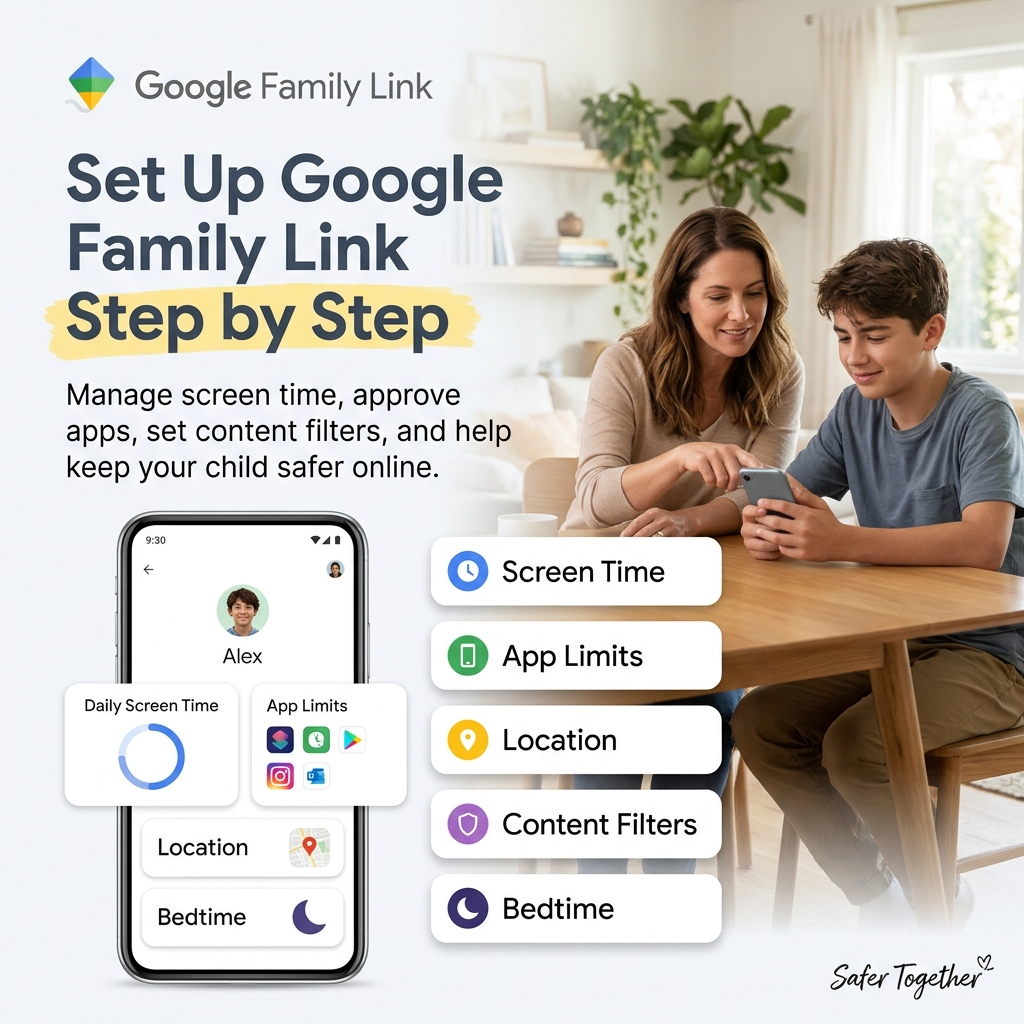
For more help with Android devices, read our guide to setting up Google Family Link step by step.
Troubleshooting iPhone Parental Controls
If your settings aren’t working as expected, try the following checks.
Screen Time settings aren’t syncing
- Confirm that Family Sharing is configured correctly.
- Check that you selected the correct child’s profile.
- Make sure both devices have a working internet connection.
- Restart the devices and check for available software updates.
- Reopen Screen Time to see whether the settings have updated.
Some settings may not be available for remote management in every configuration.
My child can still use an app after reaching a limit
- Reopen App Limits and confirm that the correct app or category is selected.
- Check the time allowance and the days on which the limit applies.
- Review whether the relevant blocking option is enabled.
- Check Always Allowed and other exceptions that may apply.
- Confirm that the device is using the intended Screen Time settings.
The precise behaviour can vary by iOS version and configuration.
Find My isn’t showing my child’s location
- Check that Find My iPhone is enabled.
- Review Location Services and location-sharing permissions.
- Confirm that the device is connected or can otherwise provide a location.
- Check that your family members have configured sharing correctly.
- Verify that you’re looking in the correct section of the Find My app.
A device may not show a current location if it is offline or unable to provide location information.
My child can change some restrictions
- Check that Screen Time is enabled and that you have configured a Screen Time passcode where available.
- Review Content & Privacy Restrictions.
- Check the settings that control account and passcode changes.
- Keep iOS updated and periodically review your configuration.
No configuration should be treated as impossible to bypass. Combine technical settings with regular conversations and age-appropriate expectations.
Frequently Asked Questions
Can I manage my child’s iPhone from an Android phone?
You can access some Apple services through the web, including Find Devices through iCloud where supported. However, full Screen Time management generally requires a compatible Apple device. Check Apple’s current options for your account and region.
Does Screen Time show everything my child does inside apps?
No. Screen Time can report supported usage information, such as time spent in apps and categories, but it does not provide a complete view of every message or activity inside every app. Access to in-app content depends on the service and its privacy restrictions.
Can my child bypass iPhone parental controls?
Some restrictions may be changed if settings are not configured properly or if the child has access to relevant passcodes or account credentials. A Screen Time passcode and appropriate restrictions can help, but no setup guarantees that every control is impossible to bypass.
Review the settings periodically and keep the device updated.
At what age should I loosen Screen Time restrictions?
There is no single age that works for every family. Consider your child’s maturity, online behaviour, responsibilities, and ability to follow agreed boundaries.
You can gradually replace strict limits with shared expectations as your child demonstrates readiness. Explain changes openly and review them together.
Are iPhone parental controls free?
Screen Time is built into iOS and does not require a separate parental-control subscription. Family Sharing and Find My also provide built-in features, although availability and requirements vary by service, device, and region.
Final Thoughts
Setting up iPhone parental controls is about more than limiting screen time. By combining Screen Time, Family Sharing, content restrictions, communication settings, and Find My, you can establish practical boundaries around your child’s digital life.
Start with the settings that matter most to your family, test them on the device, and review them as your child grows. For the best results, combine technical controls with open conversations about privacy, online behaviour, and responsible phone use.


Leave a Reply