
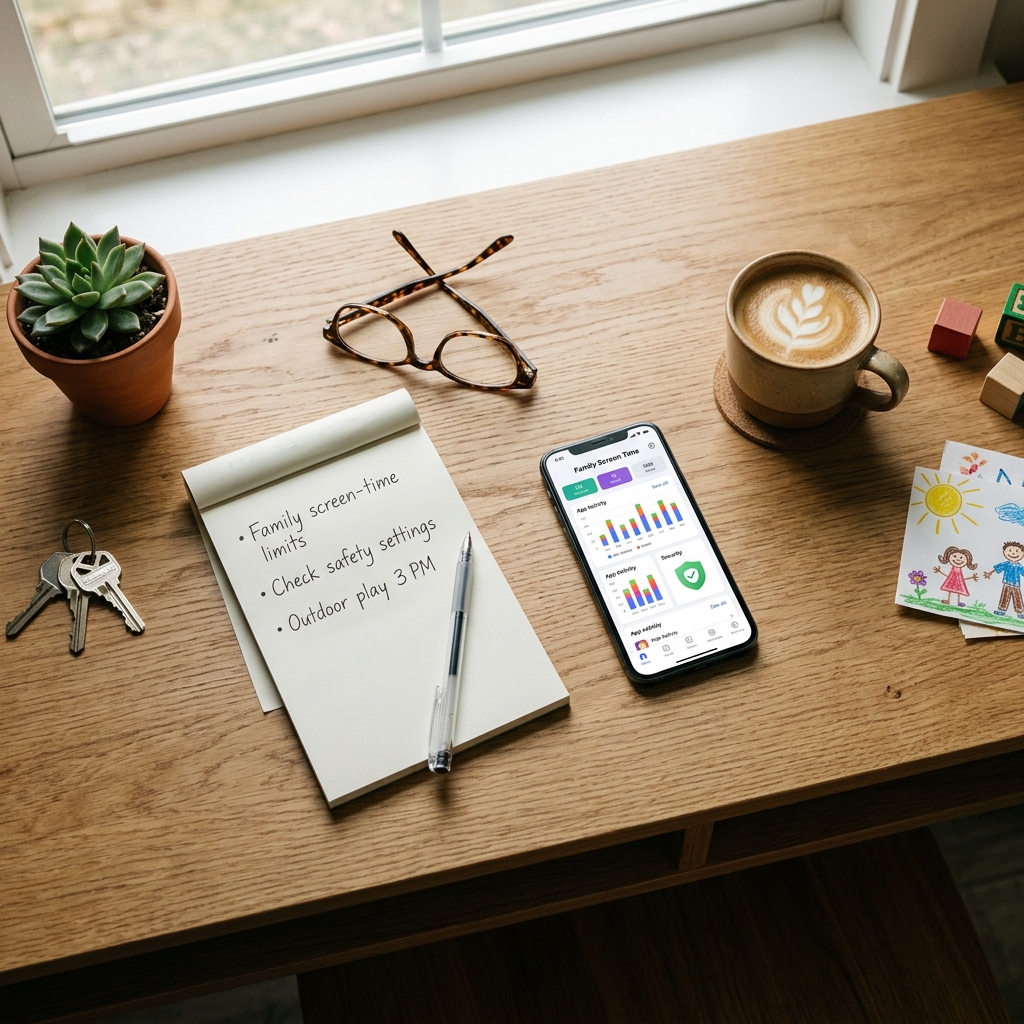
You gave your child a phone, and if you are wondering how to monitor child app activity, you aren’t alone in wanting to know what they are actually doing on it. Not in a suspicious way, but in the way any responsible parent asks.
Which apps are they using, how much time do they spend, and is anything happening that you should know about? Android gives you real answers to all three questions, for free with built-in tools and in more detail with a monitoring app. This guide covers both, step by step, so you can set up the level of visibility that fits your child’s age and your family’s approach.
What “app activity” actually means
App activity is a broad term, so let me break it down into what you can actually see.
-
Usage time: How many minutes or hours the child spent in each app today, this week, and over time. This tells you the shape of their phone use: are they on YouTube for 4 hours, or spread across homework apps and messaging?
-
App list: Which apps are installed, when they were installed, and whether you approved them. This catches apps that appeared without your knowledge.
-
Activity inside apps: On a basic level, this means which app was open at which time. On a deeper level (with a monitoring app), it can include message content, photos viewed, searches made, and in-app actions. The depth depends on the tool.
-
Notifications: What notifications each app sends, and how often. A spike in notifications from one app can signal something worth checking.
-
Battery and data usage: Which apps are using the most battery and data, which is useful for catching apps running in the background that the child may not even realize are active.
Method 1: Google Family Link (free, built-in)
Family Link is the starting point, and for many families it’s all you need.
Once Family Link is set up (see how to set up Google Family Link), open the Family Link app on your phone and tap your child’s profile. You’ll see a dashboard showing today’s screen time, broken down by app.
What you can do from here:
-
See exactly how much time was spent on each app.
-
Set a daily time limit for each app individually (for example, 1 hour of Instagram, 30 minutes of games).
-
Set a total daily screen time limit.
-
Schedule downtime (phone locks during bedtime or school hours).
-
Approve or block app installs from the Play Store.
-
See the child’s location.
What you can’t do:
See what the child does inside each app. Family Link shows “2 hours on WhatsApp” but not who they messaged or what was said. It shows “45 minutes on Chrome” but not which sites they visited (beyond SafeSearch enforcement). It’s a time and access tool, not a content tool.
Setting per-app limits is where Family Link shines. You decide that Instagram gets 1 hour on weekdays and 2 on weekends. When the time runs out, Instagram greys out on the child’s phone and won’t open until the next day (or until you grant bonus time). The enforcement is real, not just a reminder the child can dismiss.
I’ve tested this extensively on a Redmi Note 12. The time tracking is accurate to the minute. The lock activates within 10 seconds of hitting the limit. And the child gets a 5-minute warning before time runs out, which is a nice touch that prevents mid-conversation cutoffs.
Method 2: Android Digital Wellbeing (on the child’s phone)
Digital Wellbeing is built into Android (Settings, Digital Wellbeing, and Parental Controls) and shows the same data on the phone itself.
The dashboard shows today’s usage by app, number of unlocks, and notifications received. App timers let the child set their own limits, though they can override them (unlike Family Link’s parent-enforced limits). Focus Mode pauses selected apps during homework or study time.
This is a self-management tool, not parental control. It works best for teenagers who are old enough to manage their own usage with guidance, and it pairs well with a conversation: sit down together, look at the numbers, and talk about what surprised them.
A practical use: Show your 14-year-old their own Digital Wellbeing dashboard. Most teenagers genuinely don’t realize how much time they spend on their phones, and seeing “3 hours on Instagram today” in cold numbers is more persuasive than any lecture.
See how to monitor screen time on Android for the full walkthrough of Digital Wellbeing and screen time management.
Method 3: How to monitor child app activity with SpyHuman (deeper monitoring)
If you need to see what happens inside apps, not just how long they’re open, SpyHuman’s app activity tracker goes a level deeper.
Once installed on the child’s Android device (with their knowledge), it logs which apps are used and when, with exact timestamps. It shows app-usage patterns over days and weeks. And it feeds into a dashboard where you can see app activity alongside location, call logs, messages, and other monitoring data in one place.
The difference from Family Link: SpyHuman shows you the activity timeline (which app opened at 10:14pm, which one closed at 10:47pm) and pairs it with communication data. So instead of just knowing “2 hours on WhatsApp,” you can see the messages, the call logs, and the timestamps together. This is the level of visibility that matters when a parent is genuinely concerned about who the child is talking to, not just how long.
Setup takes about 5 minutes. See the installation guide for the step-by-step and our comparison guide for how SpyHuman’s app monitoring compares with alternatives.
Which apps should you watch?
Not all apps carry equal risk. Here’s a practical guide to which ones deserve attention at each age:
-
Under 13: YouTube (content exposure), any messaging app (contact risk), any games with chat features or in-app purchases. Family Link’s app approval catches new installs before they go live.
-
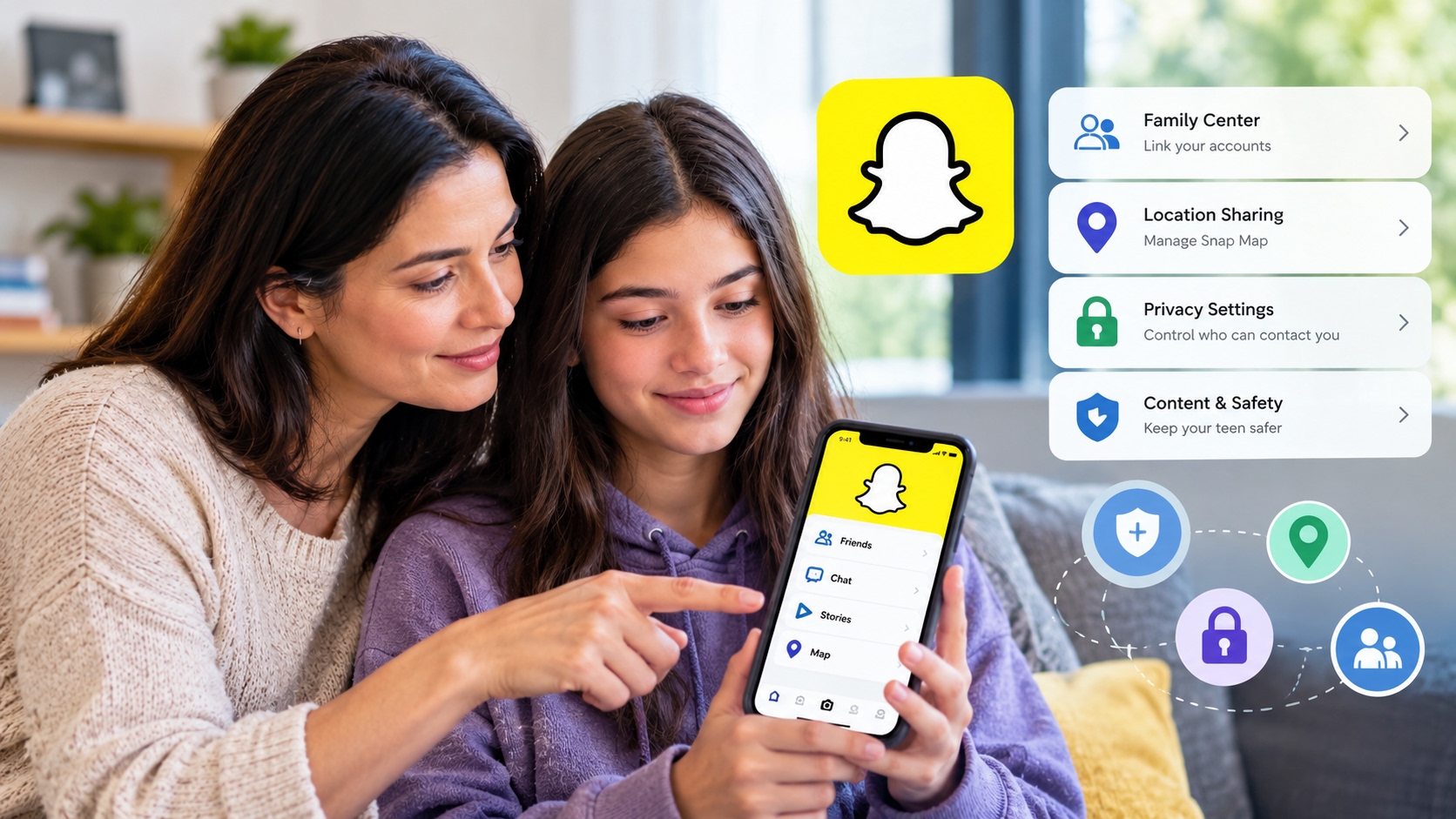
13 to 15: WhatsApp, Instagram, Snapchat (social pressure, contact from strangers, content). Add TikTok and any dating app to the watch list. See the WhatsApp parental controls guide, Instagram guide, and Snapchat guide for per-platform detail.
-
16 to 17: The concern shifts from which apps to how much time. At this age, monitoring individual app content becomes less appropriate (and the teen resists it more), while time management and healthy habits remain relevant. Digital well-being for self-management, with a parent available to help.
Reading the data without overreacting
App activity data can trigger anxiety if you read it wrong. A few guidelines that keep monitoring productive:
-
High screen time on a single day isn’t necessarily a problem. Every teenager has lazy Saturday afternoons. Look at weekly averages, not daily spikes.
-
A new app appearing is worth a question, not a confrontation. “I saw you installed [app]; what is it?” opens a conversation. “Why did you install this without asking?” starts a fight.
-
Usage at odd hours is the strongest signal. An app active at 2am on a school night is more concerning than 3 hours of YouTube on a Sunday.
-
Patterns matter more than individual data points. A gradual increase in messaging-app usage, a sudden drop in all activity, or a new app appearing and then being rapidly uninstalled are patterns worth exploring. A single busy day on Instagram is not.
Controlling app installs (not just monitoring)
Monitoring what your child uses is one half. Controlling what they can install is the other, and it’s easier.
Family Link’s app-approval feature means every time the child tries to install an app from the Play Store, you get a notification on your phone. You can approve or deny it with one tap. This is the simplest, most effective parental control on Android, because it catches new apps before they ever run on the child’s phone.
For apps that are already installed and you want removed, you can do it remotely from Family Link: open the child’s profile, go to Apps, and uninstall anything you don’t want there. The child gets a notification that the app was removed, which naturally leads to a conversation about why.
For side-loaded apps (installed outside the Play Store), make sure “Install Unknown Apps” is turned off on the child’s phone: Settings, Apps, Special Access, Install Unknown Apps, and disable it for every app. This prevents APK installs from Chrome, file managers, or messaging apps, which is how most risky apps get on a phone in the first place.
Notification monitoring: the lightweight option
If full app-activity monitoring feels like too much for your family, monitoring notifications is a lighter alternative that still catches problems.
Android’s notification log (accessible via a home-screen widget on most phones) shows every notification the phone received, including previews of messages from WhatsApp, Instagram, and other apps. Checking this occasionally gives you a summary of who’s messaging the child and what the messages say, without installing any additional app.
Third-party notification-log apps save this data permanently and make it searchable. This gives you a rolling record of incoming communications without the full depth (and full privacy trade-off) of a message-reading monitoring app.
For parents who want to stay informed without reading every message, this middle ground works well, especially for 14-to-16-year-olds where full monitoring feels too invasive but zero visibility feels too risky.
The honest limits
No app activity monitor prevents a child from doing something on a friend’s phone, on a school computer, or on a device you don’t manage. Technical monitoring covers the managed device, not the child’s entire digital life.
And no amount of app-activity data replaces the relationship. The most useful thing the data does is give you something concrete to talk about, not something to punish with. “I noticed you were on your phone until midnight last night. How are you sleeping?” is monitoring done right. “I see you spent 47 minutes on Snapchat; explain yourself.” This is monitoring done wrong.
Frequently asked questions
Can I see what my child watches on YouTube?
Family Link shows YouTube time but not specific videos. YouTube’s supervised accounts (for under-13s) or YouTube Kids give content-level control. SpyHuman shows browsing history, which includes YouTube URLs.
Will my child know I’m monitoring their app activity?
With Family Link, yes, it’s visible in their settings. With SpyHuman, you should tell them. Open monitoring is both legally safer and more effective. See tracking with consent.
Can my child uninstall the monitoring app?
Family Link requires your Google password to remove. SpyHuman registers as a device administrator. A factory reset removes everything, but Factory Reset Protection then requires your Google account to set up the phone again.
How much data does app monitoring use?
Family Link uses under 10MB per month. SpyHuman uses 30 to 80MB depending on features enabled. Neither is likely to affect a normal data plan.
Does monitoring slow down the phone?
Family Link has no noticeable impact. Monitoring apps that run continuously may cause a small battery drain (5 to 15 percent more per day) but shouldn’t slow performance visibly.

Leave a Reply