
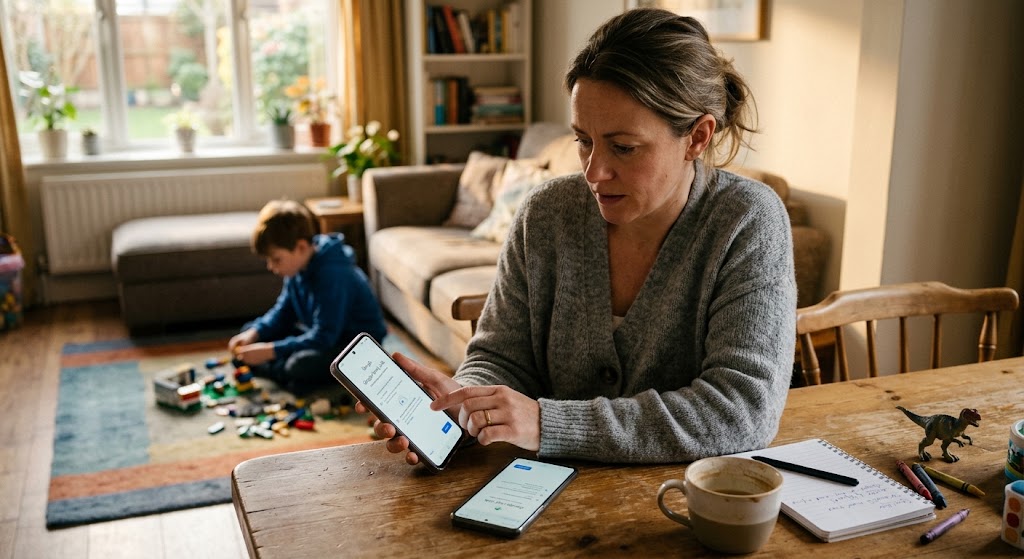
If your child has an Android phone, setting a few limits can save you from a lot of daily arguments. You can set up parental controls on Android to manage screen time, restrict apps, filter web content, and control what your child can download.
Android gives parents built-in controls on supported devices. Google Family Link adds more options for parents who want to manage a child’s compatible device from their own phone.
The setup you choose depends on how much control you need. For basic limits, Android’s own settings may be enough. If you want remote supervision, app management, or location features, Family Link is worth considering.
And if you need more detailed activity monitoring after the basic controls are in place, you can look at a dedicated parental control tool such as SpyHuman.
What Can Android Parental Controls Do?
Parental controls are designed to help you manage how a child uses their phone.
Depending on your Android version and the tools you use, you can control things such as:
- Daily screen time
- Downtime or scheduled phone breaks
- Individual app limits
- Blocked apps
- Google Play downloads and purchases
- Website restrictions
- Search filtering
- YouTube content settings
- App permissions
- Device location through Family Link
Google’s current Android guidance says supported devices can use on-device controls for screen time, app limits, app-store controls, and web content filters. Family Link adds remote management options for compatible devices.
For advanced visibility into your child’s digital habits beyond what native tools provide, you can explore specialized parental monitoring software such as SpyHuman.
Before You Start Your Parental Control Setup
Take 5 minutes to check the basics before changing anything.
You’ll need:
- Your child’s Android phone
- Your own phone if you’re using Family Link
- A Google Account
- Internet access
- The latest available Android updates
- A parental-control PIN if you’re using Android’s built-in controls
If you’re using Android’s on-device parental controls, Google’s current requirements specify Android 17 or later for those built-in controls.
Family Link has different device requirements. Google says parents can use Family Link on supported Android devices as well as supported iPhones, while the child’s supervised device must be compatible.
It’s also worth deciding what you actually want to restrict.
Maybe your main problem is late-night scrolling. Maybe your child keeps downloading games. Or perhaps you’re more concerned about websites and online content.
Pick the problem first. Then set the control that solves it.
How to Set Up Parental Controls on Android
For supported Android devices, you can create a parental-control PIN directly from the phone.
Step 1: Open Settings
Open the Settings app on your child’s Android phone.
Look for parental controls.
If you don’t see it, your phone may use a different Android version or manufacturer interface. In that case, check your phone’s settings search bar and type “parental controls.”
Step 2: Create a Parental Controls PIN
Tap Parental controls.
Then select Set up Parental controls PIN.
Create a PIN that your child doesn’t know. Google requires the PIN to contain at least 4 digits. You can also add a recovery account so you have a way to reset the PIN if you forget it.
Don’t use something obvious like your child’s birthday.
A random 4 to 6-digit PIN is better.
Expert Tip: When we tested this setup across different devices, we noticed kids sometimes attempt to bypass screen limits by manually altering the device time zone; ensuring your Google account locks the automatic date and time settings helps prevent this workaround.
Step 3: Set a daily screen-time limit.
Once the parental-control PIN is active, look for the daily limit setting.
Choose how much time your child can use the device each day.
For example:
- School days: 2 hours
- Weekends: 3 hours
- Homework time: restricted
- Bedtime: phone unavailable
There’s no single screen-time number that works for every child. Age, schoolwork, hobbies, and the child’s routine all matter.
If you’re unsure where to start, keep the first limit reasonable. You can adjust it after a week based on how your child actually uses the phone.
If screen time is your main concern, our guide on how to set healthy screen time limits on Android for kids goes deeper into daily limits and practical routines.
Step 4: Set Downtime
Downtime lets you choose periods when the phone should have restricted access.
This can be useful for:
- Bedtime
- School hours
- Homework
- Family meals
- Early mornings
For example, you could set downtime from 10 p.m. to 7 a.m. on school nights.
The goal isn’t to make the phone unusable all day. It’s to create a predictable routine around it.
Step 5: Set Limits for Individual Apps
A child might spend 2 hours on a game while barely touching their educational apps.
That’s where individual app limits help.
Open the app-control section and select the app you want to limit. Choose the amount of time your child can use it.
You might set:
| App type | Example daily limit |
| Games | 30 minutes |
| Social media | 45 minutes |
| YouTube | 1 hour |
| School apps | No limit |
| Reading apps | No limit |
These numbers are examples, not medical or educational recommendations. Adjust them to your child’s age and routine.
Step 6: Block Apps You Don’t Want Your Child Using
If there’s an app you don’t want your child accessing, you can use the app controls to block it where the available Android controls support that option.
Be careful with system apps.
Blocking an app without knowing what it does can cause problems with other phone functions. If you’re unsure, search the app name before blocking it.
How to Filter Websites on an Android Phone
Web filtering is one of the settings parents usually look for first.
With Android and Family Link, you can apply restrictions to supported Google services and browsers.
Family Link can manage settings for services such as Chrome, Google Search, YouTube, and Google Play. Google also warns that content filters aren’t perfect. Some content can still get through.
So don’t treat a filter as a substitute for talking to your child about online safety.
A good setup usually includes:
- Website restrictions
- Search filtering
- App restrictions
- Screen-time limits
- Regular conversations about online behavior
That combination gives you more control than relying on one switch.
How to Control Google Play Downloads
Children can install apps very quickly. One tap can put a new game or social platform on the phone.
Family Link lets parents manage app downloads and require approval for new apps. It can also manage content restrictions based on maturity ratings.
This is useful if you want your child to ask before installing something new.
You can also review the apps already installed on the phone.
Look for apps you don’t recognize. If your child installed something without asking, discuss why before simply removing it.
That conversation matters. Kids who understand the reason behind a rule are more likely to follow it.
How to Set Up Google Family Link
Android’s built-in controls are useful for basic restrictions. Family Link makes sense when you want to manage supported child devices from your own phone.
Google Family Link can help parents manage screen time, individual app limits, blocked apps, content filters, account settings, and device location where supported.
Step 1: Install Family Link
Install Google’s official Family Link app on the parent’s phone.
You can find the current setup instructions on Google’s official Android parental controls guide.
Step 2: Connect the Child’s Google Account
Follow the Family Link setup instructions to connect the child’s Google Account with the parent’s family group.
If your child doesn’t already have a supervised account, Google provides account-creation options for children below the applicable age in their country.
Step 3: Sign the Child Into the Android Device
The child’s account needs to be connected to a compatible Android device.
Once supervision is active, you can manage the settings available for that device from Family Link.
Step 4: Set Your Rules
Open Family Link and review the available controls.
You can manage things such as the following:
- Daily screen-time limits
- Downtime
- School Time
- Individual app limits
- Blocked apps
- App approvals
- Google Play restrictions
- Chrome and web restrictions
- Search settings
- YouTube settings
- Location
Google says location can be viewed when the child’s device is powered on, recently active and connected to the internet.
Don’t switch every setting on at once.
Start with the 2 or 3 controls that solve your biggest concerns. You can add more later.
Android Parental Controls vs Google Family Link
The two options overlap, but they’re useful in different situations.
| Control | Android built-in controls | Google Family Link |
| Screen-time limits | Yes | Yes |
| App limits | Yes | Yes |
| Block apps | Yes | Yes |
| Web filtering | Yes, on supported setup | Yes |
| Google Play controls | Yes | Yes |
| Remote management | Limited | Yes |
| Location | Not the main purpose | Yes on supported devices |
| School Time | Depends on device | Yes |
| Parent’s separate phone | No | Yes |
For a simple setup on the child’s phone, Android’s built-in controls can be enough.
For parents who want to manage the child’s compatible device remotely, Family Link gives you more control from the parent’s device.
What Does Child Phone Monitoring Include?
Parental controls and child phone monitoring are related, but they aren’t the same thing.
Android’s built-in controls focus mainly on restrictions. Family Link adds remote supervision and features such as location and app management.
A dedicated monitoring app can provide a different level of visibility.
For example, SpyHuman’s Android parental control software includes tools for app activity, location, calls, messages, and other device activity. The available features depend on the plan and the device setup.
If you’re considering this type of software, be clear about what you actually need before installing anything.
For many families, screen-time limits and app restrictions are enough.
For a parent dealing with a specific safety concern, more detailed activity information may be useful.
When Built-In Android Controls Aren’t Enough
You may reach a point where you want information that basic parental controls don’t provide.
For example, you might want to review the following:
- App activity
- Location history
- Web activity
- Call records
- Messages
- Social media activity
- Screen-time patterns
That’s where a dedicated tool can fit into your setup.
SpyHuman’s all-features page explains the monitoring options available through its dashboard.
The key is to use monitoring lawfully. SpyHuman states that its software is intended for parents or legal guardians monitoring a minor’s device, devices owned by the user, or company-owned devices where the user has been informed and consents.
Never install monitoring software on another adult’s phone without their permission.
How Long Does Parental Control Setup Take?
A basic Android setup can be done fairly quickly once you know where the settings are.
Family Link can take longer because you’re connecting accounts and configuring supervision across devices.
If you’re adding a separate monitoring application, installation time depends on the product and phone.
For example, SpyHuman’s current Android installation guide says its setup takes about 3 to 5 minutes and requires one-time physical access to the Android device.
The bigger time commitment is deciding which rules you actually want.
Don’t spend 20 minutes setting restrictions that you’ll remove tomorrow.
Start small. Test the setup. Then adjust it.
Common Android Parental Control Problems
I Can’t Find Parental Controls
Check your Android version first.
The exact location of settings varies between Android versions and phone manufacturers. Use the Settings search and type “parental controls” if you can’t find the menu.
My Child Can Still See Inappropriate Content
Filters aren’t perfect.
Google specifically states that Family Link’s filters can allow some explicit or unwanted content through.
Check the individual settings for Chrome, Search, YouTube, and other apps your child uses.
My Child Keeps Installing New Apps
Turn on app approval through Family Link where available.
Then review installed apps regularly.
I Forgot the Parental Controls’ PIN.
If you added a recovery account during setup, use Google’s recovery process to reset the PIN.
This is one reason you shouldn’t skip the recovery-account step.
The Controls Work Differently on My Phone
That’s normal.
Android settings can vary by device and software version. A Samsung menu may not look identical to a Google Pixel menu.
Search for the setting by name first.
6 Mistakes Parents Make With Android Parental Controls
1. Setting Rules Without Explaining Them
A child is more likely to push back when a rule appears out of nowhere.
Explain why the limit exists.
2. Making the Limits Too Strict
If your child suddenly goes from unlimited phone access to 30 minutes a day, expect an argument.
Make changes gradually when possible.
3. Blocking Everything
Some apps are useful for school, communication, or family activities.
Review the app before blocking it.
4. Relying Only on Website Filters
Filters help, but they don’t catch every piece of content.
Your child can encounter unwanted material through social apps, games, messages, or other services.
5. Forgetting About New Apps
A parental-control setup isn’t a one-time job.
Check new installations occasionally.
6. Ignoring Your Child’s Age
A 7-year-old and a 16-year-old don’t need the same rules.
Give older children more responsibility as they show they can handle it.
How to Make Your Android Parental Control Setup Work Better
Start with 3 rules.
For example:
- No phone during school hours.
- Games stop at 8 p.m.
- New apps require approval.
Once those rules work, add another if you need it.
Also review the settings every few months. Your child’s phone habits will change as they get older.
If you need a place to compare features before choosing a monitoring service, you can check the current SpyHuman pricing and plan details.
And if you run into a setup problem, the SpyHuman FAQ covers common questions about installation, accounts, subscriptions, and lawful use.
Frequently Asked Questions
Can I set parental controls without installing an app?
Yes. Supported Android devices have built-in parental controls. You can use them for settings such as screen-time limits, app restrictions, and content filters.
Can I manage my child’s Android phone from my own phone?
Yes. Google Family Link is designed to let parents manage supported child devices from a parent device. Available controls include screen time, apps, content settings, and location features.
Can Android parental controls stop my child from using a VPN?
Standard parental controls don’t guarantee that every method of bypassing restrictions will be blocked. If you’re concerned about bypassing rules, check the apps installed on the device and review the available Family Link and Android settings.
Can I use Family Link if I have an iPhone?
Yes. Google says parents can run Family Link on supported iPhones. The child’s supervised device still needs to meet Google’s compatibility requirements.
Do parental controls let me read my child’s private messages?
Basic Android parental controls and Family Link aren’t designed to give parents unrestricted access to private messages. Their main controls cover areas such as screen time, apps, content filtering and location.
If you need more detailed activity information for a lawful parental-monitoring situation, you’ll need to look at a dedicated monitoring solution and check exactly what it can access.
Are Android parental controls completely foolproof?
No.
Filters and restrictions reduce exposure to unwanted content, but they can’t guarantee that a child will never encounter something inappropriate. Google explicitly says Family Link’s content filters aren’t perfect.
That makes regular conversations about online safety just as important as the technical settings.
Final Thoughts
A good set up parental controls Android strategy starts with the basics: screen time, app limits, downloads, and web filtering.
If those controls cover what your family needs, you’re done.
If you need remote supervision through a parent’s phone, Google Family Link is the next option to consider. For families that need more detailed activity monitoring, a dedicated Android monitoring tool may make sense.
Start with a few rules your child can understand. Test them for a week. Then adjust.
If you decide you need more than Android’s built-in controls, install SpyHuman on the compatible Android device and review the available monitoring features. Setup takes about 3 to 5 minutes according to SpyHuman’s current installation guide.
Use any monitoring tool only where you have the legal right and appropriate permission to monitor the device.

Leave a Reply