
You typed “how to track location by phone number” because you want a fast answer. Here it is: you can’t just punch in a number and watch a dot move on a map. That’s not how phones work. But there are real, working ways to track a phone’s location, and most of them take less than 10 minutes to set up.
This guide walks through the methods that actually work, the ones that don’t, and how to set things up the right way with your kid.
Can you really track a phone just by its number?
No. Not with just a phone number.
A phone number connects you to a person, not to GPS coordinates. To see where a phone is, you need one of two things: access to a tracking feature already built into the phone, or a location-sharing app installed and turned on. The number itself does nothing on its own.
Any site that asks you to “enter a phone number and click track” is either going to hand you a vague cell tower estimate (off by miles), try to sell you a subscription, or do nothing at all. Some of these sites exist to harvest emails and card details. Skip them. If you want a quick breakdown of what basic lookup sites actually reveal versus real tracking, refer to our guide on how a phone number tracker works in practice.
What you actually want is one of the methods below.
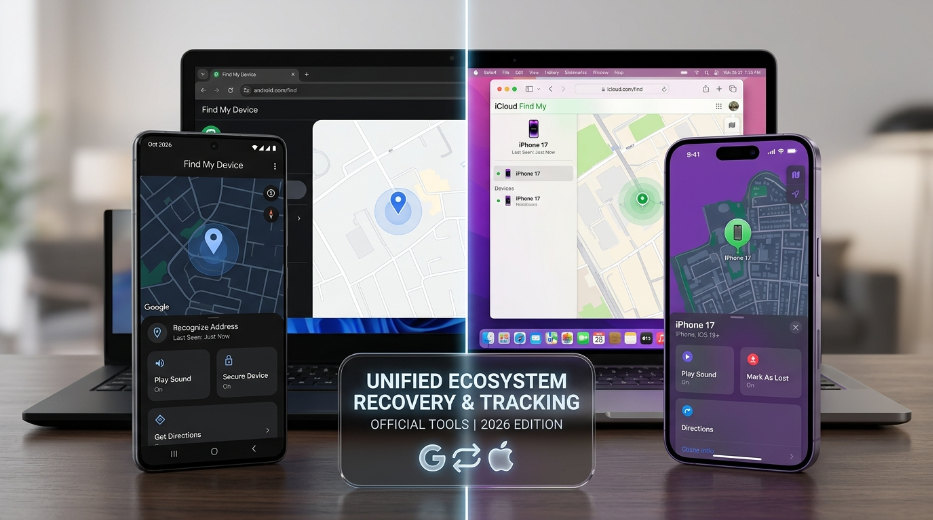
How to track location by phone number using built-in features (Find My & Find My Device)
If your kid has a smartphone, this method is where you start. Both Apple and Google build real-time location tracking into their operating systems, and it’s already free.
Setting up Find My on iPhone
- On your child’s iPhone, go to Settings, tap their name, then tap Find My.
- Turn on Share My Location.
- On your iPhone, open the Find My app and tap People.
- Tap Share My Location and choose your child’s contact.
- Once they accept, their location shows up on your map in real time.
You’ll see their phone’s location and battery level, and you can set up notifications for when they arrive at or leave a specific place, like school or home.
Setting up Find My Device on Android
- On the Android phone, go to Settings, then Google, and then Find My Device.
- Make sure “Use Find My Device” is toggled on.
- Install Google Family Link if the phone belongs to a child under 13, or use Google Maps location sharing for older teens (see method 2).
- Sign in with the same Google family group on your device to view their location.
Both systems work whether the phone is an inch away or across the country, as long as it has a data connection and location services turned on.
Method 2: Google Maps location sharing
This one works across both iPhone and Android, which makes it useful if your family has a mix of devices.
- Open Google Maps on your child’s phone.
- Tap their profile photo, then Location Sharing.
- Tap Share location and pick a duration, or select “Until you turn this off” for ongoing sharing.
- Choose yourself from their contacts or enter the email tied to your Google account.
- You’ll get a notification once sharing starts, and their location shows up in your Google Maps app under the Location Sharing tab.
This method is quick, it’s free, and it doesn’t need a separate app download since almost every phone already has Google Maps installed.
Method 3: Carrier family locator plans
Every major US carrier sells a location add-on, usually a few dollars a month per line.
- Verizon Smart Family adds location tracking, content filters, and screen time limits.
- AT&T Secure Family does the same, plus driving reports for teen drivers.
- T-Mobile FamilyWhere offers basic location tracking as part of family plans.
These work at the network level, so they’ll track the phone even if GPS or Wi-Fi is off, using cell tower triangulation as a backup. The trade-off: cell tower location is less precise than GPS, sometimes off by a quarter mile or more in rural areas.
Check your carrier’s app or account settings, since most of these features are already included if you have a family plan and just need to be switched on.
Method 4: Dedicated family safety apps
If you want more than a location dot, dedicated family safety tools offer continuous live updates and deeper oversight. For instance, using a dedicated GPS location tracker lets you monitor exact real-time coordinates, historical routes, and timestamps directly from a web browser.
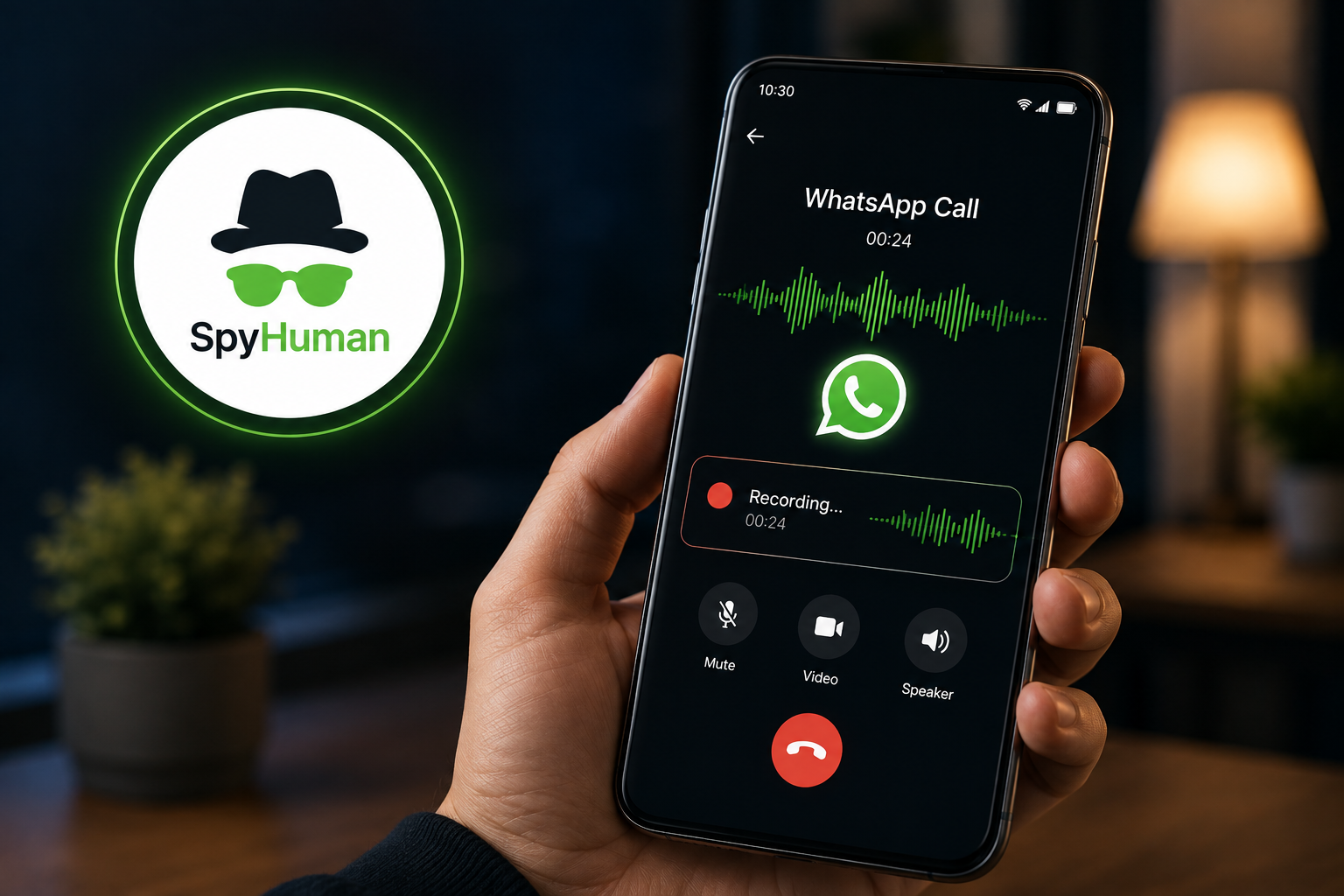
- SpyHuman provides continuous live tracking, route history playback, and full device monitoring for Android devices.
- Life360 is widely used across multi-device households, with free location sharing and paid tiers for driving reports and crash detection.
- Google Family Link is built for younger kids and pairs location tracking with app approval controls.
- While Bark primarily focuses on content monitoring, it also offers location features in its paid plans.
All of these require the app installed on your child’s phone and their agreement to share location, which is worth talking through openly rather than installing quietly. If you are comparing different tools, you can review our list of the best mobile tracker alternatives to find what suits your family.
Setting up geofence alerts (so you’re not staring at the map all day)
Once location sharing is on, most parents would rather not check a map every hour. Geofencing solves that. It’s a virtual boundary around a place, like home, school, or a grandparent’s house, and you get a notification the moment your kid crosses it.
- On Find My (Apple): Open the Find My app, tap your child’s name, scroll down, and tap Add. Drop a pin on the location, name it, and choose whether you’re notified when they arrive, leave, or both.
- On Google Maps or Family Link: Family Link has a dedicated “Locations” feature where you can set a home and school address and get arrival and departure alerts automatically.
- On Life360 or SpyHuman: Geofencing allows you to set up designated “Places” or custom boundary zones and receive automatic alerts whenever the phone enters or exits.
Geofencing turns tracking from something you check constantly into something that just pings you when it matters, like when your kid leaves school an hour late or doesn’t show up at a friend’s house as planned.
What age is the right age to start tracking?
There’s no universal rule, but a few patterns show up across most parenting guidance.
For kids under 12, tools like Google Family Link are built specifically for this age group and pair location with app approval, so you’re not just tracking; you’re also managing what they can download.
For 13- to 16-year-olds, most families shift toward Find My or Life360, since these kids usually have more independence, but parents still want visibility during the first years of solo trips to school, friends’ houses, or after-school activities.
For 16 and up, especially once a teen starts driving, driving-report features (available in Life360’s paid tier and both AT&T and Verizon’s family plans) tend to matter more than raw location, since speeding and hard-braking alerts catch problems before a location dot ever would.
Whatever the age, the setup process stays roughly the same. What changes is how much you explain the “why” to your kid and how much say they get in choosing the method together with you. If you want a more profound look at balancing digital safety for minors, explore our guide on choosing a complete parental control app.
Battery drain and other practical issues
A common complaint once tracking is switched on: the phone’s battery drains faster. This is real, though usually minor. Constant GPS polling uses more power than a phone sitting idle.
A few things help:
- Set the location update frequency to “significant changes” rather than continuous, where the app allows it.
- Keep Wi-Fi turned on, since Wi-Fi positioning uses less battery than pure GPS.
- Expect somewhere between 3 and 8 percent extra battery drain per day, depending on the app and phone model.
Another practical issue: apps sometimes show a stale location if the phone loses signal, like in a basement or a rural area with weak coverage. When that happens, most apps display a timestamp for the last known location rather than pretending it’s live, so check that timestamp before assuming something’s wrong.
Comparison table: which method fits your family

| Method | Cost | Works on | Update Frequency | Needs child’s phone setup |
| Find My (Apple) | Free | iPhone only | Real-time | Yes, one-time |
| Find My Device (Google) | Free | Android only | Real-time | Yes, one-time |
| Google Maps sharing | Free | iPhone + Android | Real-time | Yes, one-time |
| Carrier locator plan | $5 to $10/month | Any phone on carrier | Real time to a few minutes | Sometimes none |
| SpyHuman or Life360 | Free to $15/month | iPhone / Android | Real-time | Yes, app install |
For most families, Find My or Google Maps sharing covers everything you need, and both are free.
What about apps that promise instant tracking with just a phone number?
You’ll run into a lot of these in search results and app stores. The pitch is always the same: enter any phone number, no app installation needed on the other end, and see their exact location right now.
Here’s the problem. Real-time GPS tracking needs software running on the target phone. There’s no way around that with current technology. If a service claims otherwise, one of a few things is happening:
- It’s pulling a rough, outdated location from public records or old carrier data, not live GPS.
- It requires the target phone to click a link first, which quietly installs tracking software, meaning it’s not really “just a phone number” at all.
- It’s a lead-gen site that takes your payment info and delivers nothing useful.
If a family safety product asks you to install something on your child’s phone with their knowledge, that’s a normal, legitimate setup step, no different from installing Life360 or Find My. What’s worth watching for is anything marketed toward tracking someone’s phone without them knowing, since that crosses from parental safety into surveillance, and in many places, it’s illegal to track an adult’s phone without their consent, even a spouse’s.
Legal and privacy considerations
Tracking a minor’s phone with their knowledge is legal everywhere in the US, and most parenting experts recommend being upfront about it rather than hiding it. Kids tend to trust the arrangement more when they know it exists and understand why.
Tracking another adult’s phone without consent is a different story. According to the Federal Communications Commission (FCC), rules for consumer location privacy protect individuals from unauthorized tracking, and several state laws specifically penalize unauthorized GPS monitoring of adults. If you’re navigating a custody situation or worried about the safety of an adult family member, talk to a lawyer before installing anything, rather than relying on a blog post for legal advice.
Common mistakes parents make when setting up tracking
- Turning on location sharing once and never checking permissions again. Phone updates sometimes reset location settings. Review every few months.
- Relying only on cell tower tracking is a good backup, not a primary method, since accuracy can vary widely depending on tower density. It’s a reasonable backup, not a primary method, since accuracy can vary widely depending on tower density.
- Failing to talk to their kid about it first can lead to problems. Kids who find out later that they were tracked secretly tend to lose trust fast, and some just turn off location services entirely once they’re old enough to know how.
- Assuming one method covers everything is a mistake. Using built-in features along with a backup tool helps ensure you can still find your location if GPS fails or the phone dies.
FAQ
Does turning off my phone stop tracking my location?
Yes, once a phone is powered off, both GPS and cell signal stop, so no method can show a live location. Most apps will show the last known location before it powered down.
Can I track a phone if I only have the number and the person doesn’t know?
You cannot do this through a legitimate app. Every real method requires either the phone’s own operating system settings or an app installed with the user’s login. Anything claiming otherwise is misleading you or asking you to do something that may be illegal.
How accurate is Find My or Google Maps sharing?
Outdoors, with GPS on, accuracy is usually within 10 to 30 feet. Indoors, accuracy drops since the GPS signal weakens, though Wi-Fi positioning usually keeps it reasonably close.
Will my child know I can see their location?
With Find My, Google Maps sharing, and Family Link, yes, there’s a visible indicator or a one-time approval step, so it’s not hidden by design.
What happens if my child deletes the tracking app?
For Find My and Find My Device, there’s no separate app to delete since it’s built into the operating system, though location sharing itself can be turned off from settings. For third-party apps like Life360, deleting the app does stop tracking, and you’d get a notification that sharing has ended.
Does the feature work internationally if my child travels?
Find My, Find My Device, and Google Maps sharing all work anywhere you have a data or Wi-Fi connection. Carrier plans sometimes have restrictions abroad, so check your specific carrier’s international policy.
The bottom line
Real phone tracking needs either a built-in feature like Find My or Find My Device or an app your child has agreed to install, like Google Maps sharing, a carrier family plan, or a complete mobile tracker app. A phone number by itself gets you nothing.
Start with what’s already free and built into the phone your child owns. Turn on Find My or Google Maps location sharing today, have the conversation with your kid about why, and add a secondary plan later if you want a backup layer.

Leave a Reply