
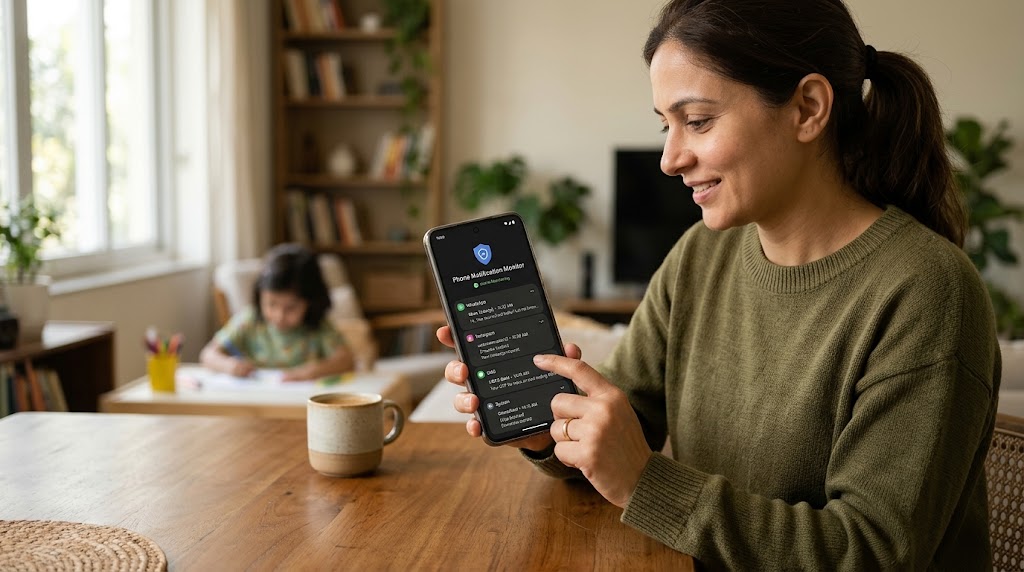
Phone Notification Monitoring for Parents starts with every message, app alert, and social update that arrives on your child’s phone. Before your child opens the app, reads the message, or decides to delete it, the notification may appear on the screen with a preview of what’s inside.
That makes notifications a useful, lightweight monitoring channel for parents. You don’t need to read every message or track every app in detail. The notification stream can provide a summary of activity, helping you spot potential problems while respecting your child’s digital privacy.
This guide covers what notification monitoring actually shows, how to set it up on Android, how to interpret the information, and where its limitations begin.
How Phone Notification Monitoring For Parents Keep Children Safe
A typical notification carries four pieces of information:
- App: The app that generated the notification, such as WhatsApp, Instagram, SMS, or a game.
- Sender or source: A contact name, group name, or app system message.
- Content preview: The first line of a message, an email subject, or the text of an alert.
- Timestamp: The time the notification arrived.
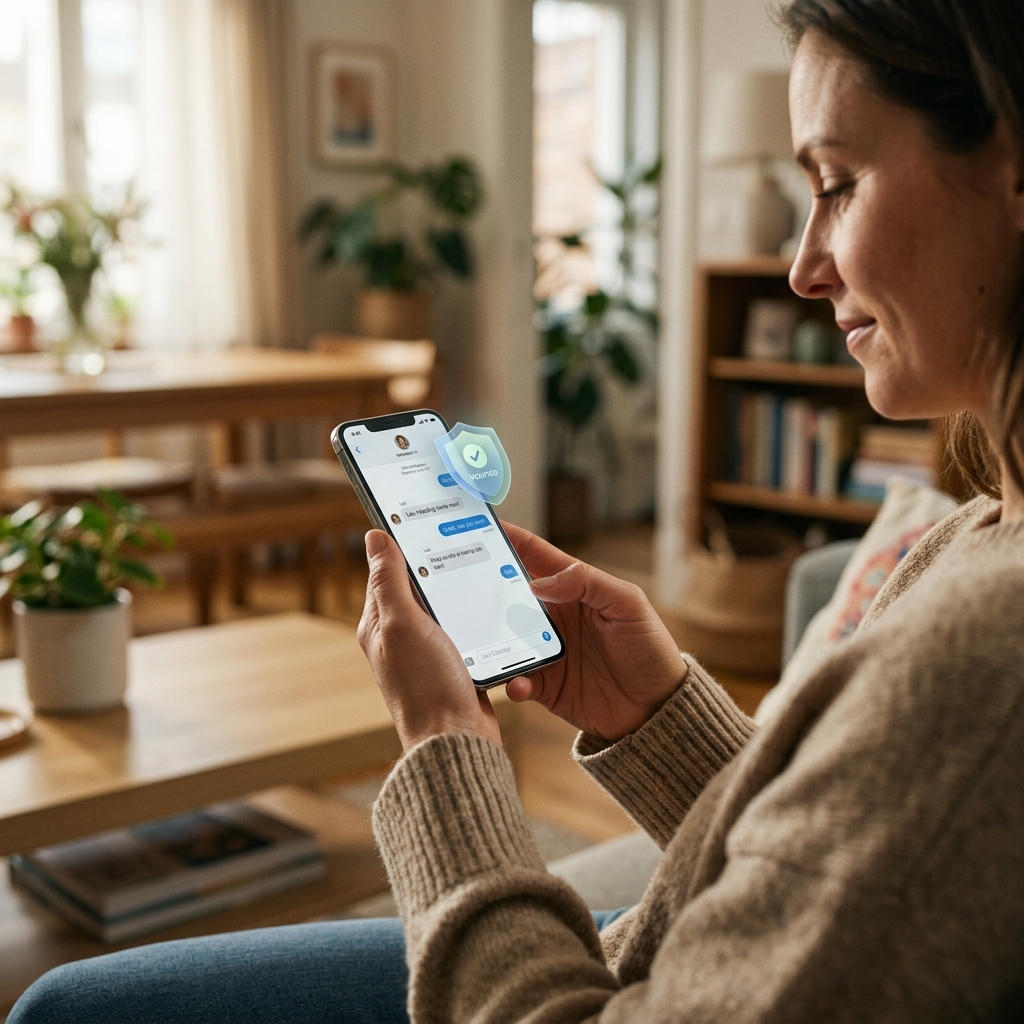
The preview is particularly useful. When a WhatsApp message arrives, the notification may show the sender’s name and part of the message. An Instagram direct-message notification may display the sender and a text preview, depending on the user’s notification settings. A suspicious SMS may reveal a phishing link before your child opens the Messages app.
Notification monitoring can therefore help parents understand who is contacting their child, which apps are generating alerts, when activity occurs, and what a message preview says.
For many parental-safety situations, this information can help identify unfamiliar contacts, late-night messaging, suspicious links, and sudden increases in activity from a particular app.
Method 1: Use the Android Notification Log
Android’s notification log can provide access to recently dismissed notifications on supported devices. Availability and setup vary by manufacturer and Android version.
To check whether your device supports this feature:
- Long-press an empty area of the home screen.
- Tap Widgets.
- Look for a Settings widget or Settings shortcut.
- Check whether the Notification Log is available.
- If supported, add it to the home screen and open it to review recent notifications.
The notification log is a rolling record, not a permanent archive. The amount of history available varies by device and Android version, and some devices may clear or limit the history.
For parents checking a child’s phone with their knowledge, this can be a useful starting point. It does not require a separate notification-logging app or subscription, although the available information depends on the device.
Method 2: Use Notification History on Android 11 and Later
Android 11 and later include a notification history feature on supported devices. It provides a more accessible way to review recent notifications.
To enable it:
- Open Settings on the Android phone.
- Select Notifications.
- Look for Notification history.
- Turn the feature on if it is available.
Once enabled, you can return to this section to review supported recent notifications, including some that were previously dismissed.
Keep in mind that notification history is not intended as an unlimited archive. It generally retains a limited period of recent activity, and menu names or availability may differ across manufacturers.
This option is worth considering if you want a built-in way to review notifications without installing another app.For device-specific instructions and details about notification history, consult the official Android notification help guide
Method 3: Consider Third-Party Notification-Logging Apps
Some third-party Android apps, including apps marketed as Notification History Log or NotiSave, offer notification recording and search features. Their capabilities, retention periods, permissions, and compatibility vary.
Before choosing an app, review the following:
- Retention: How long notification records are stored.
- Search and filtering: Whether records can be filtered by app or searched by keyword.
- Privacy: Whether data remains on the device or is uploaded to another service.
- Permissions: What information the app can access and how it uses that information.
- Security: Whether the developer provides a clear privacy policy and trustworthy support.
With the appropriate notification-access permission, an app may retain text that appeared in a notification even if the corresponding message is later deleted from a chat. This is not guaranteed: the result depends on notification settings, whether a preview was generated, and whether the app captured it.
For more details about this specific use case, see our guide to seeing deleted WhatsApp messages.
If you choose a third-party tool for a child’s device, explain what it collects and why it is being used. Open, age-appropriate monitoring helps establish trust and avoids unnecessary surprises.
Method 4: Use SpyHuman Notification Tracking
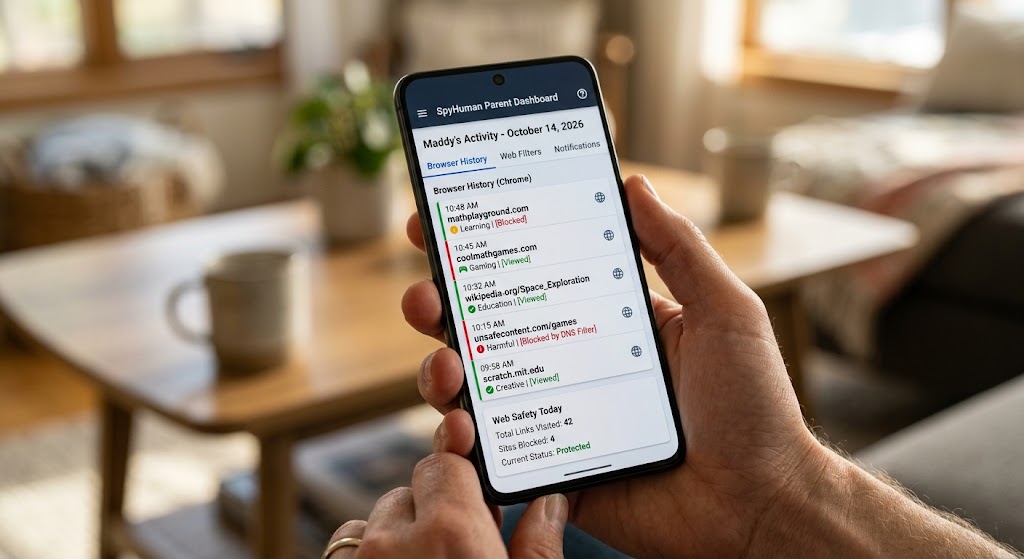
SpyHuman offers a notification tracking feature designed to collect notification information from a monitored device and display supported records through a parent dashboard.
Depending on device compatibility, permissions, and configuration, the dashboard may show details such as the app, sender, notification preview, and timestamp.
A dashboard-based approach can be convenient for parents who need to review supported information from their own device instead of repeatedly checking the child’s phone.
SpyHuman also provides other monitoring features, so parents can explore whether notification tracking fits their needs alongside call logs, SMS, app activity, or location-related tools. The information available depends on the specific feature and device setup.
For setup details, consult the SpyHuman installation guide and review the applicable lawful use policy before using monitoring features.
How to Read Notification Data Usefully
A large notification log can become overwhelming. Rather than reviewing every alert, focus on patterns that may be relevant to your child’s safety and well-being.
Filter by App
Start with the apps most relevant to your concerns, such as WhatsApp, Instagram, SMS, or another messaging app. Ignore routine system notifications, such as Wi-Fi connection alerts, battery warnings, and software updates.
If your chosen notification tool supports filtering, use it to reduce unnecessary information.
Look for Unfamiliar Contacts
A notification from a known family member or school group may be expected. A message from an unfamiliar name or unsaved number may warrant a closer look.
An unknown contact does not automatically indicate a problem. Ask your child who the person is and consider the message’s context before drawing conclusions.
Check the Timing
Notifications arriving late at night may indicate that your child is receiving messages when they should be sleeping. However, a notification timestamp does not necessarily prove that your child opened the phone or read the message at that time.
Use recurring patterns as a starting point for a conversation about sleep, school-night routines, and healthy phone boundaries.
Understand Deleted-Message Previews
If a notification displayed a message preview before the sender deleted the message, a notification log may retain that preview, depending on the tool and settings.
However, notification logging cannot guarantee recovery of deleted messages. If previews were disabled, the notification was never captured, or the app did not display message text, the original content may not be available.
When something raises concern, consider discussing it directly with your child rather than treating a missing or deleted message as proof of wrongdoing.
Look for Potential Scam Indicators
Be alert to notifications containing suspicious links, unexpected parcel-delivery messages, requests for banking or identity verification, or claims that the recipient has won a prize.
These can be signs of phishing or other scams. Teach your child not to click unfamiliar links, share passwords, provide verification codes, or send personal information to unknown contacts.
If a suspicious message appears, verify the claim through the organization’s official website or app rather than using the link in the message. In India, suspected cybercrime can be reported through the official cybercrime reporting portal, and the 1930 helpline is used for reporting financial cyber fraud.
Notification Monitoring vs. Full App Monitoring
Notification monitoring and full app monitoring serve different purposes.
| Feature | Notification monitoring | Full app monitoring |
|---|---|---|
| Main purpose | Review notification activity across supported apps | Review activity within specific supported apps |
| Message content | May show a preview | Depends on the app and tool; may provide more detail |
| Deleted messages | May retain a previously captured preview | Depends on the app, device, and tool |
| Photos and videos | Usually does not show the full media | Availability varies by app and tool |
| Activity context | Shows alerts and their timestamps | May include additional supported activity data |
| Privacy considerations | Can still expose sensitive message previews | May expose more extensive personal information |
Notification monitoring is generally broader but more limited in depth. It can help you identify which apps are generating alerts and whether something deserves further attention, but it does not provide a complete record of everything that happens inside those apps.
Full app monitoring may offer more detail for specific supported applications, but it can also collect substantially more sensitive information.
For many families, notification monitoring is a reasonable starting point. If an alert raises a concern, you can discuss it with your child and decide together whether additional steps are necessary.
For a broader overview, read our app activity monitoring guide and comparison of the best parental control apps for Android.
Managing Notification Overload
If you review notification records, you may quickly discover that many alerts are unnecessary: game reminders, promotional messages, video recommendations, and social-media likes.
Reducing these notifications can make a child’s phone less distracting and make important alerts easier to notice.
On the child’s Android phone:
- Open Settings.
- Go to Notifications or App notifications.
- Select an app that generates unnecessary alerts.
- Turn off nonessential notifications or adjust the available notification categories.
- Keep useful communication and safety alerts enabled where appropriate.
Modern Android devices may also offer notification channels, which let you control different types of notifications within an app. For example, you may be able to keep direct-message alerts while disabling promotional or activity notifications.
Explain these changes to your child and involve them in deciding which alerts are genuinely useful. Reducing notification overload can support better concentration, healthier phone habits, and improved sleep, even when no monitoring is involved.
Real-World Examples of What Notification Monitoring Can Reveal
The following examples are illustrative scenarios, not proof that a particular notification means something harmful has happened.
An Unfamiliar Message Late at Night
A notification from an unsaved number arrives at 11:30 p.m. on a school night. Its preview says, “Hey, are you awake?”
This may be a reason to ask your child who the contact is and discuss late-night messaging. The notification alone does not establish that the contact is dangerous.
A Suspicious SMS Link
An unknown sender sends a message claiming that an account will be suspended unless the recipient clicks a link to verify their details.
The preview may help you recognise a potential phishing attempt before the link is opened. Explain how to verify messages independently and avoid sharing passwords or one-time codes.
A Burst of Hostile Social-Media Notifications
Several notifications arrive within a short period, and their previews appear to contain insults or threatening comments.
This pattern may indicate online harassment or cyberbullying. Talk to your child, preserve relevant evidence where appropriate, and consider using the platform’s reporting and blocking tools. If there are credible threats, seek appropriate support.
A Late-Night Snapchat Notification
A Snapchat notification arrives at 2 a.m. and identifies a new Snap from a contact. The preview may not reveal the content of the Snap.
The timestamp can be a prompt to discuss nighttime phone use and sleep routines, but it does not necessarily prove that your child opened or viewed the Snap at that time.
In each scenario, notification information is a starting point for understanding what may be happening. It should be interpreted in context and used to support a constructive conversation, not to jump to conclusions.
Frequently Asked Questions
Can I see notifications from apps I haven’t installed myself?
A notification-history feature on the child’s phone may capture alerts from apps installed on that device, provided the relevant notifications are generated and the feature records them. It does not mean you can see notifications from another phone simply because you have a notification-log app on your own device.
Do notification-logging apps drain the battery?
Battery usage varies by app, device, and how the service operates. Some notification-logging apps may have a modest impact, but it is not possible to guarantee a particular battery percentage for every device. Check recent reviews, app permissions, and battery usage on the phone.
Can my child disable notification logging?
Built-in notification history can usually be turned off in the phone’s settings, and its records may be cleared or limited by the system. Third-party apps can lose access if their permissions are revoked or the app is uninstalled.
The behaviour of a dashboard-based monitoring product depends on its configuration, permissions, and device compatibility. Parents should understand these limitations and avoid assuming that monitoring will always operate without interruption.
Does notification monitoring show photos and videos?
Usually, a notification contains text or a short description rather than the actual photo or video. What appears depends on the app, notification settings, and whether the media is displayed in the notification itself. Notification monitoring should not be treated as a reliable way to view shared media.
Is notification monitoring legal?
The law depends on your location, the child’s age, who owns or controls the device, the type of information collected, and how that information is used. A parent or guardian may have a lawful basis to supervise a minor child’s device, but this is not a universal exemption from privacy and data-protection laws.
Use monitoring transparently and proportionately, and review the relevant local requirements and the SpyHuman lawful use policy. For complex legal questions, seek advice from a qualified legal professional in your jurisdiction.
Final Thoughts
Phone notification monitoring can help parents identify unfamiliar contacts, suspicious links, late-night alerts, and potential signs of online harassment. Android’s built-in notification history may be enough for basic checks, while third-party tools and dashboard-based services offer other options depending on their capabilities and permissions.
The key is to use notification information responsibly. A preview or timestamp rarely tells the whole story, so treat it as a reason to ask questions rather than as proof of wrongdoing.
Combine sensible technical safeguards with open conversations, clear expectations, and respect for your child’s growing independence. The goal is not to monitor every moment of their digital life; it is to help them develop the skills to stay safe online.
Leave a Reply