
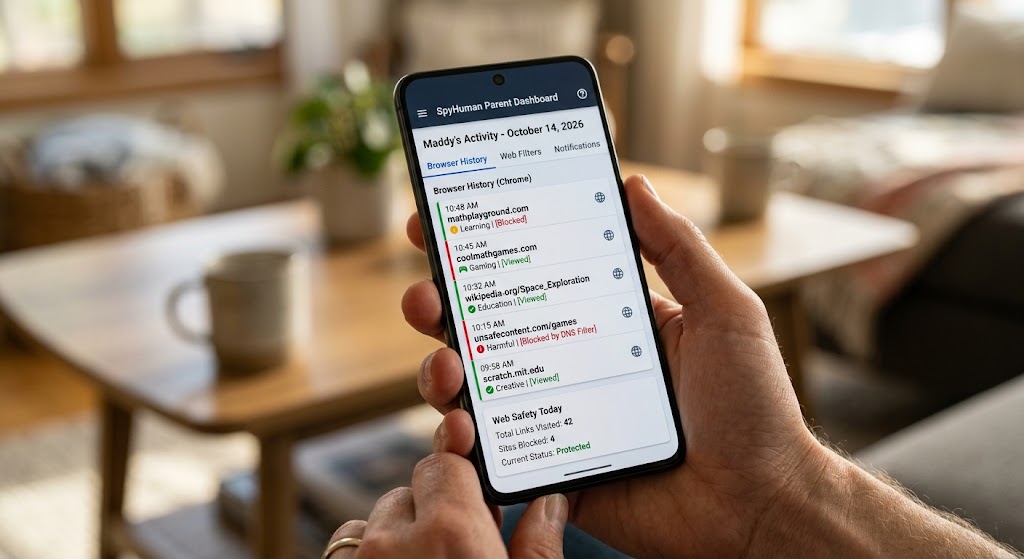
The browser is the one app that opens a door to everything. Unlike Instagram or WhatsApp, which are walled gardens with their own content rules, a browser is a window to the entire internet, with no age gates or content filters unless you set them up.
Learning how to Check Child Browsing History is essential for digital safety. This guide covers how to see what your child has visited, how to set up protections before they encounter harmful content, what incognito mode actually does, and the honest limits of browser monitoring.
How to Check Child Browsing History: Method 1 (Chrome history directly)
On your child’s Android phone, open Chrome, tap the three-dot menu, and tap History. You’ll see a chronological list of every page visited, with the title and time.
This is the simplest approach. It costs nothing, needs no app, and shows you exactly what was visited and when. The limits are obvious: the child can delete individual entries or clear all history, and it doesn’t cover incognito browsing (more on that below).
For a younger child whose phone you check regularly, this is often sufficient. Check weekly, have a conversation about anything you don’t recognize, and treat it as a learning opportunity rather than an interrogation.
Method 2: Google SafeSearch (free, always-on)
SafeSearch filters explicit content from Google search results. It doesn’t block websites directly, but it prevents the most obvious harmful content from appearing when the child searches.
To enforce SafeSearch through Family Link: open the Family Link app on your phone, tap the child’s profile, go to Controls, then Google Search, and turn on SafeSearch. When enforced through Family Link, the child can’t turn it off on their own.
SafeSearch is a baseline, not a wall. It catches explicit image and video results well, but it doesn’t block every harmful website, and it only affects Google searches, not Bing, DuckDuckGo, or direct URL entry. Think of it as a first filter, not a complete solution.
Method 3: SpyHuman browser history monitoring
SpyHuman’s browser history feature automatically logs every URL visited in Chrome and other Android browsers, with titles, timestamps, and visit duration. The log is sent to a parent dashboard where you can review it from any browser on your own device.
The advantage over checking Chrome manually: the history is captured in real time and stored on the dashboard, so clearing browser history on the phone doesn’t erase the monitored log. Incognito visits in Chrome are not captured by local history, but SpyHuman’s browser monitoring may capture URLs depending on the browser and Android version, though coverage of incognito is not guaranteed and varies.
Method 4: web filtering apps
If your concern isn’t just seeing what the child visits but preventing them from reaching harmful content in the first place, you need a web filter.
Qustodio and Norton Family have the strongest web-filtering databases among parental control apps. They block websites by category: pornography, violence, gambling, drugs, weapons, self-harm, and others. You choose which categories to block, and the filter intercepts page loads in real time, showing a “blocked” message instead of the content.
Kaspersky Safe Kids provides similar filtering at a lower price. Google Family Link’s built-in filtering is limited to SafeSearch, which is why a dedicated filter is worth adding if web safety is a primary concern.
See the best parental control apps comparison for how each app’s filtering compares.
The incognito question
Every parent asks this, so let me be clear. Incognito mode (or “private browsing”) means the browser doesn’t save history, cookies, or site data locally on the phone after the session ends. It does not make the user invisible or untraceable.
What incognito hides: the visit won’t appear in Chrome’s history list, and cookies from the session are deleted when the window closes.
What incognito doesn’t hide: the network (your home Wi-Fi router, the ISP) can still see which domains were accessed. A monitoring app that captures network requests or notifications may still log the activity. And the school or workplace network, if the child is connected to one, can see the traffic.
So incognito defeats the “check Chrome history” method, but it doesn’t necessarily defeat a monitoring app or a network-level filter. It’s a privacy feature, not a stealth cloak, and explaining this to your child is more useful than trying to block incognito mode (which most parental tools can’t do reliably anyway).
SpyHuman has a guide on seeing incognito history on Android that covers the technical side in more detail.
Setting up web safety in layers
The most effective approach uses multiple layers, each catching what the others miss.
Layer 1: SafeSearch enforced through Family Link. Free, always on, catches explicit search results.
Layer 2: a web filter (Qustodio, Norton, or Kaspersky) that blocks categories of websites at the browser level. Catches direct URL entry and links from messages.
Layer 3: browser history monitoring (SpyHuman or manual checking) that shows what the child actually visited, including sites the filter missed. This is your audit layer.
Layer 4: conversation. Talk to your child about what they encounter online, what to do if they see something disturbing (close the tab, tell a parent), and why the filters exist. Children who understand the reason behind a rule handle it better than children who just hit a block page.
No single layer covers everything. SafeSearch misses non-Google searches. Filters can be bypassed with a VPN (which older teens learn about). History monitoring misses incognito in some cases. But together, the layers catch the vast majority of harmful browsing, and the conversation covers the rest.
What to do when you find something concerning
You checked the history and found a visit to something inappropriate. Now what?
Don’t panic and don’t lead with anger. A single visit to a questionable site is often accidental (a click on a misleading link, a search result that wasn’t what it seemed) or driven by normal adolescent curiosity. The response should be a conversation, not a punishment.
Ask before you accuse. “I saw this site in your browser history; can you tell me about it?” opens a conversation. “Why were you looking at this?” sounds like a courtroom.
Adjust the filters if needed. If a category of content is getting through that shouldn’t be, tighten the filter or add specific sites to a blocklist.
Document if it’s serious. If the content involves contact with a stranger, explicit solicitation, or self-harm, keep screenshots and seek professional guidance from a school counsellor, a child psychologist, or, in serious cases, the police.
DNS-level filtering: the layer most parents miss
DNS filtering works at the network level, below the browser, and catches traffic from every app on the phone, not just Chrome. When the child’s phone connects to your home Wi-Fi, the DNS filter decides which domains can and can’t be reached.
Free options include CleanBrowsing (family filter), OpenDNS Family Shield, and Cloudflare for Families. You configure them on your home router (in the DNS settings) or on the child’s phone directly (in Wi-Fi advanced settings or through an app). Once set, requests to blocked categories return a blank page instead of the content.
The advantage over browser-based filters: DNS filtering works across all apps and all browsers, including in-app browsers inside Instagram, WhatsApp, and games. A child who installs Firefox to bypass Chrome’s filter still hits the DNS block. It doesn’t work when the child is on mobile data or a different Wi-Fi network (like at school), but it covers the home network completely.
For mobile data coverage, some DNS apps (like NextDNS or the CleanBrowsing app) install a local VPN profile on the phone that routes all DNS queries through the filter, regardless of which network the phone is on. This is the strongest filtering layer available, and it works alongside SafeSearch and browser-level filters.
App-specific browsers: the blind spot
Many apps have built-in browsers. Tap a link inside WhatsApp, Instagram, or Twitter, and it opens in the app’s own browser, not Chrome. These in-app browsers may not respect Chrome’s history settings or SafeSearch enforcement.
DNS filtering catches these (because the domain request still goes through DNS). Browser history monitoring may or may not (it depends on whether the monitoring app hooks into the in-app browser). This is why layering matters: no single tool catches everything, but three layers together leave very few gaps.
YouTube: the biggest browsing concern for most parents
YouTube is technically a website and an app, and it deserves its own mention because it’s where most children spend the most browsing time.
For children under 13, YouTube Kids is the right tool. It shows only curated, age-appropriate content, and parents can control what appears. It’s a separate app, not a filter on the main YouTube.
For teens 13 and above, YouTube’s supervised accounts let parents set content-level restrictions (strict, moderate, or most of YouTube) while still using the main app. Enable Restricted Mode in YouTube settings as an additional layer.
Family Link shows total YouTube time but not specific videos. If you need video-level visibility, checking the child’s YouTube watch history directly (YouTube app, Library, History) is the simplest approach.
Frequently asked questions
Can I see incognito browsing history?
Not reliably through the browser itself (that’s the point of incognito). A monitoring app may capture some incognito activity depending on the method it uses. SafeSearch and web filters work in incognito because they filter at the network or DNS level, not the browser level.
Does Family Link show browsing history?
Family Link enforces SafeSearch and shows screen time on Chrome, but it does not display a list of visited URLs. For URL-level visibility, you need a monitoring app or manual history checks.
Can my child use a different browser to bypass controls?
Yes, if they install one. Family Link’s app-approval feature prevents this: the child needs your approval to install any new app, including alternative browsers.
Should I block the internet entirely during homework?
Family Link’s Focus Mode can pause Chrome during scheduled study hours. This is more practical than blocking the internet entirely, since some homework requires web access. Pause social apps and games, leave Chrome available with SafeSearch on.
Is it legal to monitor my child’s browsing?
In most jurisdictions, yes, as a parent or guardian of a minor. Do it openly and match the monitoring depth to the child’s age.



Leave a Reply