
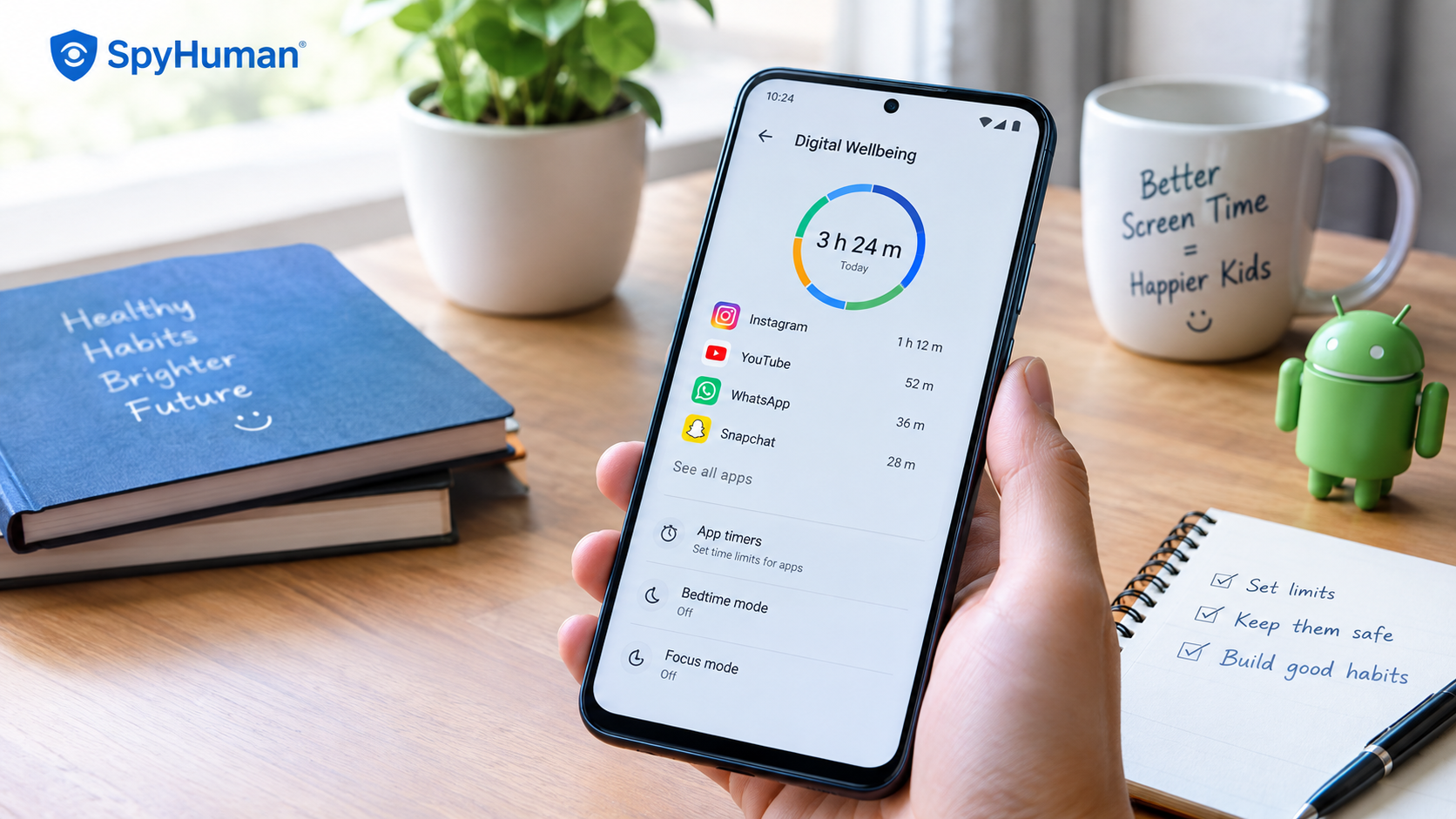
Parents often wonder how much time their child is actually spending on their phone, especially when WhatsApp messages arrive at midnight, Instagram takes over homework time, or Snapchat keeps them awake late at night. If you’re looking for how to monitor screen time on Android, the good news is that Android provides built-in tools that can help you understand usage and set practical limits.
Two of the most useful options are Google Family Link, which is designed for parents managing a child’s device, and Digital Wellbeing, which helps teens become more aware of and manage their own phone usage. In this guide, we’ll walk through both options step by step and explain what to do when Android’s built-in screen-time controls aren’t enough.
How to Monitor Screen Time on Android Using Google Family Link
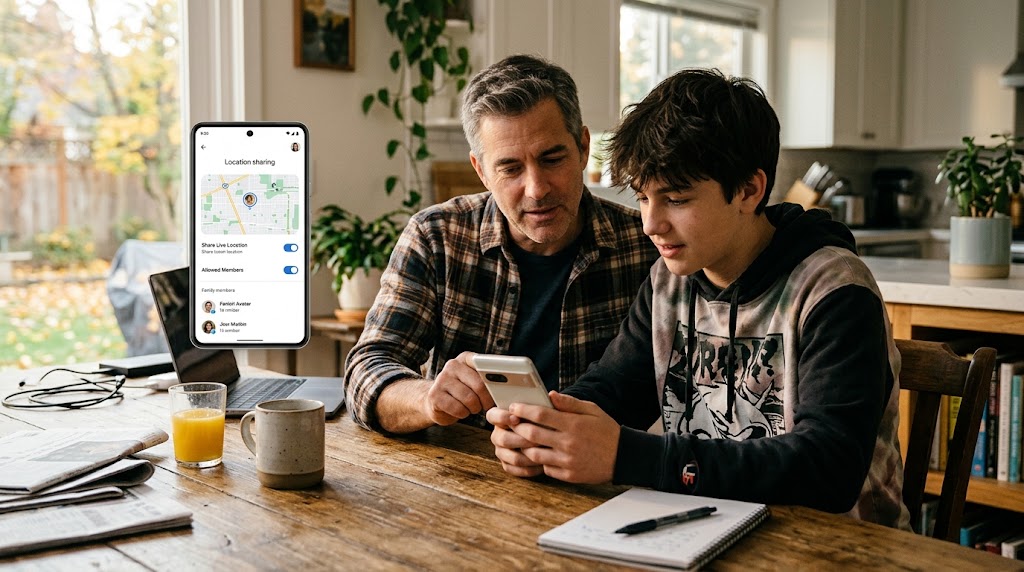
Family Link is the first thing to set up on any Android phone you give to a child. It’s free, built into every Android device with Google services, and gives you a central dashboard with real controls.
What it does
-
Shows total screen time and detailed per-app usage.
-
Sets daily screen-time limits tailored by day of the week.
-
Sets per-app time limits (e.g., 1 hour of Instagram or 30 minutes of Snapchat).
-
Schedules downtime so the phone locks automatically at bedtime.
-
Approves or blocks app installs directly from the Google Play Store.
-
Displays device location in real time on a map.
-
Remotely locks the device on demand.
What it doesn’t do
-
Show the content of personal messages or chats.
-
Monitor what the child watches, reads, or searches for.
-
Filter web content beyond basic Google SafeSearch.
-
Prevent phone calls during downtime (emergency calls always work for safety).
How to set up Google Family Link
-
Download the Google Family Link app on your own smartphone.
-
Create a Google account for your child if they don’t have one, or link their existing account through the Family Link setup wizard.
-
On the child’s phone, sign in with their Google account and accept the parental supervision prompt.
The whole setup takes about 10 minutes. During testing on a Redmi Note 12, daily-time and per-app limits applied reliably. When time runs out, the targeted app greys out and refuses to launch until the next day (or until you grant bonus time from your phone).
Important Caveat: Family Link works best when the child’s Google account is created as a supervised child account from day one. If a teenager already has an unsupervised account, adding supervision requires their explicit consent, and they can choose to remove it once they turn 13. Set it up early.
For a full step-by-step walkthrough, read our guide on how to set up Google Family Link.
Digital Wellbeing: For Teens Managing Themselves
Android’s built-in Digital Wellbeing feature (Settings > Digital Wellbeing & parental controls) is designed primarily for self-management. However, it serves as a powerful teaching tool for teenagers learning to regulate their own screen habits.
-
Dashboard: Displays a clear pie chart of app usage, unlock counts, and total notifications received today. This provides eye-opening proof for a teen who insists they “only spent 10 minutes on Instagram” when the meter shows 2 hours.
-
App Timers: Allows daily limits to be set on any app. Once expired, the icon greys out for the remainder of the day. Because the teen can override this setting manually, it functions as a self-discipline guide rather than a hard lock.
-
Bedtime Mode: Grayscales the screen, silences incoming notifications, and enables Do Not Disturb at a scheduled hour. Greyscale removes visual stimulus, making scrolling far less appealing.
-
Focus Mode: Temporarily pauses distracting apps during study hours. It can be toggled manually or scheduled automatically for homework blocks.
The core value of digital well-being is self-awareness. Most users underestimate their daily phone usage by up to 50%. Showing teenagers real, objective metrics is far more effective than imposing arbitrary rules.
Per-App Limits: The Practical Setup
Here is how to configure a balanced setup using both systems in tandem:
| Control Layer | Target User | Recommended Configuration Settings |
| Family Link | Under 16s (or supervised accounts) |
• Daily Limit: 2–3 hours on weekdays, 3–4 hours on weekends. • App Caps: 1 hour max for social apps (Instagram, Snapchat, YouTube); 30 mins for WhatsApp on school nights. • Bedtime Lock: 9:30 PM to 6:30 AM on school nights. • App Approvals: Require parent approval for all Play Store downloads. |
| Digital Wellbeing | Older Teens (Self-Managed) |
• App Timers: Mirror Family Link limits to foster visibility on their own dashboard. • Bedtime Mode: Automatically triggers at 10:00 PM. • Focus Mode: Scheduled from 4:00 PM to 6:00 PM on weekdays to pause social feeds during homework hours. |
Combining these layers guarantees hard enforcement via Family Link while encouraging self-regulation through digital well-being.
What About Samsung, Xiaomi, and Other Android Skins?
Manufacturers like Samsung, Xiaomi, and Oppo add proprietary screen-time modules on top of standard Android code:
-
Samsung: Features a “Screen Time Goal” within Digital Wellbeing alongside a standalone Samsung Kids environment for younger children.
-
Xiaomi / MIUI: Includes custom “Screen Time” menus inside system settings.
While these OEM tools offer helpful supplementary data, Google Family Link should remain your primary parental control layer. Family Link functions universally across all Android hardware, stays managed from your primary phone, and cannot be uninstalled without your Google account password. If your child upgrades to a different phone brand, Family Link settings transfer automatically with their Google account.
When Built-In Tools Aren’t Enough
Family Link restricts device access and application runtime, but it does not reveal in-app behavior—who your child messages, what content they post, or what media they stream. When deeper visibility is required, consider two avenues:
1. Platform-Specific Parental Controls
Modern social platforms offer dedicated safety frameworks:
-
WhatsApp: Parent-managed accounts (for under 13s) and PIN-based controls. See our full WhatsApp parental controls guide.
-
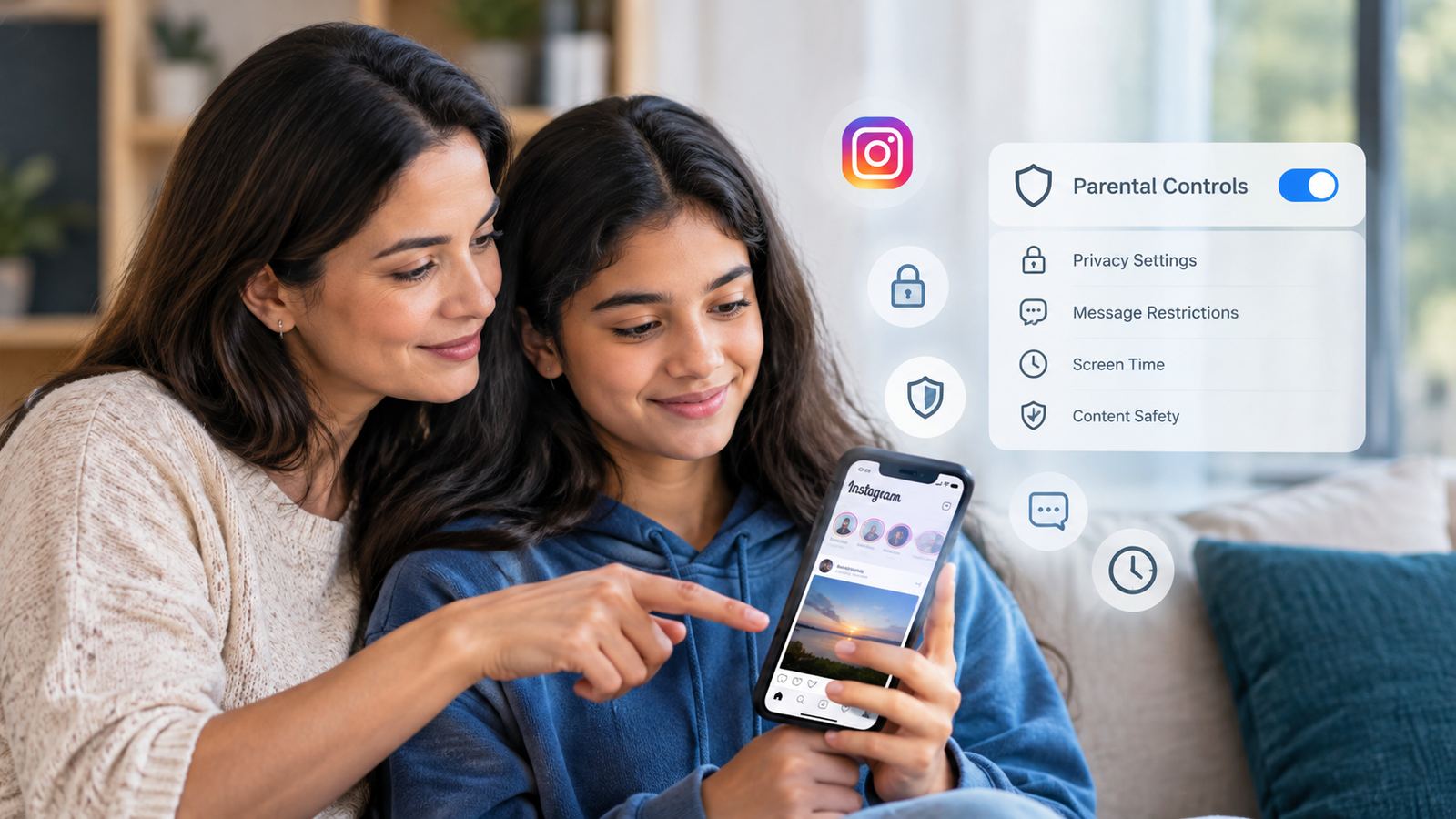
Instagram: Teen Accounts and Family Center supervision. Read our detailed Instagram parental controls guide.
-
Snapchat: Family Center oversight tools. Review our Snapchat parental controls guide.
2. Specialized Monitoring Software
For comprehensive logs covering incoming/outgoing messages, call histories, and detailed activity logs beyond basic OS restrictions, a dedicated background monitoring tool is required.
SpyHuman’s phone number tracker delivers this functionality on Android hardware. To ensure ethical compliance, always deploy monitoring tools transparently in accordance with our Lawful Use Policy.
The Age-by-Age Screen Time Ladder
Children require evolving levels of oversight as they mature:
-
Under 10 Years: Fully managed by Google Family Link. Strict overall limits, zero social media apps, early bedtime lock. The smartphone functions strictly as a tool for safety calls and curated educational apps.
-
10 to 12 Years: Family Link remains active. Introduce messaging apps individually (starting with parent-managed WhatsApp). Restrict total weekday usage to 1.5–2 hours alongside frequent check-ins.
-
13 to 15 Years: Relax Family Link restrictions gradually. Transition the teen toward managing timers via digital well-being under parental guidance. Integrate platform-level tools (Instagram Teen Accounts, Snapchat Family Center).
-
16 to 17 Years: Optional Family Link usage. Shift emphasis to digital well-being for self-management, maintaining open dialogue while serving as a supportive safety net.
Notification Management: The Hidden Time Drain
Most screen time is reactively triggered by incoming alerts. A notification sounds, the teen checks a single ping, and 30 minutes vanish into endless scrolling. Curbing notifications is often more effective than enforcing hard time caps.
-
Navigate to Settings > Notifications > App Notifications.
-
Silence notifications for all non-essential applications (games, shopping apps, social feeds, news alerts).
-
Leave core communication channels open (WhatsApp, direct SMS) so your child remains reachable.
Use Notification Channels on modern Android devices to fine-tune alerts further, for instance, keeping direct WhatsApp DMs active while silencing group chat notifications entirely.
Practical Tips From Families Who Got It Right
-
Charge Phones Outside the Bedroom: Establishing a central charging station in the kitchen or living room eliminates late-night scrolling instantly without software conflicts.
-
Use an Independent Alarm Clock: Replace the common excuse (“I need my phone for my morning alarm”) with a dedicated tabletop alarm clock.
-
Model Balanced Habits: Children mirror adult behaviors. Enforce household rules such as no screens at the dinner table equally across parents and kids.
-
Create a Family Media Agreement: Collaboratively draft written guidelines covering permissible hours, approved apps, and phone-free zones. Teenagers are far more likely to respect boundaries they helped create.
Frequently Asked Questions
Can my teen bypass Google Family Link?
On a supervised account, Family Link cannot be uninstalled without the parent’s Google account password. However, once a child turns 13, Google gives them the legal option to request stopping supervision. Setting up their account under Family Link from early childhood ensures these controls remain firmly anchored.
Does Family Link work on iPhones?
Only partially. While you can manage a child’s Google account settings from an iOS device, device-level limits (bedtime lock, app timers) apply exclusively to Android target devices. Use Apple Screen Time to manage iPhones.
How much daily screen time is healthy for teens?
There is no universal standard. The World Health Organization (WHO) outlines guidelines for early childhood but leaves adolescent limits flexible. Most pediatric experts recommend capping recreational screen time at 1 to 2 hours on school days. Focus on content quality over raw minutes: creative work or study differs greatly from passive doomscrolling.
Can I see what my child watches on YouTube via Family Link?
Family Link reports overall time spent on YouTube but does not record individual video histories. For video-level filtering, use YouTube Kids for younger children or Supervised YouTube Accounts for teenagers.
What if my child uses a second phone?
Family Link attaches supervision directly to the child’s Google Account across all devices where that account logs in. However, if they configure a secondary device using an unmanaged Google Account, Family Link cannot track it. Maintaining physical device oversight within the household is the ultimate safeguard.
Leave a Reply