
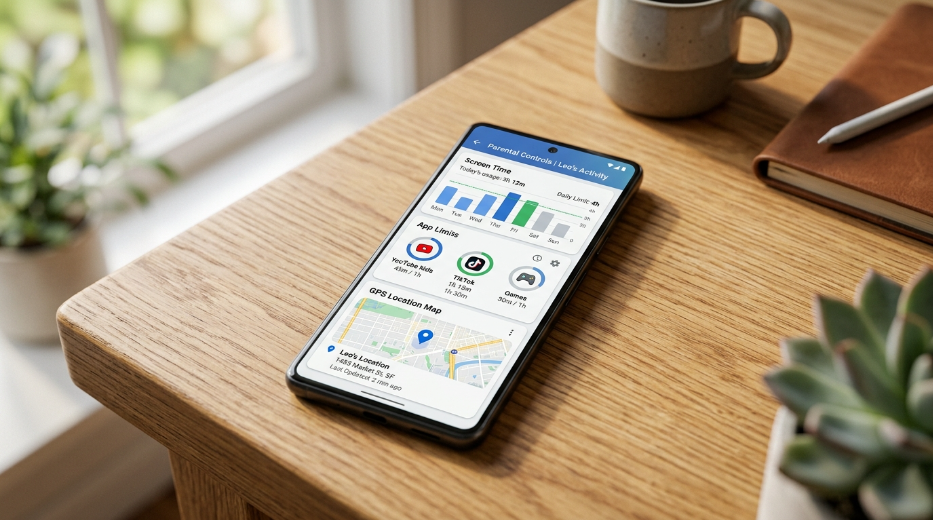
Choosing the right parental control app for Android depends on what you actually need to manage.
Some parents only want screen-time limits and app blocking. Others need Android phone tracking, website filtering, or detailed app activity. If you’re worried about who your child is talking to on WhatsApp, then a tool with deeper messaging monitoring may make more sense.
There is also the price question. SpyHuman’s Android parental control app starts with a free plan, while Google Family Link is free. Paid apps such as Qustodio and Bark add more advanced monitoring and safety controls.
So which one should you choose in 2026?
I’ve compared the leading options below based on features, Android support, free plans, monitoring depth, and the type of family each app suits best.
Quick answer: which parental control app is best?
If you want the short version:
- Best for detailed Android monitoring: SpyHuman
- Best free option: Google Family Link
- Best all-round third-party option: Qustodio
- Best for online safety alerts: Bark
- Best for web filtering: Net Nanny
- Best for larger families: Norton Family
- Best budget-friendly option: Kaspersky Safe Kids
- Best for family location sharing: Life360
The right choice depends on the problem you’re trying to solve.
A child who needs bedtime screen limits has different needs from a teenager who spends hours on WhatsApp or social media.
Best parental control apps for Android in 2026
| App | Best for | Free option | Screen time | Location | Web filtering | Detailed monitoring |
| SpyHuman | Detailed Android monitoring | Yes | Yes | Yes | Yes | Yes |
| Google Family Link | Free parental controls | Yes | Yes | Yes | Basic | Limited |
| Qustodio | All-round controls | Limited | Yes | Yes | Yes | Yes |
| Bark | Online safety alerts | Trial/paid | Yes | Yes | Yes | Alert-based |
| Net Nanny | Web filtering | Paid | Yes | Varies | Strong | Limited |
| Norton Family | Multiple children | Paid | Yes | Yes | Yes | Moderate |
| Kaspersky Safe Kids | Affordable controls | Yes | Yes | Yes | Yes | Moderate |
| Life360 | Family location | Yes | Limited | Yes | No | No |
The table gives you the basic comparison. The sections below explain what each app actually does so you can choose based on your child’s age, device, and your family’s needs.
1. SpyHuman: best for detailed Android monitoring

SpyHuman is my pick for parents who want deeper visibility into an Android phone.
It is designed specifically for Android and supports Android 5.0 and newer. You don’t need to root the device. SpyHuman can monitor app activity, browsing, calls, SMS, GPS location, and supported social and messaging apps from one dashboard.
That’s useful if you need more than a simple screen-time counter. For example, you can use its mobile location tracker to view GPS location and location history or its WhatsApp tracker when WhatsApp activity is the main concern.
What can SpyHuman monitor?
Depending on the plan and Android device, SpyHuman provides features for:
- App activity
- Screen time
- App blocking
- Browser history
- Website blocking
- GPS location
- Location history
- Geofencing
- Call logs
- SMS
- WhatsApp activity
- Social media activity
- Notifications
SpyHuman’s current feature pages state that the service works without root and has a free plan. Advanced app-management features such as detailed usage history, app blocking, and per-app limits are part of Premium.
If app usage is your main concern, the SpyHuman app activity tracker lets parents see how apps are being used on a supervised Android phone.
The same dashboard can also connect activity monitoring with location, browser history, and messaging features.
Why choose SpyHuman?
The main advantage is depth.
Google Family Link is primarily designed for account supervision, app controls, and screen-time management. SpyHuman is aimed at parents who want a broader picture of activity on an Android phone.
That makes it a better fit when you’re looking for a child monitoring app rather than only a screen-time manager.
SpyHuman is Android-only. You also need physical access to the phone for the initial installation. After setup, the parent dashboard can be accessed remotely.
Best for: Parents who want detailed monitoring on an Android phone.
Free option: Yes.
Android requirement: Android 5.0 or newer.
2. Google Family Link: best completely free option
If you want a parental control-free option, then Google Family Link is the obvious place to start.
Google Family Link lets parents supervise a child’s Google Account and manage supported Android devices.
Google’s current documentation lists features such as screen-time limits, app limits, app blocking, content restrictions, and device location.
You can also control which apps your child can use and manage app permissions.
What Family Link does well
- Daily screen-time limits
- App limits
- App blocking
- App approval
- Device locking
- Location
- Google Play controls
- Chrome restrictions
- Search controls
- App permissions
For parents who mainly want to stop late-night phone use or prevent a child from downloading unsuitable apps, those controls can be enough.
Google also allows parents to set individual app limits on supported Android devices.
Where Family Link has limits
Family Link focuses on parental controls and Google Account supervision.
It isn’t designed to give parents the same depth of phone activity monitoring as a dedicated Android monitoring app.
That difference matters.
If you only want to control how long your child uses an app, Family Link can do that. If you want to investigate broader activity across calls, SMS, browsing, and supported messaging apps, you’ll need to look at another category of tool.
Best for: Parents who want free basic controls.
Price: Free.
3. Qustodio: best all-round parental control app
Qustodio is a strong option for families that want a broad set of parental controls across several devices.
Its current feature set includes web filtering, app blocking, screen-time limits, location monitoring, activity reports, and calls and SMS monitoring on supported platforms. Qustodio states that its Android version supports Android 9.0 and newer.
Qustodio is also useful for families with children using different devices because it supports Android, iPhone, iPad, Windows, Mac, Chromebook, and Kindle.
Qustodio’s main features
- Web filtering
- App blocking
- App time limits
- Daily screen-time limits
- Location monitoring
- Calls and SMS monitoring
- Activity reports
- YouTube monitoring
- Alerts
- Custom routines
The paid plans currently start around $59.95 per year for 5 devices on Qustodio’s US site.
Best for: Families that need broad controls across multiple platforms.
4. Bark: best for online safety alerts
Bark takes a different approach to parental controls.
Its focus is content monitoring and alerts. Rather than expecting parents to manually read every conversation, Bark scans supported content and alerts parents when it detects potential concerns.
Bark says its Android parental controls can monitor texts, web browsing, and supported apps while also providing screen-time controls, website and app blocking, and location features.
What Bark is good at
- Online safety alerts
- Cyberbullying detection
- Potentially dangerous content
- Website filtering
- App blocking
- Screen-time controls
- Location
- Supported messaging and social platforms
Bark is particularly interesting for parents of teenagers because the goal is to identify situations that may need a conversation rather than simply recording every minute of phone activity.
Best for: Parents who want online safety alerts and content monitoring.
5. Net Nanny: best for web filtering
Net Nanny is primarily known for internet filtering and parental controls.
If inappropriate websites are your biggest concern, then strong web filtering can matter more than call or message monitoring.
Net Nanny lets parents manage internet access and create restrictions around online content.
Net Nanny is best suited to:
- Website filtering
- Content restrictions
- Screen-time management
- Internet supervision
- Family web safety
One point to check before publishing or purchasing is device compatibility because Net Nanny’s current platform support should be verified against the specific device your child uses.
Best for: Families where web safety is the main concern.
6. Norton Family: best for families with several children
Norton Family is a good choice for families that want web supervision, screen-time controls, and activity reports.
Norton currently lists Android support along with Windows and iOS. Its Android app requires Android 8 or later.
Parents can monitor search terms and viewed videos and websites while setting time limits and location supervision on supported devices.
Norton Family features
- Web supervision
- Search supervision
- App supervision
- Screen-time limits
- School Time
- Activity reports
- Location supervision
- Website blocking
- Instant device lock
Norton currently lists Norton Family at $49.99 per year in the US, although pricing can change by region or promotion.
Best for: Families managing several children or devices.
7. Kaspersky Safe Kids: best budget-friendly option
Kaspersky Safe Kids combines parental controls with location tracking and online content filtering.
Its current feature list includes online content filtering, YouTube Safe Search, app-use controls, screen-time management, scheduling, and GPS location. Android is supported.
Kaspersky Safe Kids features
- Screen-time management
- Screen-time schedules
- App-use controls
- Web filtering
- YouTube Safe Search
- GPS location
- Activity reports
The service has both free and paid options depending on the features and plan you choose.
Best for: Parents looking for a lower-cost third-party parental control service.
8. Life360: best for family location tracking
Life360 is different from most apps on this list because location sharing is its main purpose.
You can see family members on a map, use check-ins, and review location history. Life360 currently includes location sharing on all plans with different levels of location history depending on the plan.
That makes it useful when your main question is
“Where is my child?”
It isn’t a replacement for a full parental control system if you need website filtering, app limits, or detailed phone activity.
Best for: Family location sharing and safety.
Free vs. paid parental control apps: which is better?
A free app can be enough if you only need basic controls.
Google Family Link covers screen time, app limits, app blocking, location, and content restrictions on supported devices.
Paid services become more useful when you need deeper monitoring.
| Feature | Free parental controls | Paid parental controls |
| Screen-time limits | Usually | Yes |
| App blocking | Yes | Yes |
| Location | Often | Usually |
| Website filtering | Basic | More advanced |
| Activity reports | Basic | More detailed |
| Calls and SMS | Rare | Some apps |
| Social monitoring | Rare | Some apps |
| Advanced alerts | Limited | More options |
| Multiple platforms | Varies | Usually broader |
The choice shouldn’t come down to the longest feature list.
If Family Link solves your problem, then you may not need a paid service.
If you need detailed activity information, then a dedicated monitoring app can make more sense.
What should you look for in a parental control app?
Before paying for anything, decide which features actually matter for your child.
1. Screen-time management
Screen-time limits are useful for setting boundaries around gaming, social media, and late-night phone use.
Google Family Link lets parents create daily limits and individual app limits on supported Android devices.
For a more detailed guide, see our article on how to set healthy screen-time limits on Android for kids.
2. App blocking and approval
Children can download new apps quickly.
A good parental control system should let you see what is installed and decide which apps are allowed.
Family Link supports app blocking, limits, and permission management.
SpyHuman goes further with its screen-time and app management tools, which include app activity monitoring, app limits, and remote app blocking on supported Android devices.
3. Website filtering
Screen-time controls don’t stop inappropriate websites.
If your child spends time browsing independently, look for an app that can filter websites or block specific domains.
SpyHuman’s website blocking and web filtering feature lets parents block websites on supported Android devices.
4. Browser history
Browsing history can show you what kind of content your child is actually encountering.
SpyHuman’s Android browser history tracker records browsing activity on supported Android devices and includes website filtering as part of its wider monitoring system.
This is particularly useful when your concern is internet activity rather than total screen time.
5. Location tracking
Location tracking can be useful when children start traveling to school, friends’ houses, or activities without a parent.
Look for live location, location history, and geofencing if those features matter to you.
SpyHuman’s GPS location tracker provides live location, location history, route information, and geofence alerts on supported Android devices.
6. Calls and SMS
Some parental control apps only show how long a child used their phone.
Others provide communication monitoring.
Qustodio currently lists calls and SMS monitoring among its supported features, while SpyHuman provides dedicated SMS tracking for Android.
This can matter when your concern is who your child is communicating with rather than simply how long they’re using the device.
7. WhatsApp and social media
Social apps are where parental control products differ the most.
Some apps only show that WhatsApp was opened for 30 minutes. Others focus on alerts or deeper monitoring.
SpyHuman has a dedicated WhatsApp monitoring feature for supported Android devices.
Qustodio also currently lists social monitoring for supported services, including WhatsApp.
If WhatsApp is your main concern, our guide to the best WhatsApp monitoring apps for parents in 2026 compares the different approaches.
What does KidLogger do compared with other parental control apps?
KidLogger is worth considering because it takes a monitoring-focused approach.
Its service is designed to record activity such as application usage, websites, calls, SMS, and location on supported devices. It also supports multiple operating systems.
That makes KidLogger closer to the detailed-monitoring side of the market than a basic screen-time manager.
The difference becomes easier to understand when you compare the tools by purpose.
Google Family Link focuses on account supervision, screen time, app controls, and content settings.
Qustodio combines parental controls with activity monitoring, location, web filtering, and reports.
Bark focuses heavily on alerts when potentially concerning content is detected.
KidLogger focuses on recording device activity.
SpyHuman combines Android parental controls with monitoring features covering apps, browsing, location, calls, SMS, and supported messaging and social apps.
So the best option depends on whether you want to control the phone, receive safety alerts, or see more of the activity taking place on it.
How to choose the right app for your child
Start with the problem you’re trying to solve.
If your child stays awake playing games, then screen-time limits and bedtime controls should come first.
If they’re downloading apps without permission, look for app approval and blocking.
If you’re worried about inappropriate websites, choose strong web filtering.
If your teenager uses several social platforms, then content alerts or deeper monitoring may be more relevant.
And if your main concern is getting home safely from school, location tracking may be all you need.
Here’s the simple breakdown:
Choose Google Family Link if you want free basic controls.
Choose SpyHuman if you want deeper monitoring on an Android phone.
Choose Qustodio if you want broad parental controls across several platforms.
Choose Bark if online safety alerts are your priority.
Choose Net Nanny if web filtering is your main concern.
Choose Norton Family if you’re managing several children or devices.
Choose Kaspersky Safe Kids if you want a lower-cost third-party option.
Choose Life360 if location sharing is the main reason you’re looking for an app.
Can a free parental control app be enough?
Yes.
For younger children, free controls can cover the basics very well.
Google Family Link lets parents manage screen time, apps, content settings, and location on supported supervised devices.
The question is whether those features solve your particular problem.
If they do, there is little reason to pay for additional software.
If you need detailed browsing records, communication monitoring, deeper app activity, or more advanced alerts, then a paid child monitoring app may be worth considering.
Are parental control apps safe?
They can be, but you should treat them as sensitive software.
A parental control app may have access to location, app activity, browsing information, messages, or other private data.
Before installing one, check:
- What information the company collects
- Where that information is stored
- Which permissions the app needs
- What the privacy policy says
- Which Android versions are supported
- Whether you can delete your account and data
The legal side matters too.
Monitoring should be limited to devices you own or devices you have the legal right to monitor, such as a minor child’s device where permitted by local law.
SpyHuman explicitly states that its software is intended for lawful monitoring of your own device, a minor child’s device, or a company-owned device where the user has given consent.
Don’t install monitoring software on another adult’s phone without their knowledge and consent.
Can parental control apps work without rooting Android?
Many can.
Google Family Link doesn’t require root. SpyHuman also states that its Android app works without rooting the device.
That’s useful because rooting can introduce unnecessary security and stability problems.
For most parents, a standard Android device with a supported parental control app is enough.
Can you monitor an Android phone completely free?
You can get useful parental controls for free.
Google Family Link provides screen-time management, app controls, location, and several content settings without a subscription.
SpyHuman also has a free plan that lets parents test basic monitoring on a compatible Android device. Its current product information says the free plan includes basic data while advanced monitoring and management features are part of Premium.
The important distinction is between free parental controls and full monitoring.
Free plans generally focus on basic boundaries.
Paid plans are more likely to include detailed reports, deeper communication monitoring, and additional controls.
Final verdict: which parental control app should you choose?
The best parental control app for Android depends on how much supervision your family actually needs.
For completely free basic controls, Google Family Link is the best place to start. It covers screen time, app limits, app blocking, location, and content settings.
For deeper Android monitoring, SpyHuman is the stronger fit. It brings app activity, browsing, location, calls, SMS, and supported social and messaging activity into one dashboard. It also has a free plan so you can test basic monitoring before deciding whether you need Premium.
Qustodio is a strong choice for families that want broad cross-platform controls. Bark makes more sense when online safety alerts are the priority. Norton Family is useful for families managing several devices, while Kaspersky Safe Kids combines web filtering, screen time, and GPS features.
KidLogger is another option if detailed activity logging is important to you.
The best choice isn’t necessarily the app with the biggest feature list.
Pick the one that matches your child’s age, device, and the specific problem you’re trying to solve. Start with the level of supervision you genuinely need, then add more controls if the situation calls for them.
FAQs
What is the best parental control app for Android in 2026?
Google Family Link is the best free starting point for basic Android controls. SpyHuman is a stronger option for parents who want deeper monitoring of app activity, browsing, location, calls, SMS, and supported messaging apps.
What is the best completely free parental control app?
Google Family Link is the strongest free option for basic Android parental controls. It supports screen-time limits, app limits, app blocking, location, and content restrictions on supported devices.
Can I monitor my child’s Android phone without rooting it?
Yes. Google Family Link doesn’t require root, and SpyHuman states that its Android monitoring app works without rooting.
Do parental control apps show WhatsApp messages?
It depends on the app. Some services only show WhatsApp usage, while others provide alerts or deeper monitoring. SpyHuman has a dedicated WhatsApp monitoring feature for supported Android devices, while Qustodio also lists WhatsApp monitoring among its supported social features.
Is Google Family Link enough for teenagers?
It can be enough if you mainly need screen-time limits, app controls, location, and content restrictions. Teenagers who use several social platforms may need a more specialized monitoring or online-safety solution.
Do parental control apps work on Samsung phones?
Many do. Samsung phones run Android and are supported by several parental control services. SpyHuman states that it supports major Android brands, including Samsung, Xiaomi, Oppo, Vivo, and Realme, on Android 5.0 and newer.
Does a parental control app need access to my child’s phone?
Usually, yes, for the initial setup. SpyHuman states that its Android app requires one-time physical access to the child’s phone for installation. After setup, parents can access the monitoring dashboard remotely.
Is it legal to monitor my child’s phone?
The answer depends on your country, state, and circumstances. Parents and legal guardians may have rights to monitor a minor’s device, but privacy and monitoring laws vary. Use monitoring software only where you have the legal right to do so and follow the provider’s terms.

Leave a Reply