Knowing your child made it to school, or arrived safely at a friend’s house, removes a specific kind of low-grade worry every parent recognizes. On Android in 2026 you have three solid, mostly free ways to do it: Google Family Link, Google Maps location sharing, and geofencing alerts that ping you on arrival and departure. This guide walks through each, how to make the location actually accurate, and how to set it up with your child rather than behind their back.
The quick answer
To track your child’s Android phone location for free, set up Google Family Link: install it, link your child’s account, then turn on location sharing from the Location card. For older teens, Google Maps location sharing is a lighter, mutual option. For arrival and departure alerts, use geofencing in Family Link or a dedicated app. Accurate tracking needs Location and Google Location Accuracy switched on, plus mobile data.
Option 1: Google Family Link (best free all-rounder)
Family Link is Google’s official parental-control app and the simplest free way to see a child’s location, especially for kids under 13.
To set it up:
- Install Family Link on your phone (Android or iPhone) and create or link your child’s Google account.
- Install Family Link on your child’s Android device and complete the linking.
- In the parent app, select your child, scroll to the Location card, and tap Set Up, then Turn On.
Once enabled, you’ll see your child’s device location on a map and can check it whenever you need to. Google’s own For Families help page walks through the toggles if you get stuck.
Two real limitations to know up front: Family Link has no location history (you see where they are now, not a trail of where they’ve been), and children over 13 can turn off supervision themselves, though you’ll be notified. It also won’t alert you to cyberbullying or stranger contact — it’s a location and screen-time tool, not a full safety monitor.
Option 2: Google Maps location sharing (good for teens)
For older, more independent kids, Google Maps sharing feels less like supervision and more like a normal thing families do — because adults use it with each other too.
On the child’s phone, open Google Maps → profile picture → Location sharing → Share location, choose until you turn this off, and select your account. It’s mutual and visible, which makes it a comfortable fit for teens who’d bristle at a control app. The trade-off: it’s easy for them to switch off, so it works on trust, not enforcement.
Option 3: Geofencing alerts (know the moment they arrive)
Geofencing is the feature most parents actually want. Instead of opening an app to check, you draw a circle around a place — home, school, grandma’s — and get a notification the moment your child arrives or leaves.
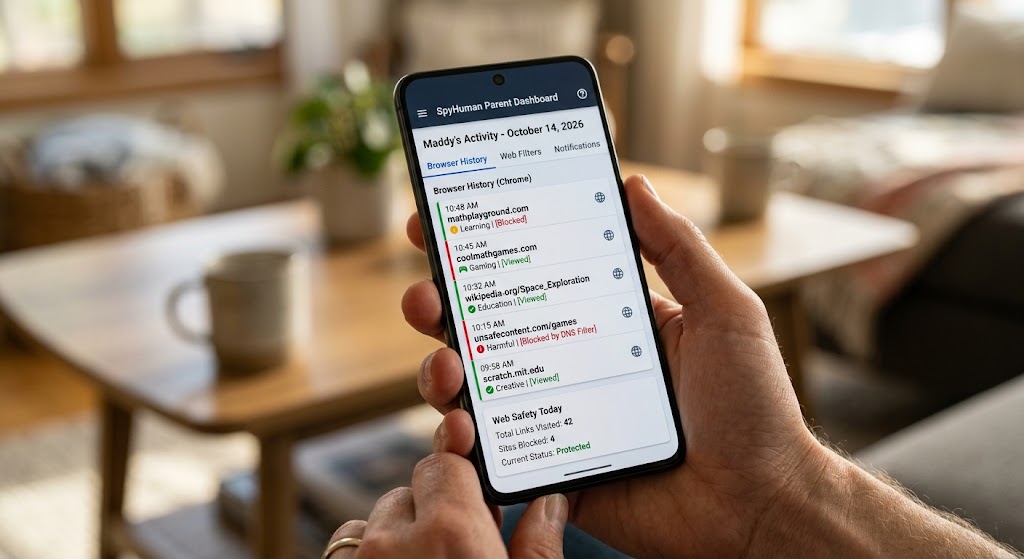
Family Link supports place-based alerts so you can mark key locations and get arrival/departure notifications. Dedicated tools take it further with multiple zones, history, and instant alerts. SpyHuman’s location tracker adds geofencing with arrival and departure alerts plus location history, so you can confirm the after-school routine happened without texting “are you there yet?” every day. Our full feature set combines location with the other safety signals in one dashboard.
Make location tracking actually accurate
A “wrong” location is almost always a settings problem, not a tracking failure.
On the child’s Android device:
- Open Settings → Location and make sure the main toggle is On.
- Tap Location Services → Google Location Accuracy and turn it On. This lets the phone use Wi-Fi and Bluetooth scanning alongside GPS, which is what keeps tracking reliable indoors, where satellite signal alone struggles.
- Keep mobile data available — location works best when the phone can reach the network, not only Wi-Fi.
- Disable aggressive battery-saver modes for the location app, which can delay or freeze updates.
| Method | Cost | Geofencing | History | Easy for child to disable |
|---|---|---|---|---|
| Google Family Link | Free | Basic alerts | No | Over-13 can turn off |
| Google Maps sharing | Free | No | No | Yes, anytime |
| SpyHuman location tracker | Free tier; Premium for more | Yes, with alerts | Yes | Designed for supervised use |
Do it with consent
Location tracking is most effective, and healthiest, when your child knows about it. For younger kids it’s simply a rule. For teens, frame it as coordination and safety, not surveillance, and be willing to ease off as they earn it. Our guide on monitoring your child’s phone without destroying trust covers the conversation in depth. The aim is fewer worried texts and more freedom for both of you, not a kid who feels followed.
Frequently asked questions
How can I track my child’s Android phone location for free?
Use Google Family Link: install it, link your child’s account, and turn on location sharing from the Location card. Google Maps location sharing is a free, mutual alternative for older teens. Both need Location services enabled on the child’s device.
Why is my child’s location wrong or not updating?
The most common fixes are turning on Google Location Accuracy (Settings → Location → Location Services), keeping mobile data available, and disabling battery-saver mode for the location app. Without these, indoor and real-time accuracy drops.
Can I get an alert when my child arrives at school?
Yes — that’s geofencing. Google Family Link offers basic place alerts, and dedicated location trackers let you set multiple zones with arrival and departure notifications plus location history.
Can my teenager turn off location tracking?
On Family Link, children over 13 can disable supervision (you’re notified), and Google Maps sharing can be switched off anytime. This is why transparent, agreed-upon tracking works better than secret tracking for older kids.
Lawful use only: track your own minor child’s device as a parent or legal guardian.