Installing SpyHuman takes about five minutes and one thing most guides gloss over: brief physical access to the phone you want to monitor. There’s no remote, number-only install — that’s a myth. If anyone promises to set up monitoring without touching the device, walk away. Here’s the real, current process, start to finish.
How long does it take to install SpyHuman?
About five minutes of one-time physical access to the target Android phone. You create your account first on your own device, then download and configure the app on the phone you’ll monitor, grant a handful of permissions, and confirm data is flowing to your dashboard at cp.spyhuman.com. No root is required.
Before you start: consent and requirements
Two quick checks before you install anything.
The legal one. SpyHuman is for lawful, consent-based monitoring only — your own minor child’s device as a parent or guardian, a device you personally own, or a company phone whose user has been told. Installing it on another adult’s phone without their knowledge is illegal in most places. Get this right before you go further.
The technical one. Make sure the phone is:
- Running Android 5.0 or higher (Samsung, Xiaomi, Oppo, Vivo, Realme, OnePlus and others are supported)
- An Android device — SpyHuman does not work on iPhone or iPad
- Reachable for about five uninterrupted minutes
Decide on your plan too. The free plan gives you the last 5 records for calls, SMS, GPS and app usage; premium ($17.99/month) unlocks unlimited history, call recording, social apps and more. You can start free and upgrade later — see the pricing page — so you don’t have to decide before installing.
Step-by-step: installing SpyHuman
Step 1 — Create your account (on your own device)
On your own phone or computer, go to spyhuman.com and register for an account using a valid email. This is the account you’ll log into at cp.spyhuman.com to view data. Do this first, before you pick up the target phone, so your five minutes there aren’t spent typing email and password.
Step 2 — Allow installs from unknown sources (on the target phone)
Because SpyHuman is installed directly rather than from the Play Store, the target phone needs to permit it. On the device, open Settings → Apps → Special access → Install unknown apps (wording varies by manufacturer) and enable the browser you’ll use to download. Android’s own guide to installing apps outside the Play Store explains this permission if your menu looks different.
Step 3 — Download the installer
On the target phone’s browser, open the SpyHuman download link from your account dashboard or the install guide. Download the app file. If the browser warns about the file type, choose to keep or open it — this is normal for any app installed outside the Play Store.
Step 4 — Install and sign in
Open the downloaded file and tap Install. When it finishes, open the app and sign in with the SpyHuman account you created in Step 1. This links that phone to your dashboard.
Step 5 — Grant the permissions
The app will request the permissions it needs to monitor — location, contacts, call logs, SMS, accessibility and, for premium features, microphone and storage. Grant each one when prompted. Skipping a permission simply means that feature won’t report data, so allow the ones tied to what you want to see.
Step 6 — Verify the dashboard
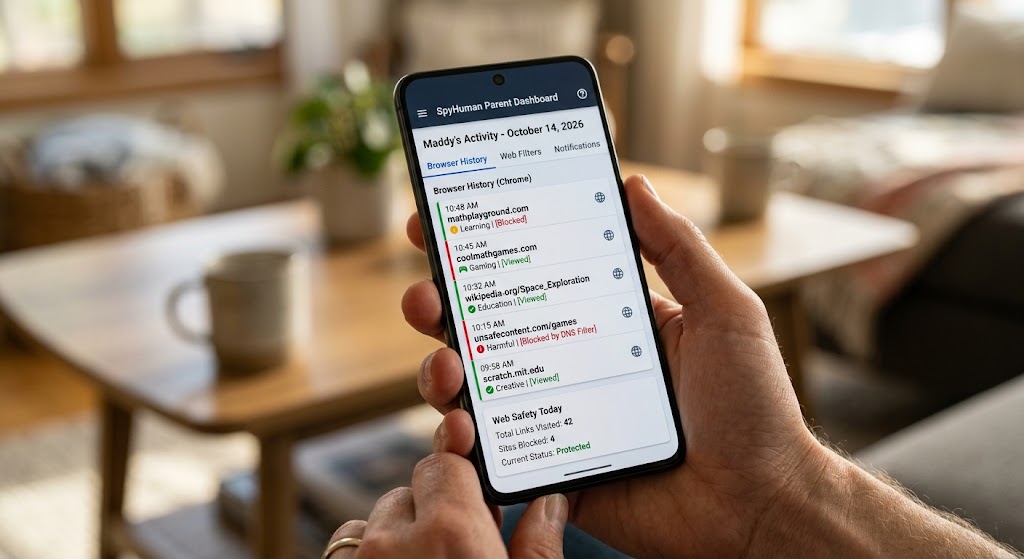
Back on your own device, log into cp.spyhuman.com. Within a short while you should see the linked device and its first records appear — recent calls, location, app usage. If data is showing, you’re done.
Troubleshooting common install problems
- No data in the dashboard. Usually a missing permission. Reopen the app on the target phone and confirm location, accessibility and call/SMS access are all granted. Make sure the phone has an internet connection.
- “Install blocked.” The unknown-sources permission in Step 2 isn’t enabled for the browser you used. Turn it on and retry.
- Battery optimization killing the app. On Samsung, Xiaomi and similar, exclude SpyHuman from battery optimization (Settings → Battery) so the system doesn’t shut it down in the background.
- App not visible / want it discreet. Follow the in-app and install guide instructions; behavior varies by manufacturer.
- Wrong device type. If it’s an iPhone, SpyHuman won’t work — it’s Android-only.
If you’re still stuck, SpyHuman support is at [email protected].
After installation: what to do next
Once data is flowing, set the app up around your actual concern rather than watching everything. Configure geofencing if location alerts matter, decide which social apps to monitor on premium, and — most important for trust with a teen — have the conversation about what you’re monitoring and why. Monitoring that’s been discussed openly holds up; monitoring discovered later usually doesn’t. Check the dashboard for genuine red flags, not every ping.
Frequently asked questions
Can I install SpyHuman remotely without the phone?
No. SpyHuman requires about five minutes of one-time physical access to the target Android phone. Any service claiming a remote, number-only install is a scam.
Does installing SpyHuman require rooting the phone?
No root is required. It installs on standard Android 5.0+ devices, including Samsung, Xiaomi, Oppo, Vivo, Realme and OnePlus.
Do I have to pay to install it?
No. You can install and use the free plan (last 5 records, 30-day storage) at no cost, then upgrade to premium later if you need unlimited history and advanced features.
Where do I view the data after installing?
At cp.spyhuman.com, signed in with the account you created during setup. The dashboard shows calls, SMS, location, app usage and — on premium — much more.
Lawful use only: install SpyHuman on devices you own, your minor child’s device as a parent or guardian, or a company device with the user’s consent.