You deleted a text you needed — an address, a code, a conversation that mattered — and now it’s gone. Before you panic, know this: Android keeps copies of your messages in more places than you’d expect, and whether you get them back mostly depends on one thing, which I’ll get to in a second. The honest truth is that some methods work and some are wishful thinking. Here’s what actually recovers a deleted SMS in 2026, in the order worth trying.
Can you recover deleted text messages on Android?
Yes, usually — if you had a backup running before the message was deleted. Android backs SMS up to your Google account, and many phones keep a separate local copy. If no backup existed, recovery gets much harder, because Google Messages has no “trash” or undo button for deleted texts.
So the real question isn’t “can I recover it” — it’s “did I have a backup?” Check that first. Everything below branches from there.
Method 1: Restore from your Google account backup
This is the most reliable route, and most Android phones have it switched on by default.
Your SMS and call logs are included in the automatic Google backup tied to your account (now managed through Google One). The catch: there’s no way to “merge” just one old text back into your current inbox. Restoring a Google backup happens during device setup, which means you’d reset the phone and restore the backup that still contains the message.
How to check and restore:
- Open Settings > Google > Backup and confirm a backup exists and when it last ran. If your last backup is from before you deleted the text, your message is likely in it.
- To restore, you’ll need to factory reset the phone (Settings > System > Reset), then sign in with the same Google account during setup and choose the backup that contains your messages.
- Older backups are overwritten over time, so only your most recent one is usually available — don’t wait.
Because a reset wipes everything else, this is worth it only for messages you genuinely can’t lose. If that’s not the case, try the gentler methods first.
Method 2: Use Google Messages’ new backup & restore
Google has been rolling out a proper in-app backup and restore feature inside Google Messages, storing your SMS and RCS chats against your Google account rather than only in the full-device backup.
Open Google Messages > tap your profile picture > Messages settings, and look for a Backup & restore option. When it’s available on your phone, messages can sync back automatically when you sign in on a device. One caveat worth knowing: there have been reports through mid-2026 of RCS messages not always restoring cleanly, so treat RCS (the blue/upgraded chats) as less certain than plain SMS.
Method 3: Check a third-party SMS backup app
If you ever installed an app like SMS Backup & Restore, you’re in luck — these tools save your texts to local storage, Google Drive, or email on a schedule, and they can restore individual conversations without a factory reset.
Open the app, choose Restore, point it at your most recent backup file (often an XML in your Drive or Downloads folder), and select the conversation you want back. If you don’t already have such an app installed with an existing backup, this won’t help retroactively — these apps can only restore what they captured before deletion.
Method 4: Ask your carrier (limited)
Some mobile carriers retain message metadata (who, when) and occasionally content for a short window, mainly for billing or legal reasons. You generally can’t get message text back from a carrier as a casual request — it usually requires a legal process. It’s a long shot, but for a genuinely critical message it’s worth a call.
What about “recovery apps” that promise to scan your phone?
Be skeptical. Most apps claiming to “scan deleted SMS” on a modern, unrooted Android phone overstate what’s possible. Android sandboxes app data and modern storage encryption means deleted texts aren’t sitting in easily readable free space the way they were a decade ago. Many of these apps are ad-heavy or simply restore from a backup you already have. If a tool requires root access, weigh the security risk carefully before going down that road.
The smarter move: stop losing messages in the first place
Recovery is always a scramble. The fix is to never be without a backup — and, if you’re a parent supervising a child’s phone or a business managing a company-owned device, to have an ongoing record rather than relying on whatever survived deletion.
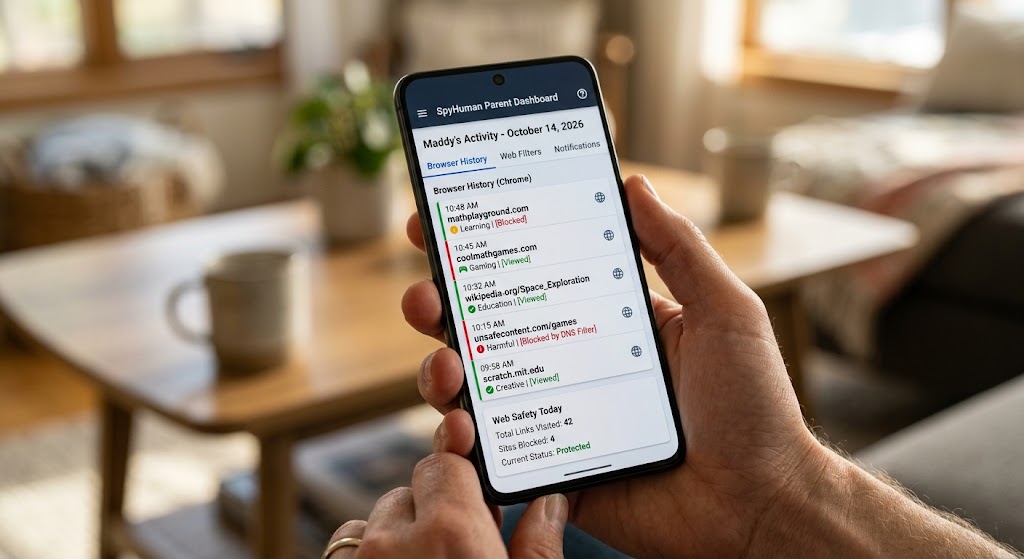
That’s where ongoing monitoring beats after-the-fact recovery. On devices you own or are authorized to supervise, SpyHuman’s logging features capture incoming and outgoing SMS as they happen and store them in your dashboard, so a deleted message on the phone doesn’t mean a lost record for you. Paired with the Android keylogger, you get typed-text history too — useful when the question is “what did this conversation actually say.” Set it up once and the record builds itself, no factory reset required.
If your concern is WhatsApp rather than SMS, the recovery rules are different — see our sibling guide, How to See Deleted WhatsApp Messages on Android.
Frequently asked questions
Where do deleted text messages go on Android?
Nowhere you can easily reach. Google Messages has no recycle bin — a deleted SMS is removed from the app’s database. Your only copies live in backups (Google account, Google Messages backup, or a third-party app) made before deletion.
Can I recover deleted texts without a backup?
It’s very unlikely on a modern unrooted phone. Without a backup made before deletion, there’s no reliable free method, and most “recovery” apps either overpromise or just restore an existing backup.
Does a factory reset recover my messages?
Only if you restore a backup that already contains them. The reset itself erases data — it’s the restore step that brings messages back, and only what was captured in that backup.
How do I avoid this next time?
Turn on Google backup (Settings > Google > Backup), enable Backup & restore in Google Messages, or install a dedicated SMS backup app. For supervised devices, an ongoing monitoring tool keeps a live record.
Lawful use only: monitor or recover messages on your own device, your minor child’s device, or a device you are legally authorized to supervise.